
How to import translations from a file?
Locize makes it easy to import translations from a variety of file formats. Whether you want to update a single namespace, add new languages, or migrate content from another system, you can do it quickly using the import features.
Importing in the Project Dashboard
In the project dashboard, select your desired, version and language. Then click the "IMPORT" button:
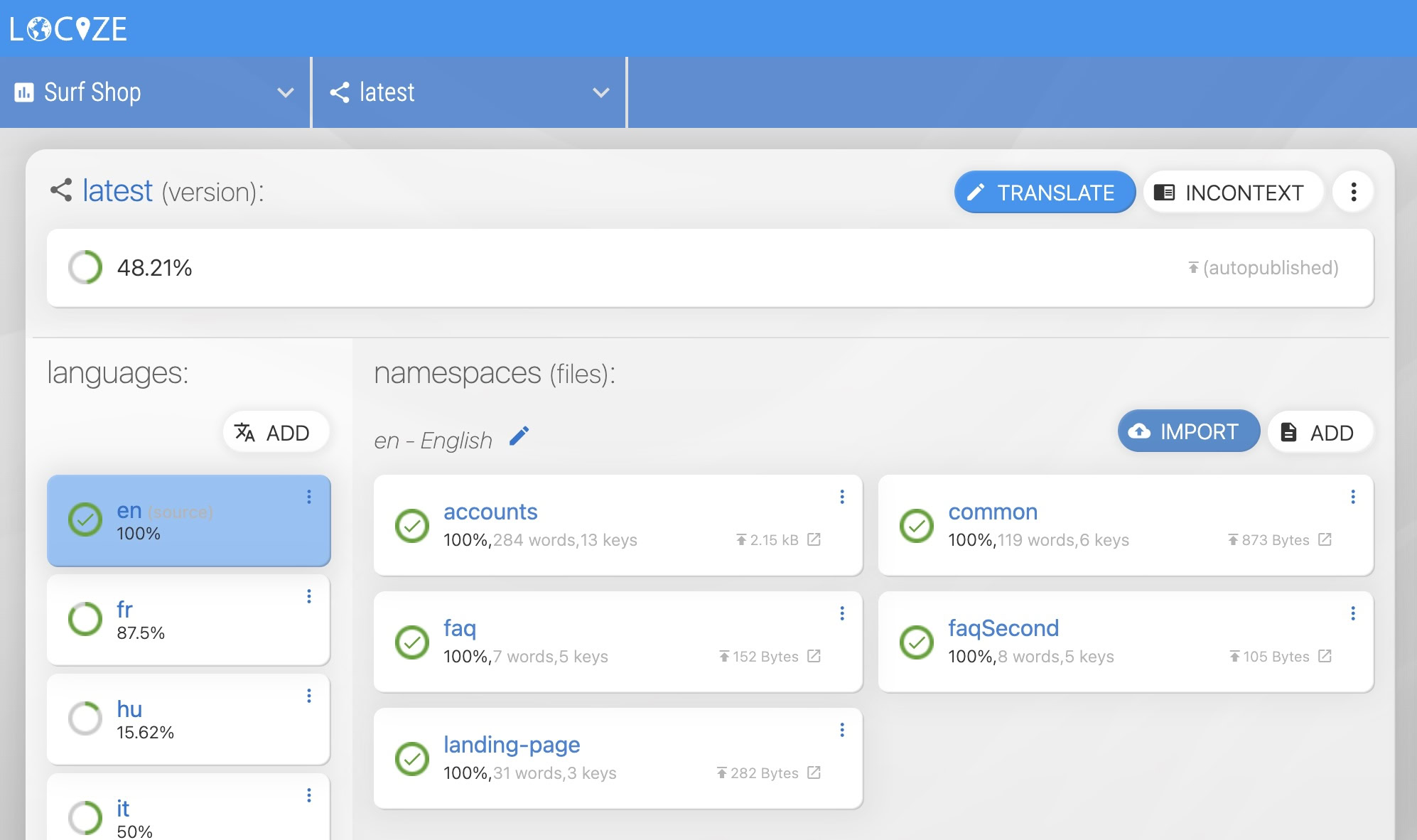
Importing in the CAT / Translation Editor
Click the "IMPORT" button next to the "EXPORT" button:
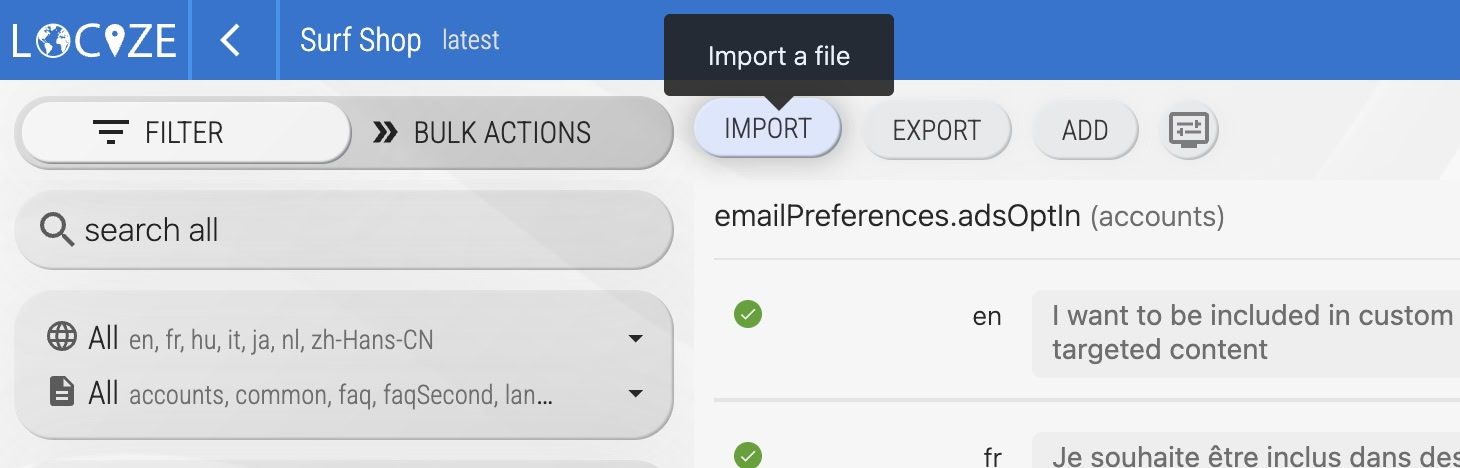
Be sure to click the "SAVE" button after importing.
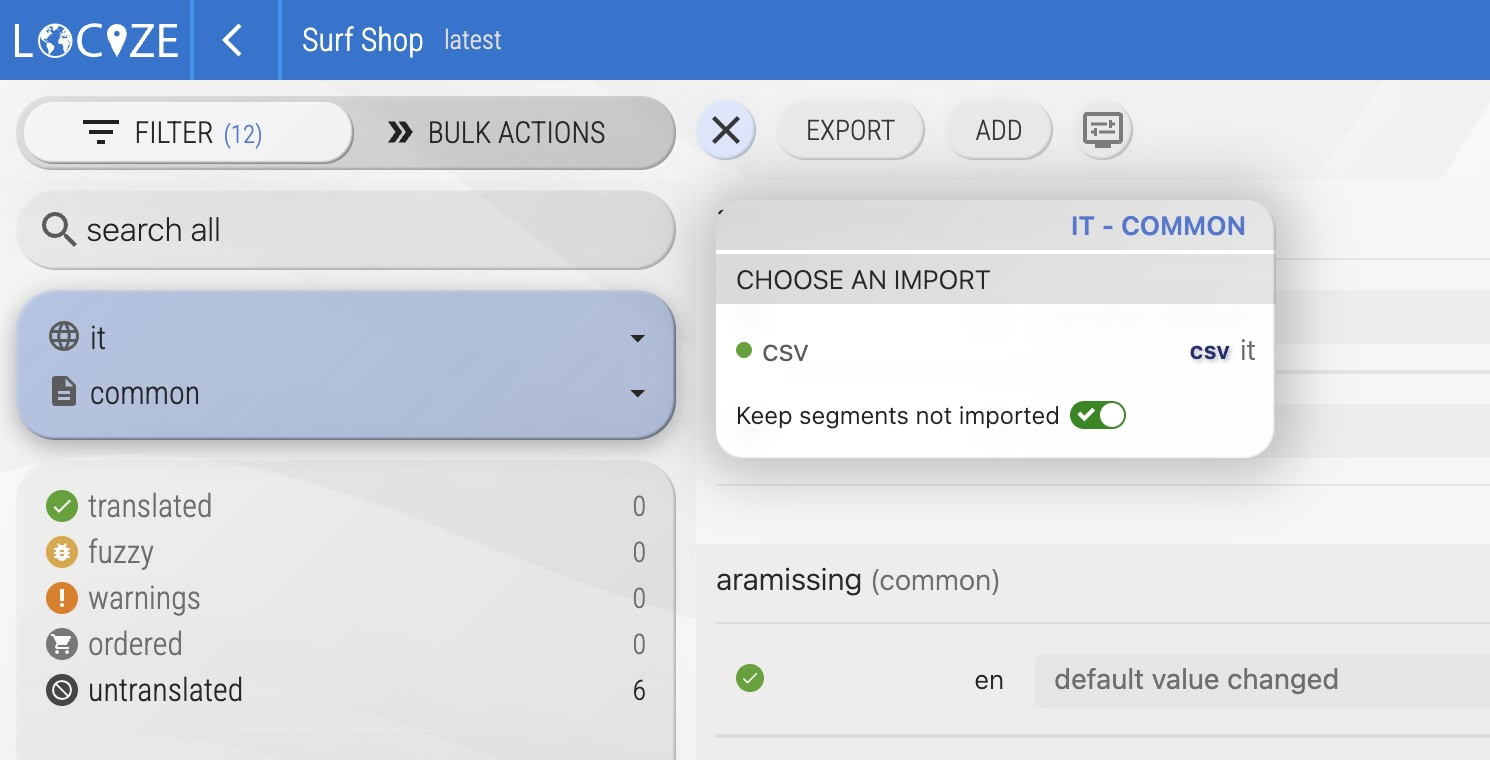
What does "Keep segments not imported" mean?
If you disable this option, any key already present in your project but missing from the imported file will be deleted in Locize.
Importing for a specific language and namespace
To import a file for a dedicated language, select the appropriate language and namespace in the filter before importing:
Importing an "all" format file (CSV/XLSX) for the whole project
To import a file that covers the whole project (like CSV or XLSX), make sure no language or namespace is selected in the filter:
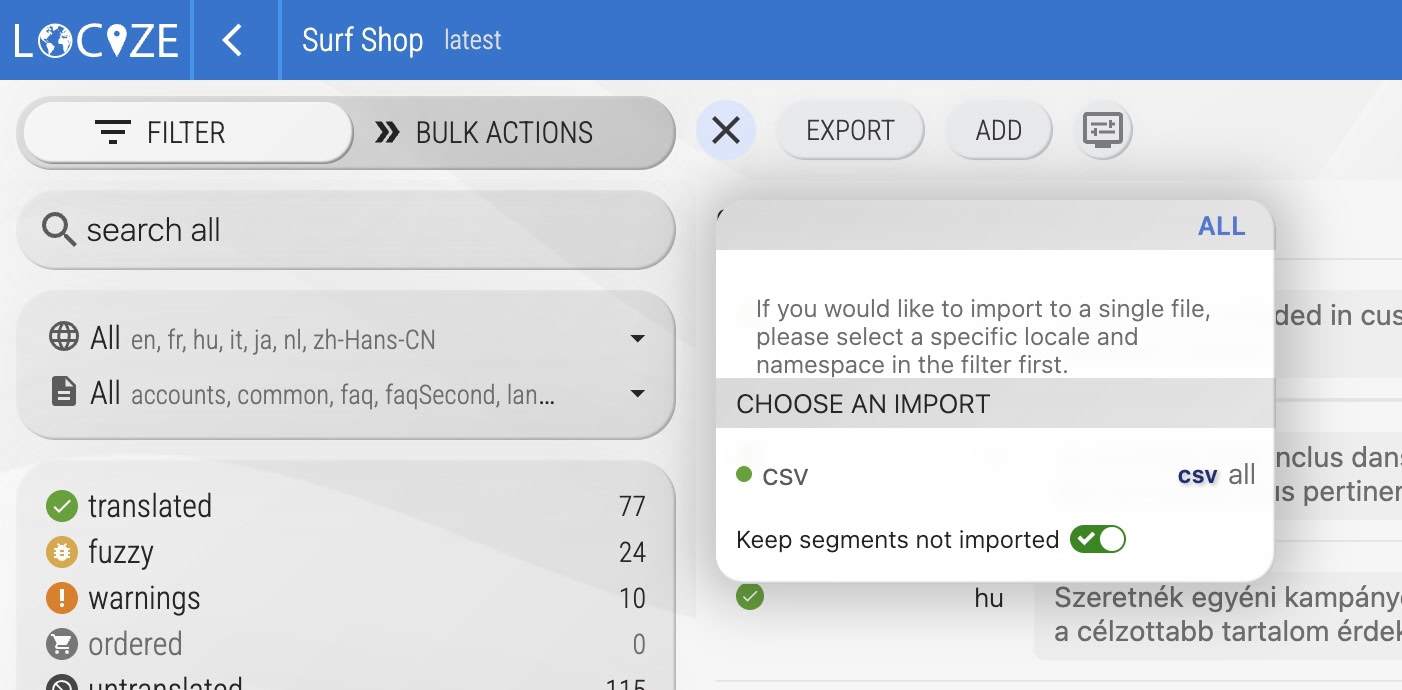
More info about special formats like CSV and XLSX. The "all" format includes a namespace column, making it ideal for importing/exporting multiple namespaces. Ensure the namespace exists before importing this format.