
Backups
Automatic backups of your namespaces. Safe, simple and fully managed: pick a plan, configure how often you want snapshots and how long you want to keep them. Use the Backups tab to browse snapshots, download them as a ZIP or restore any version / language / namespace.
Backup Plan Comparison
| Standard Plan | Pro Plan (Enterprise Recommended) | |
|---|---|---|
| Backup Frequency | Weekly | Daily or Weekly |
| Retention Power | 25 Snapshots | 365 Days of History |
| Version Scope | 1 Selectable Version | All Versions & Namespaces |
| Best For | Development/Testing | Production & Compliance |
Enable a plan in the Add-ons section of your organization’s Projects tab, then configure and use it under the project’s Backups tab. See pricing for details.
Where backups are saved
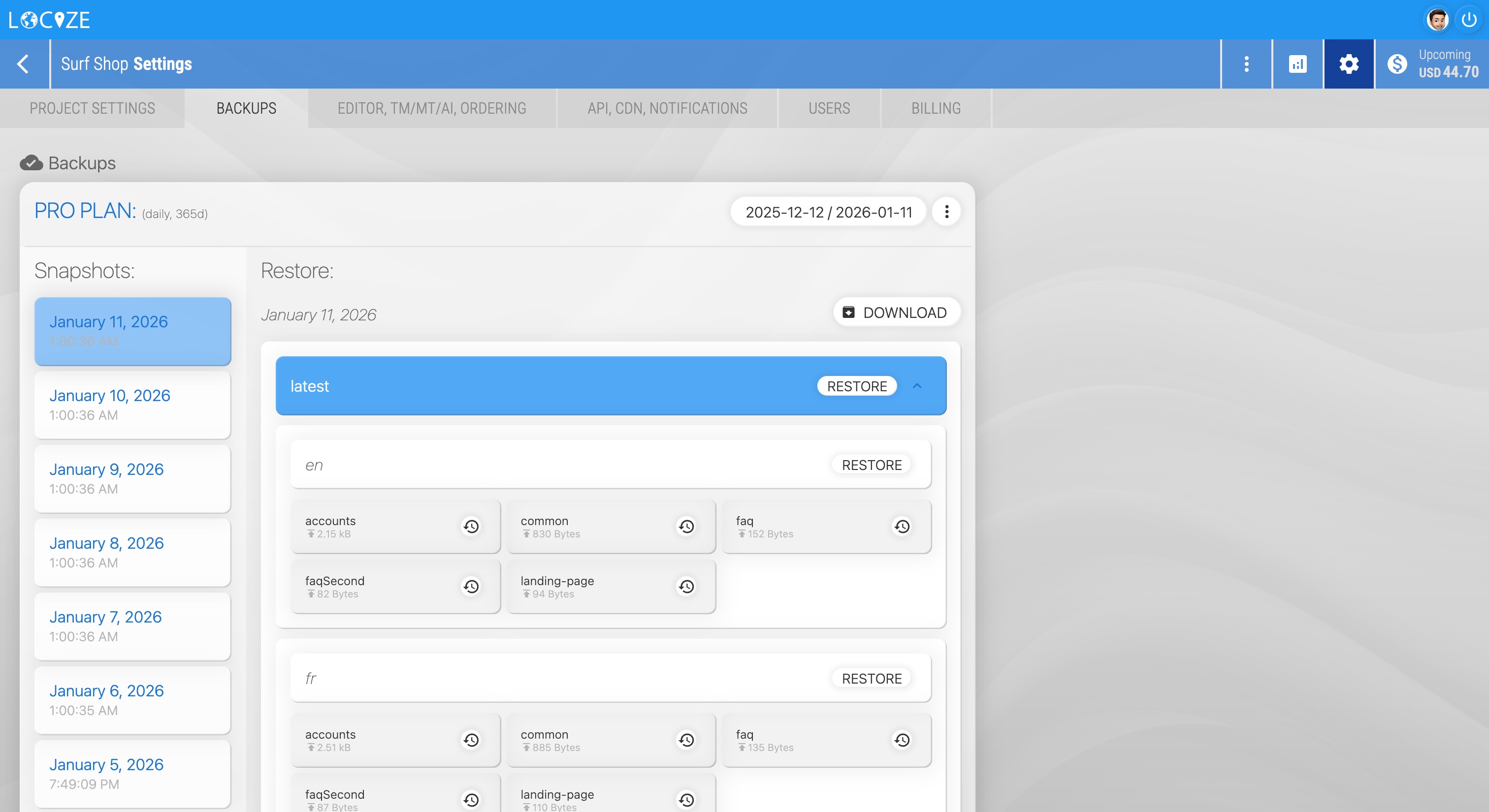
Backups are stored securely by Locize and are accessible from your project’s Backups tab. Each snapshot contains all namespaces, grouped (by language and version) under that run’s timestamp. Locize handles storage, retention and security.
How to enable backups
- Open your organization, go to the Projects tab and select the project. Its plan and add-ons are managed there. (A project that is not billed with its organization keeps its own Billing → Add-ons page.)
- Under Backup Service, choose Standard or Pro and confirm purchase.
- Backups for projects with the service enabled appear automatically in each project’s Backups tab.
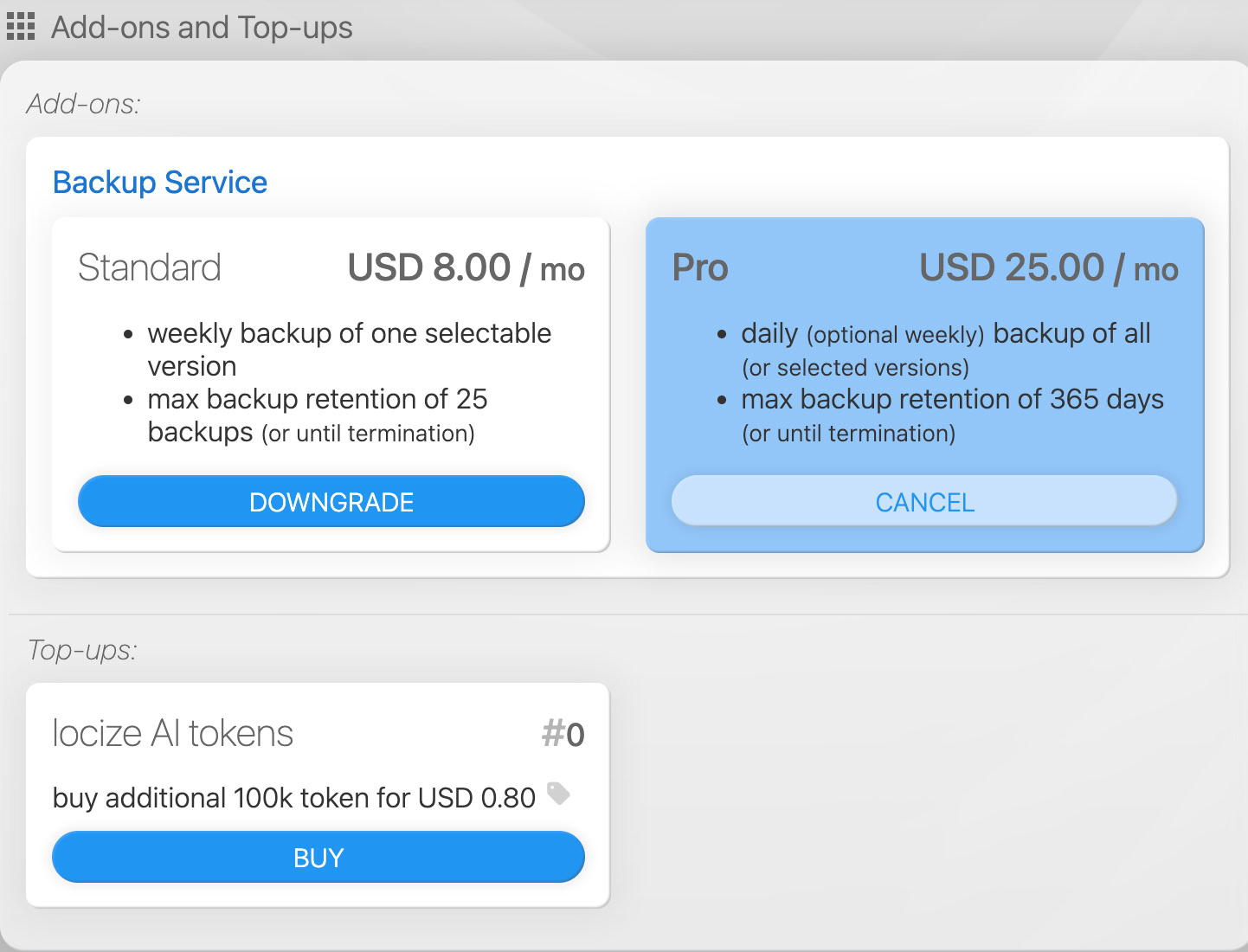
Note: enabling a plan bills the project monthly. You can switch plans at any time. Retention cleanup runs afterwards and removes anything beyond the new plan’s limits gradually.
Configure backups for a project
- Open your project settings in Locize.
- Click the Backups tab.
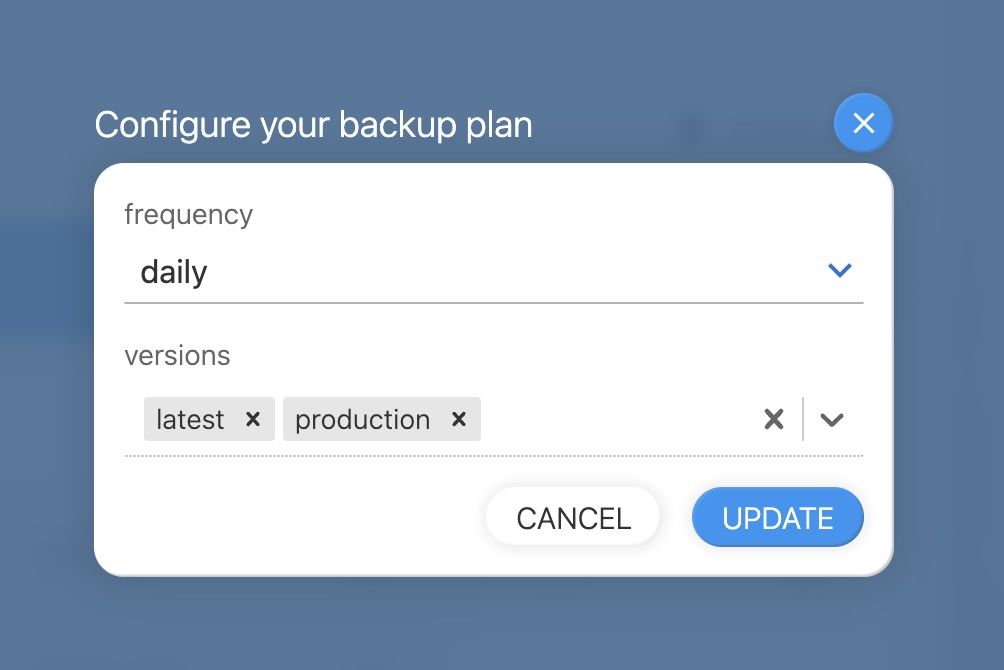
- Click Configure in the "more" (3 dots) menu.
- Choose the scope:
All(default): backs up every version. Only for Pro plan, Standard plan can select only 1 version- Or select specific version(s) to limit backups.
- Choose frequency (depends on plan):
- Standard: weekly only.
- Pro: daily or weekly.
- Save.
Browse snapshots
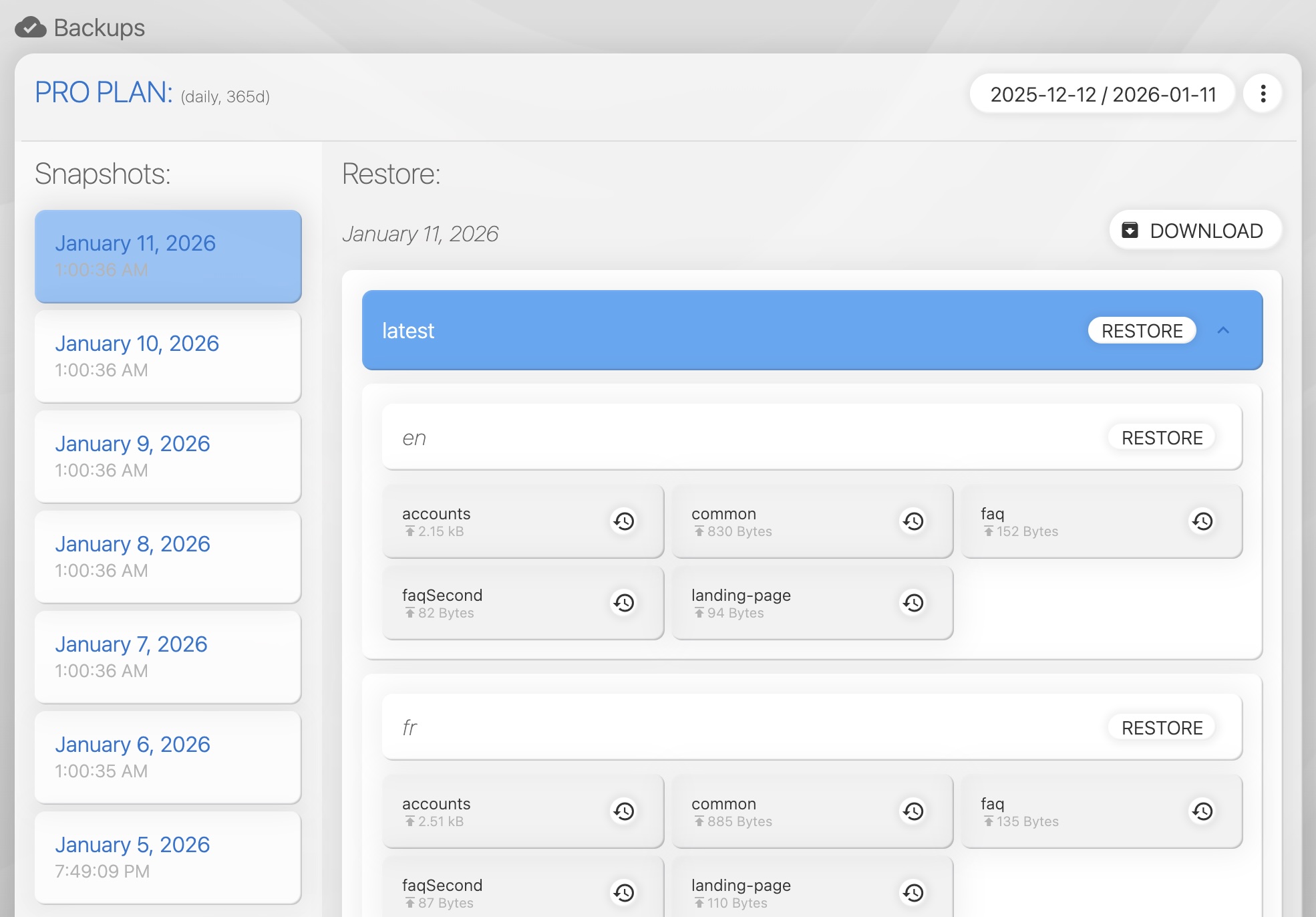
- The Backups tab shows a left-hand list of snapshot dates (newest first).
- Pick a snapshot to open it and drill down by version → language → namespace.
- You can also filter snapshots by date range to quickly find the snapshot you need.
Download snapshots
- Click Download for a snapshot to create a ZIP with all namespace JSON files for that run.
- Large snapshots may take a few seconds to prepare.
Restore snapshots
You can restore at three levels:
- Version: restore an entire version (all languages and namespaces).
- Language: restore all namespaces for a language (e.g.
en). - Namespace: restore a single namespace (e.g.
common) into the chosen version/language.
Restore behavior
- Restores write back to your project’s translation store and will overwrite current keys for the selected scope, but the process is always controlled and transparent.
- The restore workflow shows a detailed list of files and changes to be restored, and requires explicit confirmation before any data is changed.
- You can cherry-pick exactly what to restore (whether a whole version, a single language, or just one namespace), ensuring you never roll back more than intended.
- All restore actions are restricted to users with sufficient project permissions and are logged for auditability and compliance.
Billing & costs
- Backups are sold as a plan add-on (Standard or Pro). The monthly price is fixed. (see pricing)
- These fees cover backup creation, storage and retention according to plan limits. No per-file or per-download charges.
- The project's add-ons section (organization → Projects tab) displays:
- Selected plan,
- Frequency and retention settings,
- Snapshot count and total backed-up file count,
- Monthly cost.
Limits & behavior
- Standard plan: weekly backups, max 25 snapshots retained.
- Pro plan: daily or weekly backups, max 365 days retained (or up to 365 snapshots).
- When switching plans downward, existing snapshots are preserved; retention cleanup will remove older snapshots exceeding the new limits over time.
- Backups are created once per scheduled run (the runner runs daily and decides which projects need a snapshot that day based on frequency).
Security & Privacy
Enterprise-Grade Disaster Recovery
- Backups are stored in Locize-managed storage, encrypted at rest, and isolated from your production translation store.
- Data is stored in geographically redundant, isolated environments to ensure maximum resilience and business continuity.
- Backups are never publicly accessible. Access is strictly controlled by your project permissions.
Audit & Compliance Ready.
Maintain a 1-year audit trail of all translation changes with Pro retention, supporting your internal data governance and audit requirements.
Best practices
- Choose Standard for light use, and Pro for production and compliance needs.
- Use the scope option to back up only what you need (e.g., only production versions), which reduces snapshot size and speeds restores.
FAQ
Q. Will downgrading delete my backups immediately?
A. No, existing backups remain. The retention job will remove snapshots exceeding the new plan limits over time.
Q. Can I download a ZIP?
A. Yes, choose a snapshot and use Download or download and create a ZIP.
Q. Who can restore backups?
A. Only users with appropriate project permissions (admins and managers without scope limit) can perform restores.
Q. How often are backups created?
A. Depends on your plan and configuration. The backup runner checks once per day and runs backups according to the plan frequency (daily/weekly/etc.).