
Versioning
Versioning is a key feature in Locize that helps you manage, stage, and release translations in a controlled way. By using versions, you can separate development, staging, and production resources, roll back changes, and support multiple app versions in parallel.
versioning part of showcase/demo
No Versioning
For small projects or those with continuous deployment, you can use Locize without versioning; just work with the default latest set of resources. This is simple and effective when you don't need to stage or freeze translations.
"Rolling" Versioning
Larger projects often use staged versioning, such as:
development (latest) → staging → production
When you're ready to promote translations to the next stage, copy resources from latest to staging or production by creating a new version (e.g., naming it "staging").
Semantic Versioning
Semantic Versioning is useful when you deploy multiple app versions and can't control when users upgrade (e.g., mobile apps). This lets you maintain translations for each app version:
- 1.0.0 → patch (bugfix) → 1.0.1
- 1.0.1 → minor (feature) → 1.1.0
- 1.1.0 → major (breaking) → 2.0.0
When deploying, create a new version based on your latest version and update your production code to use the new version.
- development → use latest
- published 1.0.0 → use 1.0.0
- published 1.1.0 → use 1.1.0
- published 1.1.1 → keep using 1.1.0 if no changes
Most of the time, you don't need to create a new version for every bugfix.
Avoid creating versions based on timestamps. Too many versions can make management difficult.
Merging Versions
To keep versions in sync, you typically have two main versions:
- latest: your current work-in-progress/development version
- production: your current production version
There are two main options to sync versions:
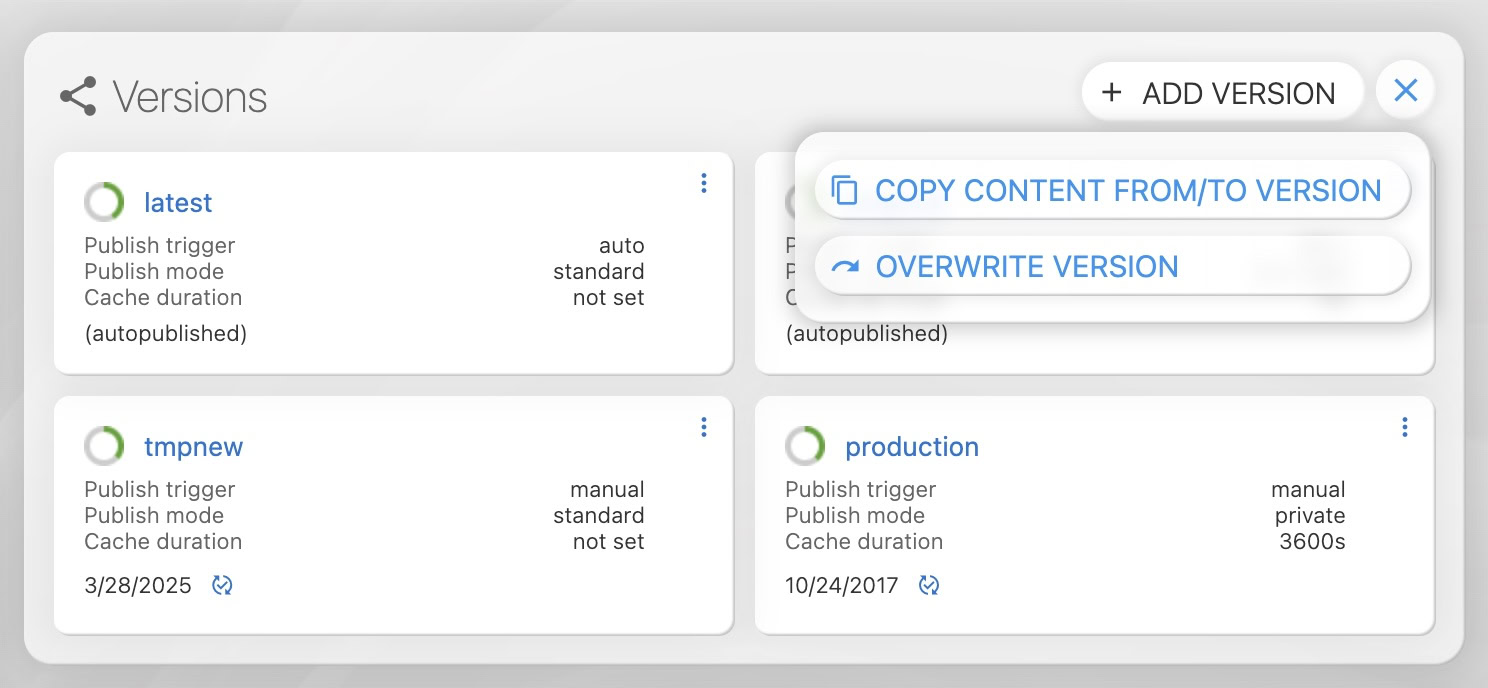
a) “OVERWRITE WITH DATA FROM”
When you're ready to go live, use the "OVERWRITE VERSION" option in the versions menu to overwrite the production version with the content of the latest version. OVERWRITE is faster than COPY TO and does not incur modification costs.
b) “COPY TO”
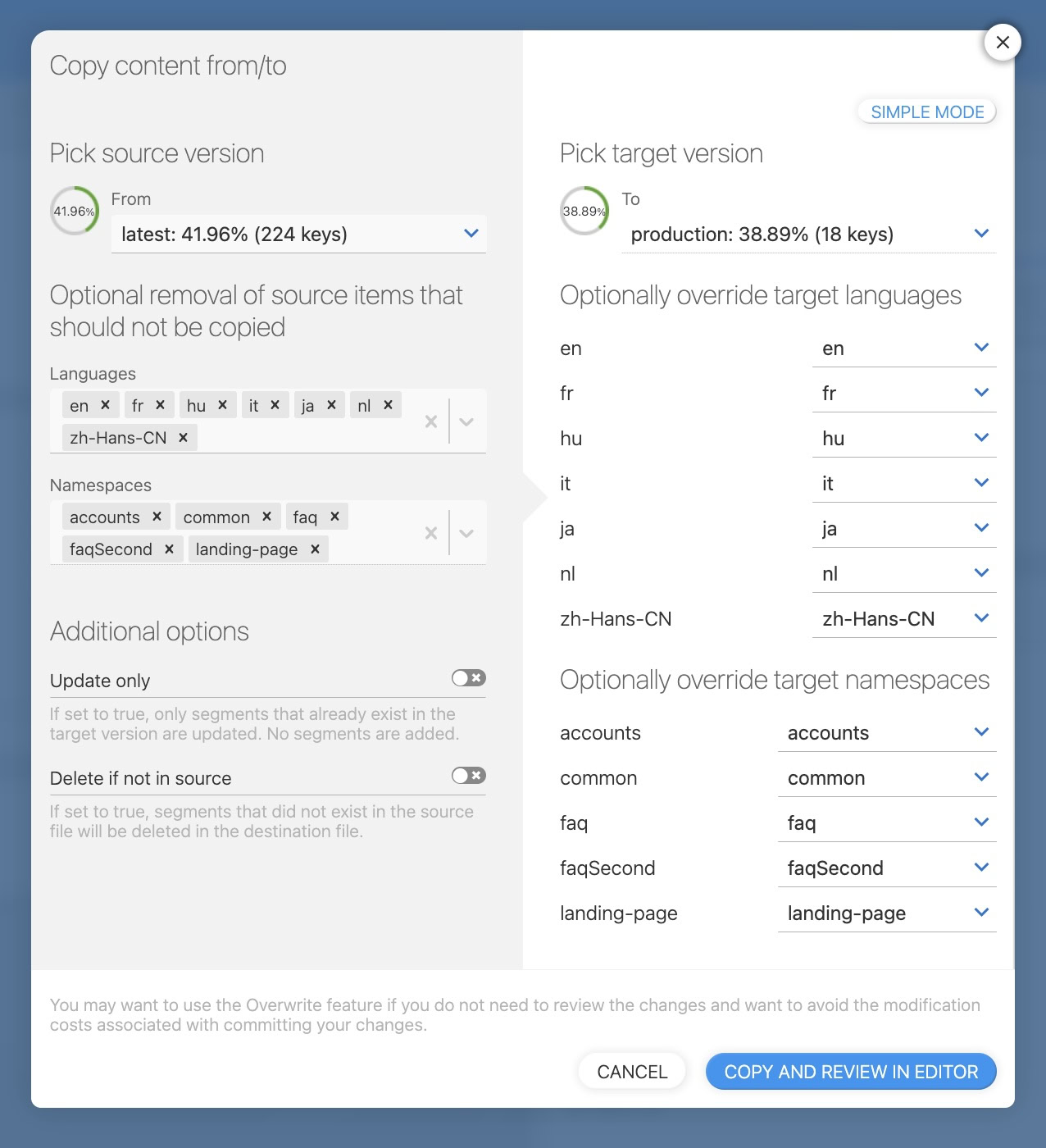
Use "COPY CONTENT FROM/TO VERSION" on the latest version to copy changes to the production version. Only new or changed values are copied. You can review changes before saving. COPY TO is slower than OVERWRITE and incur modification costs.
Check out this section in the video to see how this can be used.
With the "COPY TO" option, you can also use "expert mode" for fine-tuned control:
Update your code
Remember to update your locizify script to include targeted version:
<script id="locizify" version="staging" ...
  src="https://unpkg.com/locizify@^10" />
Or your i18next with Locize backend:
i18next.init({
  // ...
  backend: {
    apiKey: '{{apiKey}}', // you should not expose your api key in production...
    version: 'staging',
    projectId: '{{project_Id}}'
  }
});
Should I use versions or branches? Read about it here.