
Checks/Issues
Locize helps you keep your translations high-quality and consistent by automatically performing a variety of checks. These checks identify potential issues, inconsistencies, and errors in your translations, making it easier to maintain accuracy and streamline your localization workflow.
On this page, you'll find an overview of possible issues, how to resolve them, and how to manage checks in the CAT (Computer-Assisted Translation) interface / Translation Editor.
How checks and issues are displayed
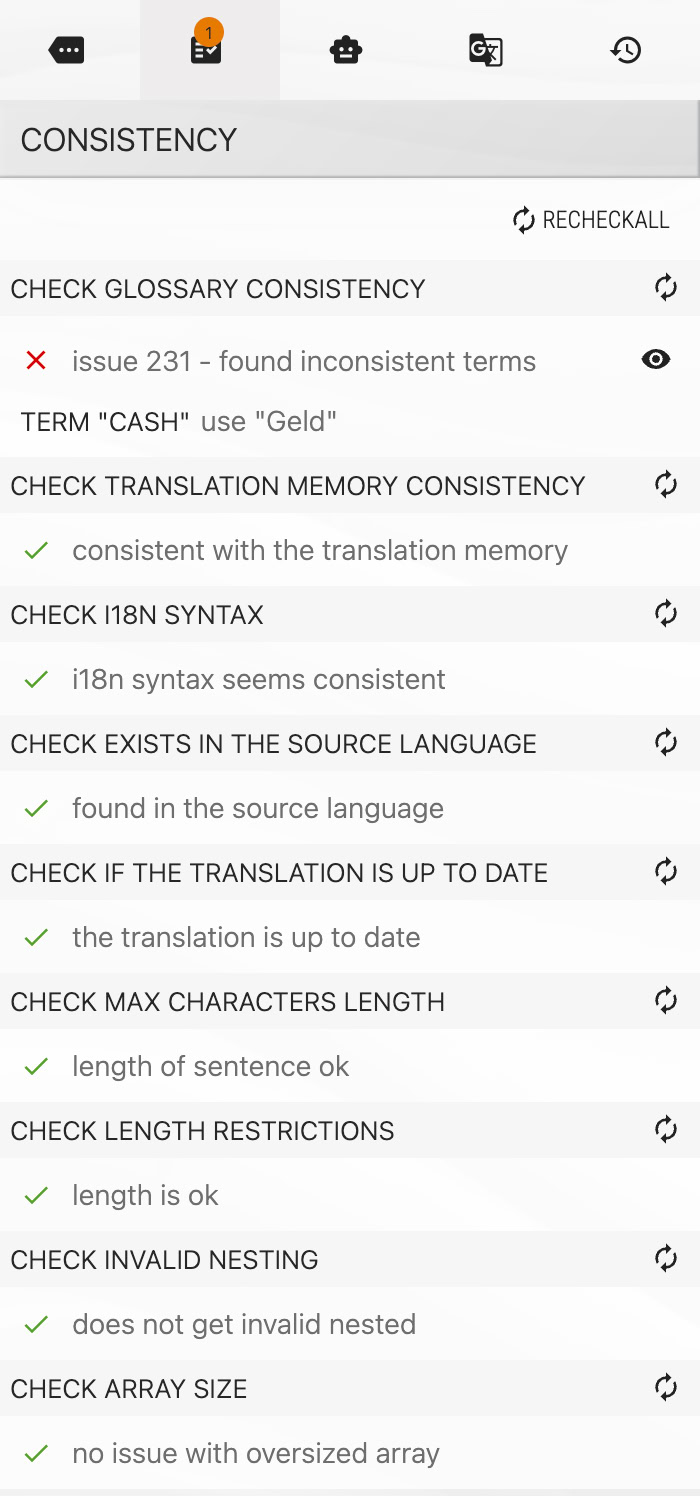
The CAT interface / Translation Editor will show warnings or errors on specific keys. For details, follow the link to the right-hand column for the selected key:
Running all checks for your project
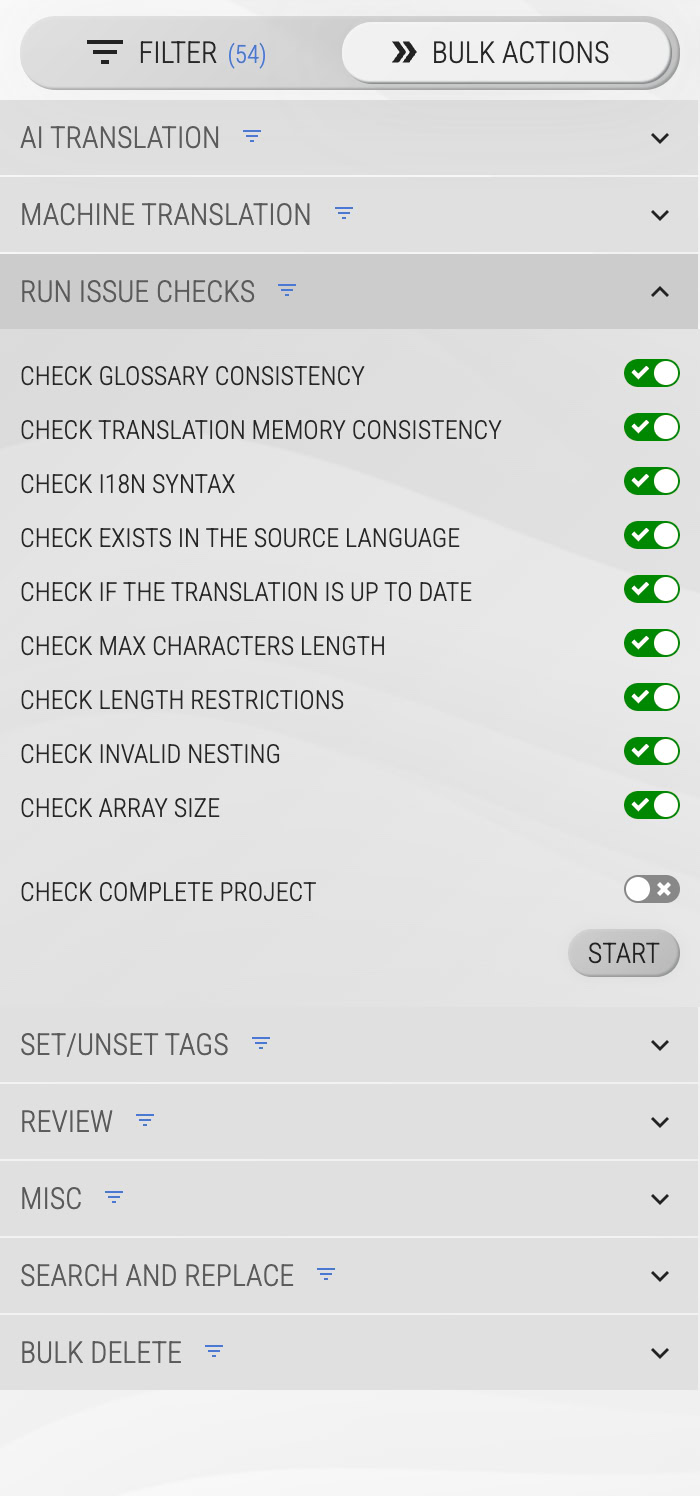
You can run checks for a single segment on the right sidebar or for your entire project on the left side bar in the bulk actions:
In the bulk actions section, checks can be run for all segments or the currently filtered set. In the CAT interface / Translation Editor, checks run for the selected language and namespace.
Check this section in the video to see how Checks/Issues can be used.
Related: The deterministic checks on this page are complemented by Quality Estimation: an AI evaluator that scores the confidence of AI translations. Low-confidence AI translations can be found via the "by AI: needs review" state filter in the editor.
checks/issues part of showcase/demo
Ignoring checks
If a check is not relevant, you can use the eye icon button to ignore an error for a specific segment.
Generally ignoring checks
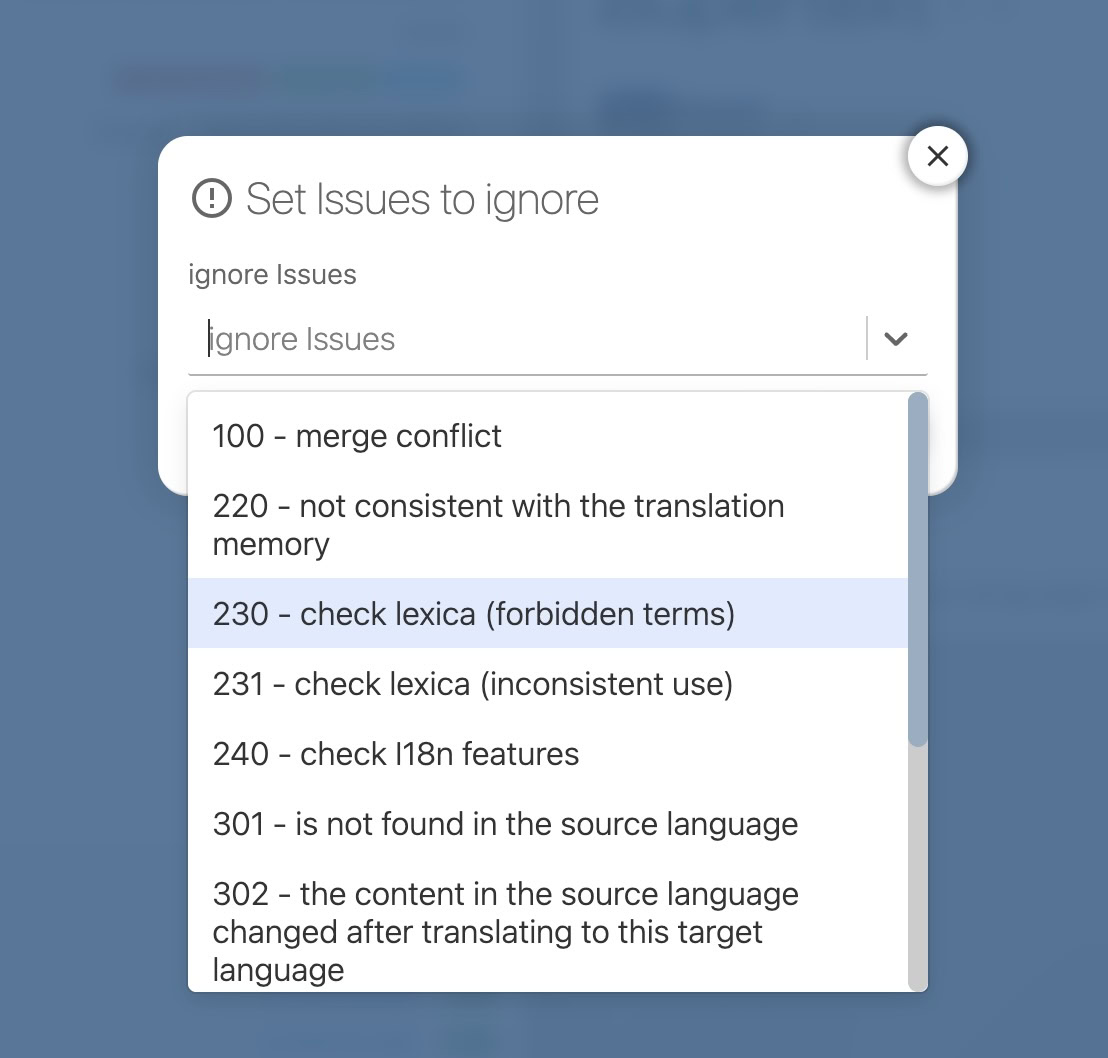
You can also generally ignore specific checks for your project. Go to your project settings, "EDITOR, TM/MT/AI, ORDERING" tab, and click the "Issue settings" row in the "Translation Quality" card.
Issue weights and "fix with AI"
In the same "Issue settings" table you set, per issue, whether it is ignored, its weight and whether "fix with AI" is offered.
- Weight (high, medium or low): how much the issue matters to the people using your app. The editor shows the weight next to the issue in the issues tab, and the warnings and errors filter lists the issues high first. Issues without a weight come last. Warnings and errors stay as they are; the weight is shown beside them.
- Fix with AI: adds a "fix with AI" button to the issue in the issues tab. It opens the AI assistant with the issue as the instruction. The answer goes through the same check as every AI translation (syntax, placeholders, tags and plural forms) and is only a proposal: you set it or discard it. Each use costs AI tokens of your plan, or a call to your own AI provider if you configured one, so it is off until you switch it on. It is offered only for issues an AI can fix from the source text without a judgement (see the table).
New projects start with the default weights below and "fix with AI" switched off. Projects created earlier show no weights until you set them; the button "use the default weights" fills in the defaults. Tenants and branches take the issue settings of their parent project when they are created.
| Issue | Default weight | "Fix with AI" possible |
|---|---|---|
| 100 - a conflict was detected in the returned data | high | no |
| 220 - not consistent with the translation memory | low | no |
| 230 - found forbidden term (glossary) | medium | yes |
| 231 - inconsistent terms (glossary) | medium | yes |
| 240 - detected i18n syntax inconsistency | high | yes |
| 241 - MessageFormat argument names differ | high | yes |
| 242 - Fluent variable names differ | high | yes |
| 243 - plural forms do not fit the language | medium | yes |
| 244 - MessageFormat argument name not allowed | high | no |
| 250 - duplicate source value | low | no |
| 260 - inconsistent translation of the same source value | low | no |
| 301 - is not found in the source language | low | no |
| 302 - the source changed after translating | medium | no |
| 303 - not used for a long time | low | no |
| 305 - unnecessary override | low | no |
| 310 - longer than the defined max characters | medium | yes |
| 311 - key or value exceeds the technical limit | high | no |
| 312 - potentially dangerous markup | high | no |
| 401 - terminal punctuation differs | low | yes |
| 402 - first-letter case differs | low | no |
| 403 - numbers differ | medium | yes |
| 404 - bracket counts differ | low | yes |
| 405 - unbalanced brackets | low | yes |
| 406 - whitespace issues | low | no |
| 407 - repeated word | low | no |
| 408 - special characters differ | low | no |
| 409 - URL count differs | medium | yes |
| 410 - HTML tags differ | high | yes |
| 420 - gets nested into another string | high | no |
| 430 - array issue | medium | no |
Editor issue while saving
Issue 100 - a conflict was detected in the returned data
This one is not a check you can run: the editor reports it while saving. After a save the editor reads the saved keys back and compares them with what you entered. If the answer differs from what you typed, the segment is marked with issue 100 and stays marked as unsaved, so that a change made by someone else is never overwritten silently.
Your own change is written before the comparison happens, so nothing is lost. Reload the page to see the stored state.
Typical causes:
- Someone else edited the same key, for example a colleague in the editor, a second browser tab of your own, or a write through the API, the CLI or
saveMissingfrom a running application. This is what the check is there for: compare the two versions and keep the one you want. - Automatic translation filled the key while you were editing it, if the automatic translation workflow is enabled and the key was new in the source language.
If you see it repeatedly on keys nobody else touches, tell us at support@locize.com with the project, language and namespace, and roughly when it happened.
Consistency checks
Some checks, such as consistency checks, are performance-intensive and must be triggered manually.
Issue 220 - not consistent with the translation memory
This issue means another translation in the translation memory was translated differently. You can choose to update the translation for consistency or ignore the issue if the inconsistency is intentional.
Issue 250 - duplicate source value
Another key in your project already uses the exact same source value. This often happens when a generic term (for example "active") is added again as a new key instead of reusing the one that already exists, especially across a shared common namespace. The issue lists the other keys that share the value (up to 10 are shown), so you can reuse one of them and remove the duplicate, or ignore the issue if the keys are intentionally separate (for example when they need different translations depending on context).
Values shared by more than 25 keys are not flagged: reuse at that scale is considered intentional (for example recurring product attributes or badge labels), not an accidental duplicate.
Like the translation-memory check, this is a consistency check, so it is performance-intensive and runs only when triggered manually (for a single segment in the right sidebar, or for all or filtered segments via the bulk actions). Flagged keys appear under the warnings state filter in the editor.
Issue 260 - inconsistent translation of the same source value
Another key with the exact same source value is translated differently in this language (for example one "Save" key translated as "Speichern" while another one says "Sparen"). A term is rarely translated wrong everywhere but often wrong somewhere, so these disagreements are where mistranslations usually hide. The issue lists the other keys together with their differing translations (up to 10 are shown), so you can align them, or ignore the issue where the difference is intentional (the same source value can legitimately need different translations depending on context).
Only keys that are actually translated in the checked language are compared: an untranslated key does not count as a disagreement. Like the duplicate-source check, values shared by more than 25 keys are not flagged, and the check runs only when triggered manually (for a single segment in the right sidebar, or for all or filtered segments via the bulk actions). Flagged keys appear under the warnings state filter in the editor, which you can combine with the language filter to clean up one language at a time.
Check glossary consistency
Glossary checks are also performance-intensive and must be triggered manually. They only work if you have uploaded a glossary file in your settings.
Issue 230 - found forbidden term (glossary)
The translation contains a term that is forbidden in your project's glossary.
Issue 231 - inconsistent terms (glossary)
The segment matches a glossary entry in the source language, but no allowed term was used in the target language.
Check i18n syntax consistency
This check compares source and target translations for matching i18n syntax features (such as interpolation, nesting, etc.).
Issue 240 - detected i18n syntax inconsistency
The translation contains a different number of i18n syntax elements compared to the source.
Issue 241 - MessageFormat argument names differ
Only in projects that use the MessageFormat (v1 and v2) i18n format. The translation uses different argument names than the source, for example {nom} instead of {name}, or {n, plural, ...} instead of {count, plural, ...}, also for arguments inside plural and select cases. In MessageFormat v2 the arguments are the variables: {$nom} instead of {$name}, a variable dropped from a pattern, or {name}, which is a literal text in v2, not a variable; variables in options and selectors count too, a .local variable declared in the message does not. Your app passes values by argument name, so a renamed argument is not filled in at runtime. The issue lists the missing and the added names. # inside a plural case is not an argument, and the order and the number of uses do not matter.
Issue 242 - Fluent variable names differ
Only in projects that use the Fluent i18n format. The translation uses different variable names than the source, for example { $nom } instead of { $name }, or a select on { $n -> ...} instead of { $count -> ...}, also for variables inside variants and function calls like NUMBER($count). Your app passes values by variable name, so a renamed variable is not filled in at runtime. The issue lists the missing and the added names. Term and message references (-brand, other-message) are not variables, and the order and the number of uses do not matter.
Issue 243 - plural forms do not fit the language
Only in projects that use the MessageFormat (v1 and v2) or the Fluent i18n format. Each language has its own plural forms, its CLDR plural categories: English uses one and other, Russian one, few, many and other. A plural that misses a form the language needs, for example a Russian translation with only one and other, shows the other form for numbers like 2 or 5, which reads wrong to your users. A form the language does not have, for example zero in German, is never used. The issue lists, per plural argument, the missing forms with example numbers (few (2, 3, 4)) and the unused ones.
What counts:
- MessageFormat v1
pluralandselectordinal, MessageFormat v2.matchselectors declared with:numberor:integer(also through.local;select=ordinalchecks the ordinal forms), and Fluent selects whose variant keys are all plural categories or numbers ({ $count -> [one] ... *[other] ... }). Other selects, for example on a gender, are not checked. With several selectors in MessageFormat v2, each plural selector's column of keys is checked. - A form the language needs is
otherand every form a whole number below one million stands for. It is present when the plural has it, or when exact cases cover every whole number below one million it stands for: in English=1coversone, in Russian it does not, because Russianonealso stands for 21, 31 and so on. - The other forms of the language are optional:
manyin French, Spanish, Italian, Portuguese and Catalan (exact millions only) and in Czech, Lithuanian and Slovak (decimals only). An optional form without a case is not an issue; the issue details show it as "untranslated (optional)". - In Fluent the default variant (
*[...]) also counts asother, so the usual Russian[one] [few] *[many]is complete. In MessageFormat v2 the catch-all key*counts asother, and number keys like0or1are exact cases.
Every value is checked on its own in every language, the source language too, so a missing form is found without comparing with another language. A value that does not parse is skipped, its syntax error is shown already. The check is a warning and blocks nothing: you can save as before, and the issue appears after saving, when the checks run. AI and machine translations are checked against the same rule before they are stored; a translation stored with a form missing is marked as needing review, unless the project's Mark machine translations setting is never (see Review workflow).
Issue 244 - MessageFormat argument name not allowed
Only in projects that use the MessageFormat (v1) i18n format. An argument name may not contain punctuation or spaces, for example {user.name}, {first-name} or {placeholder:space}. The MessageFormat syntax does not allow them, and the libraries most apps use to render MessageFormat messages (react-intl, intl-messageformat and i18next-icu, all based on FormatJS) reject the whole message: i18next-icu, for example, then shows the raw text, braces included, with no value filled in. Letters of any script, digits and _ are fine, as are argument numbers like {0}. The issue lists the names. Every value is checked in every language, the source language too, since such a name usually comes from your code: rename the argument there and in the translations. The check is a warning and blocks nothing; some other MessageFormat libraries accept these names.
Miscellaneous checks
Check exists in the source language
Issue 301 - is not found in the source language
The key was only imported into a target language. It is recommended to add the content in the source language as well.
This may also affect your translation statistics and the percentage of translated segments.
Check if the translation is up to date
Issue 302 - the content in the source language changed after translating to this target language
There was a change to the source content. The translation might be outdated or incorrect. Check if the provided translation is still valid.
Whether it is still valid is a human judgement call, so it is not automated: any team member whose permission covers that target language can decide it, typically whoever made the source edit or the reviewer of that language. To find the affected segments, filter by warnings (the filter shows a per-issue breakdown, and each affected segment also shows the issue text right under the target field).
If the translation is still valid, confirm it: select the segment's target language, open the checks panel on the right and click CONFIRM at "Translation needs no change?" under Check if the translation is up to date:
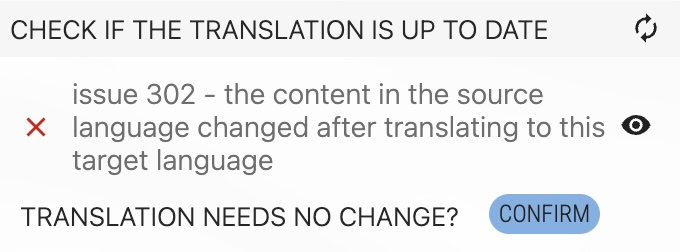
Do not forget to click the SAVE button after clicking CONFIRM.
Since September 2026 a source change also marks the translations as needing review (project setting Review on source change, on by default). Confirming the segment in the review sense clears that mark; issue 302 keeps flagging the timestamp order until it is confirmed here or the translation is saved again.
Confirming marks the translation as up to date again: the warning disappears and the segment also drops out of the "Include if source value changed after target value" selection of translation orders. Saving a new translation clears the warning as well, whether it comes from the editor, a bulk action or an imported order result.
Check for unused keys
Issue 303 - not used for a long time
This key was reported as used in your running application before, but not within the last year, so it may be safe to remove. It relies on the "last used" usage data you can report with the locize-lastused script or the API, so it only appears for projects that send this information.
Only keys that were reported as used at least once and then went quiet are flagged. Keys that were never reported are treated as unknown (they may simply not be covered by your usage tracking), so they are not flagged here; you can still find them via the "usage never reported" option in the editor's last-used filter. Always review before removing to avoid accidental data loss.
Like the consistency checks, this runs only when triggered manually (for a single segment in the right sidebar, or for all or filtered segments via the bulk actions).
Check if an overridden value (tenants, branches) is unnecessary
Issue 305 - unnecessary override when value equals value in source project
You can remove unnecessary overrides because the values in the tenant or branch, as well as the value in the parent project, are all equal. Use the matching bulk action under "misc" to remove all of these values at once.
Check max characters length
issue 310 - is longer than the defined max characters
In the source language, a max length is defined for this sentence, and the provided translation is too long.
Check technical length limits
Issue 311 - key or value exceeds the technical limit
Unlike issue 310, this one is not about your own max-length setting but about the limits of the storage itself: a key may be up to 65,535 characters long, and key plus value together up to 409,000 characters. A segment above either limit cannot be saved, so shorten the value, or split the content across several keys. You will normally only meet this issue with generated keys or with very large blocks of text pasted into a single translation.
Check for dangerous markup
Issue 312 - potentially dangerous markup
The value contains markup that could execute code when your application renders translations as HTML: <script>, <iframe>, <object> or <embed> tags, event-handler attributes (onclick=, onerror=…), javascript: or data:text/html URLs, or srcdoc attributes. These are reported as errors: if you render translations without escaping (for example dangerouslySetInnerHTML, v-html, or i18next with escapeValue: false), a translator account or a leaked write-scoped API key could otherwise inject executable content into your application.
The check also warns when a translation adds markup that the source text never had, since that is how injected markup usually starts. If your target languages legitimately add markup (rare), ignore the issue for those segments or the whole check.
This check runs on source and target languages alike, so a compromised source value is caught too.
Blocking (default on). Saving is rejected, in the editor as well as through the API (update, missing, create, review), when a changed value carries the script-executing subset of this issue: <script> tags, on*= event handlers, javascript:/data:text/html URLs and srcdoc attributes. Values that are re-sent unchanged (for example by locize sync) are never rejected, and <iframe>/<object>/<embed> embeds are reported but not rejected. The API answers with status 400, code: "DANGEROUS_MARKUP" and a message naming the key and the pattern. Projects that intentionally store such markup can turn it off under Project settings → Editor → Translation Quality → Block dangerous markup; the setting is copied to tenants and branches when they are created. Ignoring issue 312 (above) silences the editor and the statistics only, it does not disable the blocking.
Linguistic checks
These checks compare the translation text itself against the source and run automatically, like the syntax checks. They are locale-aware by design: CJK fullwidth punctuation and brackets count as equivalents, dropping a terminal period is accepted as zh/ja style, French spacing before !?;: is never flagged, locale number formats (1,000.50 vs 1.000,50) and Eastern Arabic digits compare as equal, and languages without letter case are skipped by the case check. In MessageFormat and Fluent projects the checks read the message syntax as syntax: braces, selectors, variant keys and exact cases like =0 or [0] are not counted, and of a plural (a MessageFormat plural or selectordinal, a Fluent select on plural categories) only the other case or the default variant is compared, because every language has its own set of plural cases (a correct Russian translation has more cases than its English source). All linguistic issues are warnings; use the ignore options above if one does not fit your content.
Issue 401 - terminal punctuation differs
The translation ends with different punctuation than the source (for example a dropped trailing colon or question mark). For Spanish, a sentence ending in ? or ! is also expected to contain the inverted ¿/¡ mark.
Issue 402 - first-letter case differs
The translation starts with a different letter case than the source. Only sentence-like values are compared (headline fragments and list labels legitimately differ per language), and conventions such as German noun capitalization are respected.
Issue 403 - numbers differ
A number that appears in the source is missing from (or different in) the translation. Locale formats, 12h/24h time conversions ("9pm" → "21 Uhr") and digits written in another script are treated as equal: Eastern Arabic, Persian, fullwidth, Devanagari, Bengali, Thai and the other Indic and South-East Asian numerals all compare against the source. Digits inside interpolation placeholders are ignored.
Issue 404 - bracket counts differ
The translation has different bracket counts ()[]{} than the source (fullwidth CJK brackets counted as equivalents). Brackets added by the translation when the source has none (for example zh clarifications like (FPS)) are not flagged. Short parenthesized number and gender markers are ignored on both sides, so location(s) → localização(ões) or votre (vos) pays stays silent. An upper-case abbreviation in its own brackets, like (MAD), stays a real parenthetical: dropping it is still reported.
Issue 405 - unbalanced brackets
The translation contains an unclosed or mismatched bracket while the source is balanced (a mirrored emoticon like :( in both is fine).
Issue 406 - whitespace issues
The translation introduces doubled spaces the source does not have, or its leading/trailing spaces differ from the source (relevant for values that are concatenated in your application). A source that carries its own doubled spaces, for example an indented multi-line text, hands them to every translation and is not flagged. Non-breaking spaces used by French typography are never counted as doubles.
Issue 407 - repeated word
The translation contains the same word twice in a row ("the the"). Legitimate doublings such as French reflexives ("nous nous …") or German article sequences are excluded, and languages written without spaces are skipped. A doubling the source itself carries is not flagged either: a hyphenated compound like "Sub-Sub-Indicators" is one word in English, and languages that render it with spaces repeat a word for good reason.
Issue 408 - special characters differ
Characters like © ® ™ ° § appear in the source but not the translation (or vice versa). Currency symbols and & are deliberately not compared: $100 → 100 USD and & → "and"-words are correct localization.
Issue 409 - URL count differs
The translation contains a different number of URLs than the source (both visible text and link attributes are counted). A changed URL is accepted: localized links legitimately differ.
Issue 410 - HTML tags differ
The translation's HTML tags (including react-i18next component tags like <0>…</0>) do not match the source: a tag is missing, added, or broken. A broken tag usually renders as literal text for your users.
File checks
Invalid Nesting
issue 420 - gets nested into another string
This issue exists if there is a key eg. key.nested that would be nested into another key key. The result in a JSON export would then be:
{
  "key": "value"
}
// or
{
  "key": {
    "nested": "value"
  }
}
So you would lose one of the keys in your export. To solve this issue rename one of the keys.
Check array size
issue 430 - check for array issue
The key is in form key.10001 which leads to exporting as an array (eg. in the JSON format). Having such a key would result in the creation of an array with the given number. This check asserts array sizes stay in a limited size (below 100).
You can avoid the conversion of the content to an array by providing a key that has a non-numeric end like key.aString.