
Context
Delivering high-quality localization starts with providing translators the right context. Locize empowers teams to add and manage context for every translation key, ensuring translators understand exactly where and how each string is used in your application.
context information is part of our showcase/demo.
Context information per key/segment
Add specific context for each key or segment while selecting it. This gives translators clear insight into the meaning and intended use of every string.
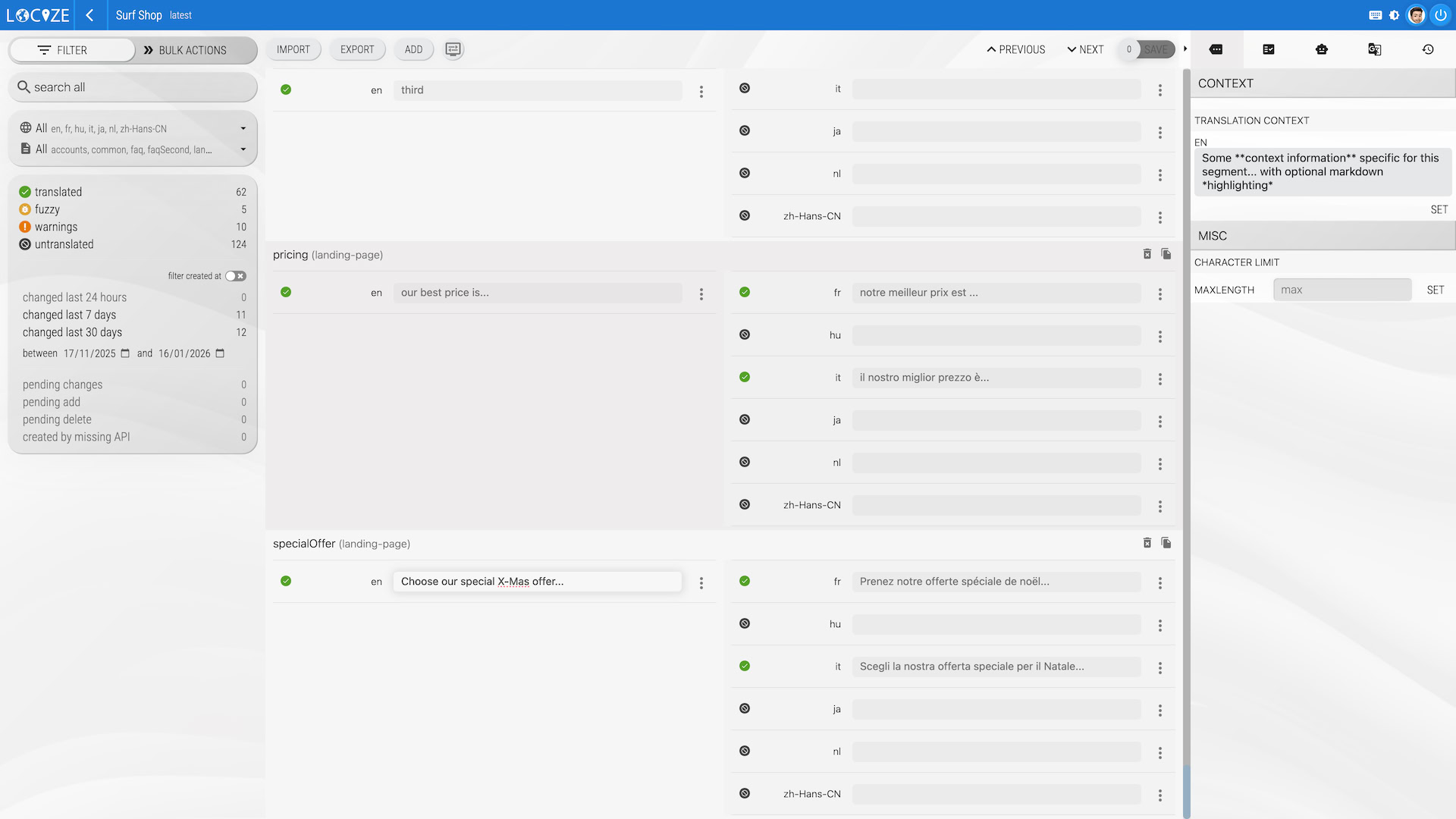
The context field supports markdown syntax, so you can format notes for maximum clarity.
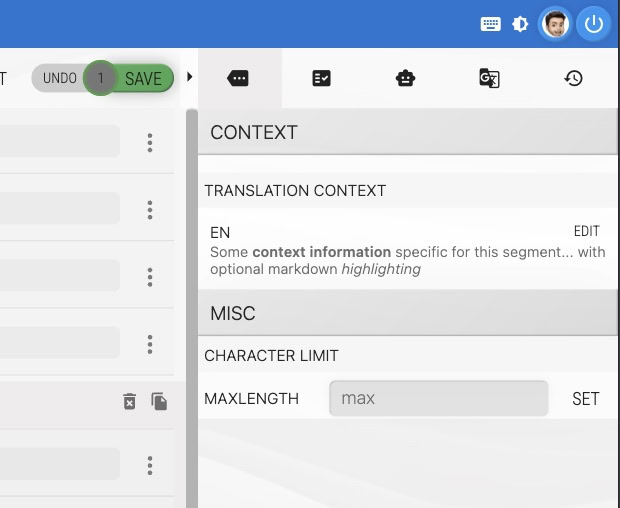
See this section in the video for a live example of context information in action.
InContext
The InContext editor provides real-time, visual context by connecting your website or app directly to your Locize project. Translators can see strings in their actual environment, improving accuracy and speed. There are two approaches:
The Locize popup in your website (recommended)
The recommended approach opens the Locize editor as a draggable, resizable popup directly on your website. Enable it by using the locize module (for example, via locizify or the i18next plugin), and add ?incontext=true to your URL.

A standard Locize user account is required. If the popup shows the login screen, click "Use your existing Locize session" — your browser may ask you to allow storage access for locize.app. If no session is found, log in at www.locize.app in a separate tab (for SAML users: via SAML) and retry. If you still encounter issues, try the iframe approach below.
Your website in Locize (iframe)
Alternatively, the InContext view lets you embed your website or app inside the Locize UI via an iframe, so translators can edit content in its true context. For more details, see this guide.
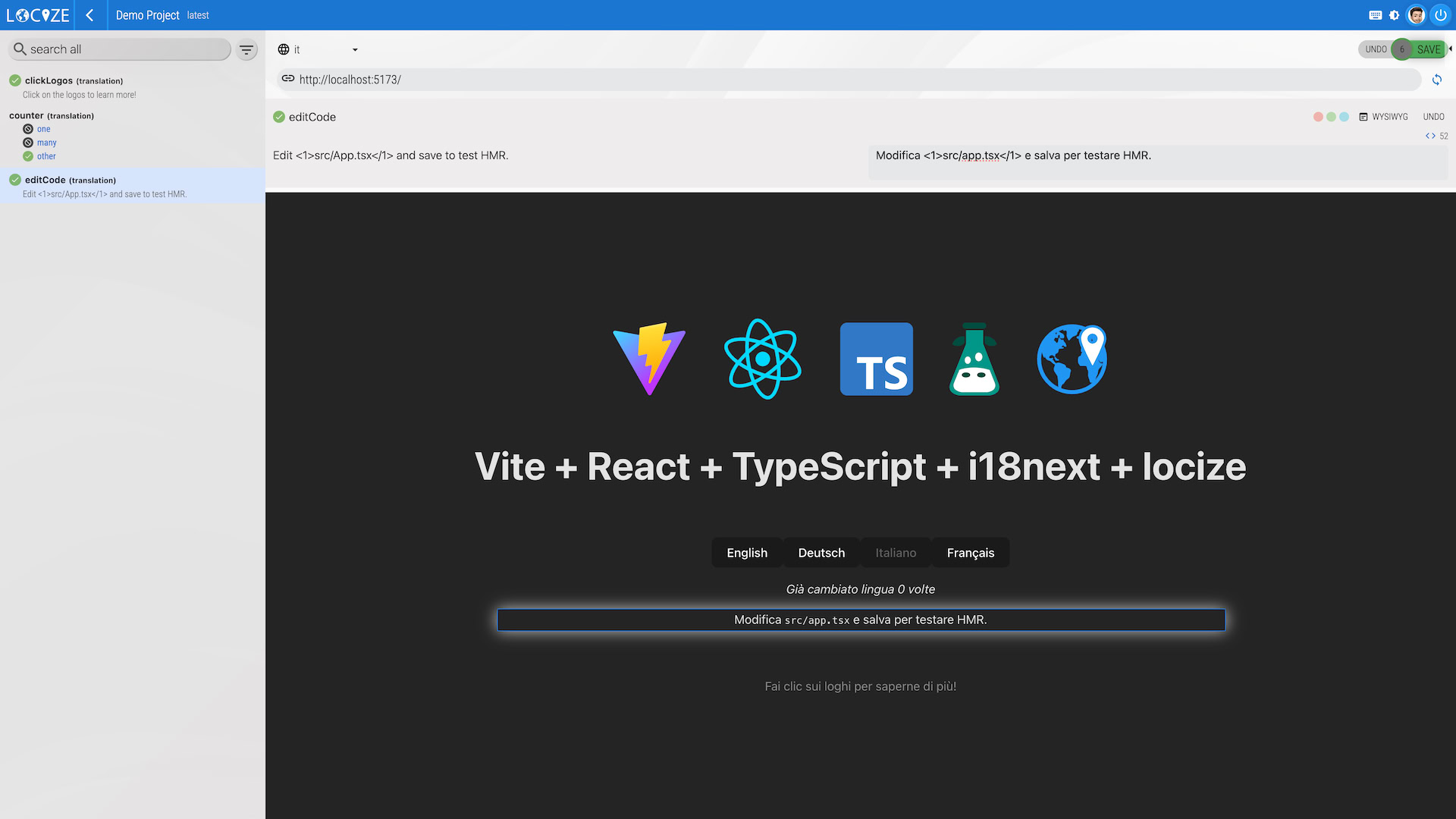
See this section in the video for a demonstration of the InContext editor.
For detailed setup instructions for both approaches, see the InContext documentation.
Screenshots
Screenshots offer powerful visual context for translators. Upload screenshots and assign translation keys or segments to specific areas, making it clear where each string appears in your app.
1. Navigate to the screenshots page
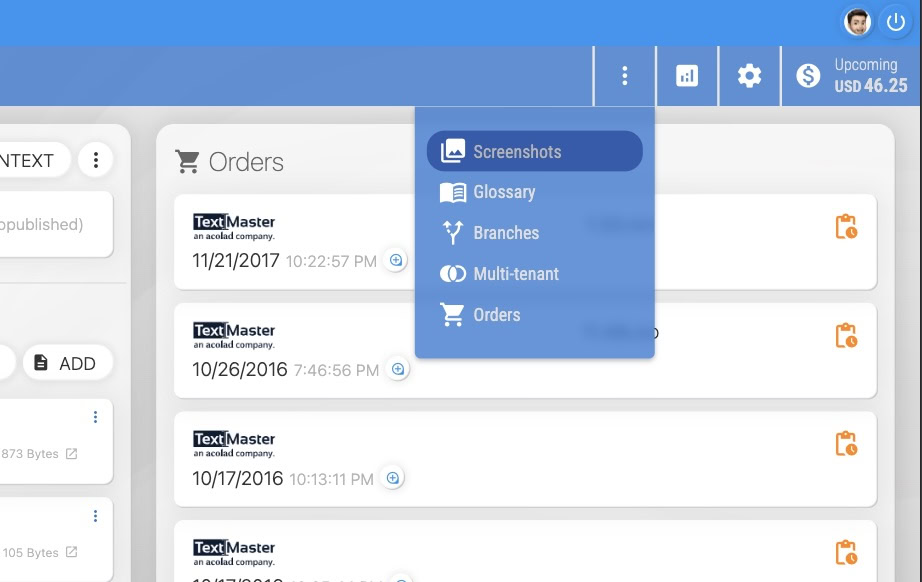
2. Upload a screenshot
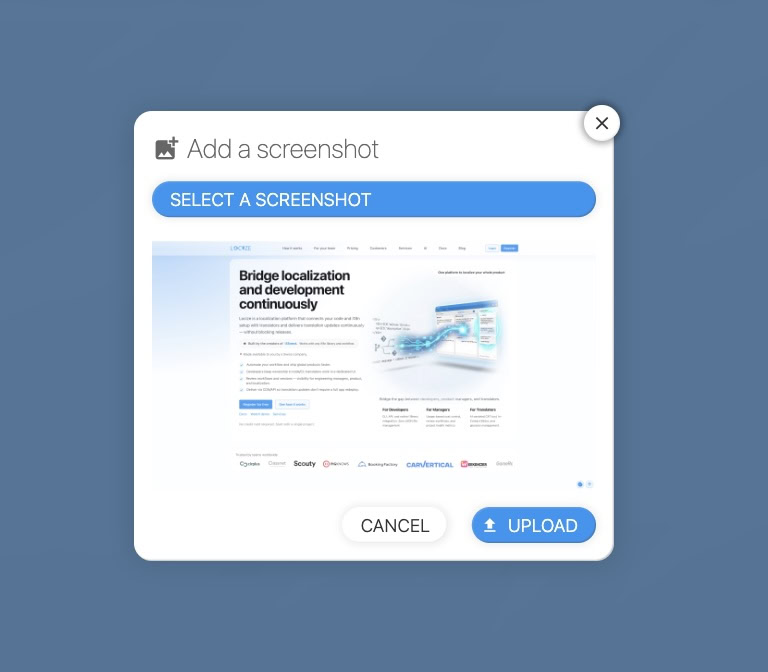
3. Assign keys/segments
Click "ASSIGN KEYS" to begin.
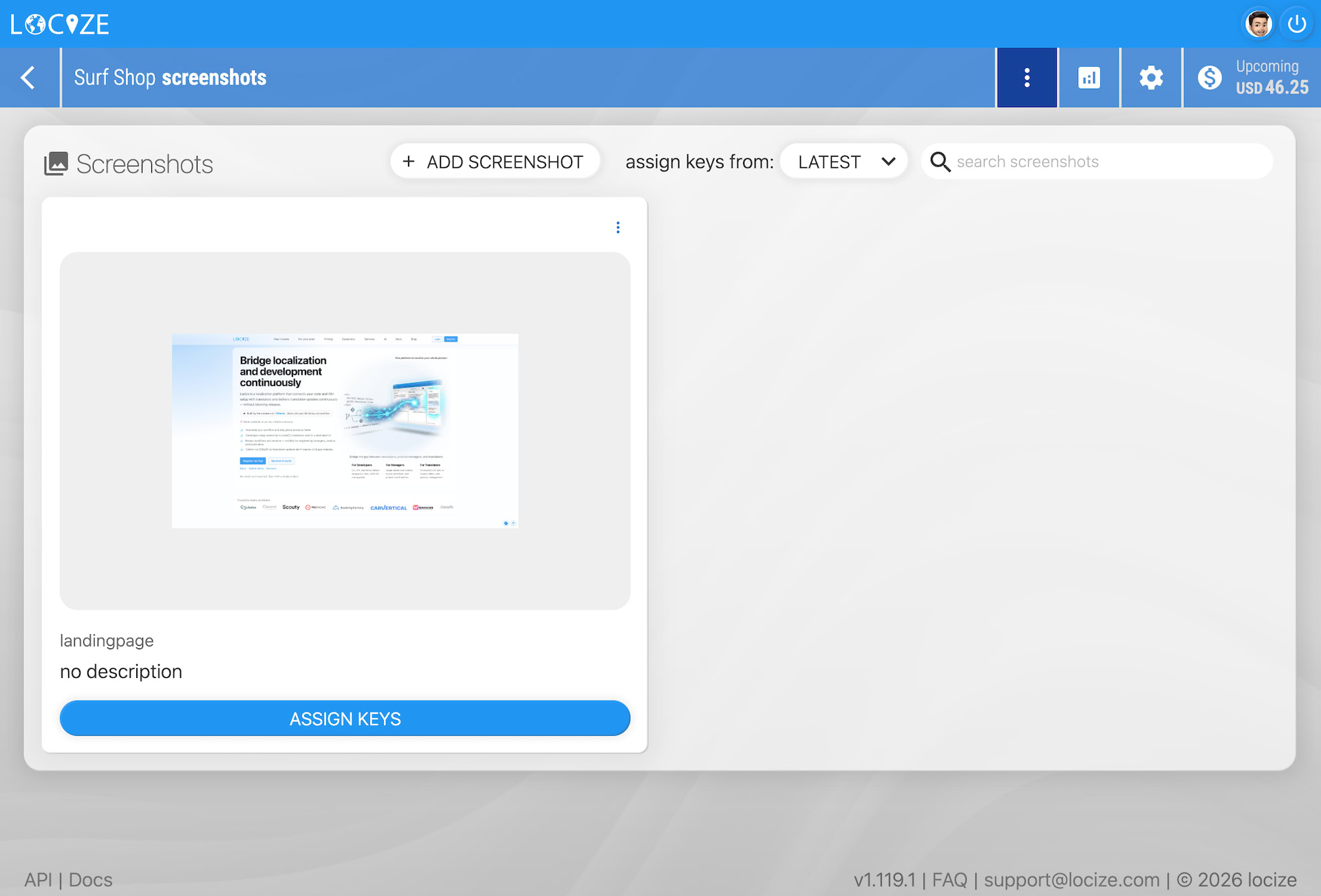
Locize automatically detects text snippets using OCR.
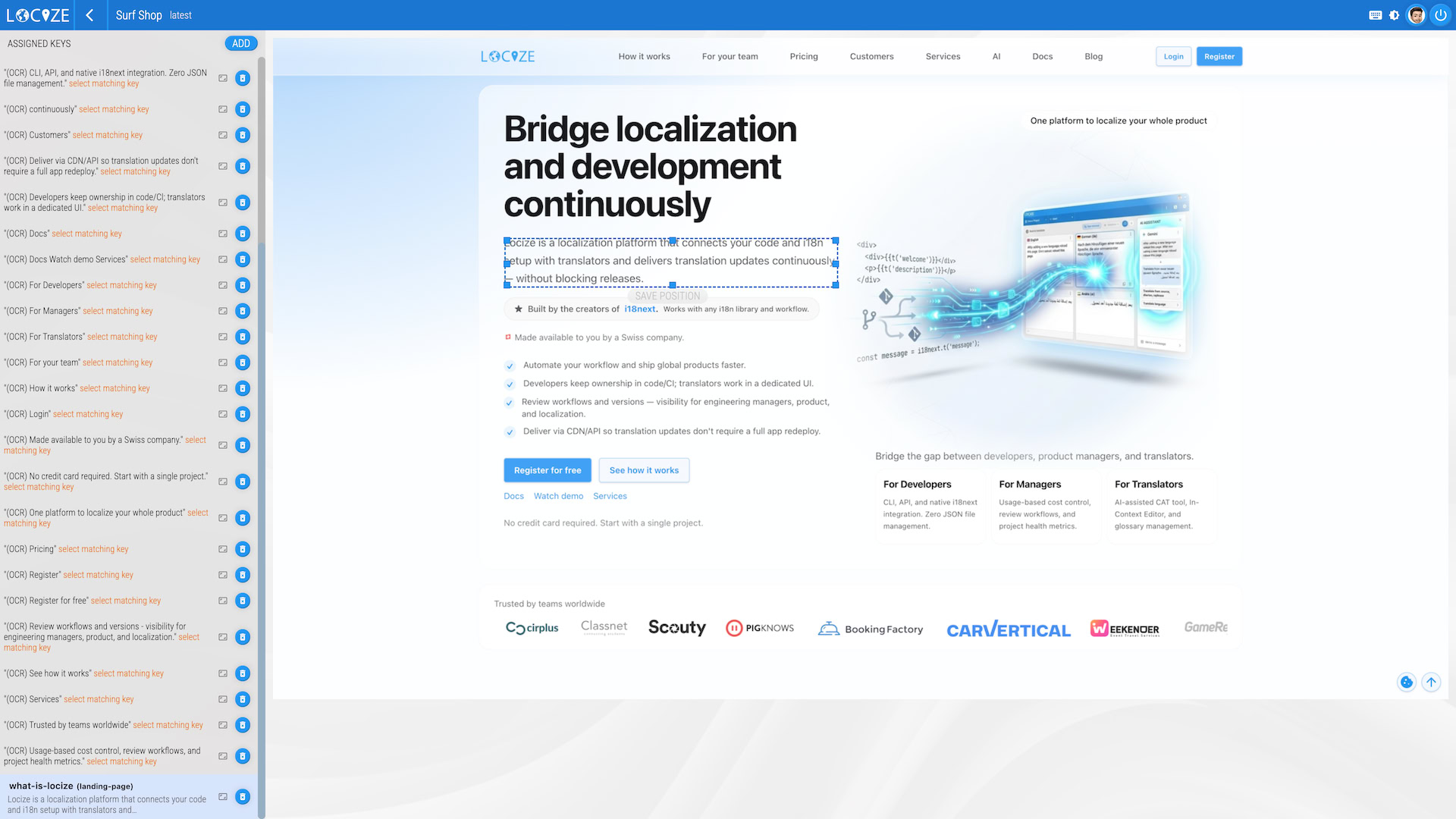
Review and assign keys/segments for detected OCR snippets, or delete any unnecessary ones.
To create a new assignment, click the add button and select the appropriate key/segment. For newly added texts, you can optionally define a bounding box.
4. Result: In the CAT / Translation Editor
Once assigned, screenshots appear in the CAT view / Translation Editor:
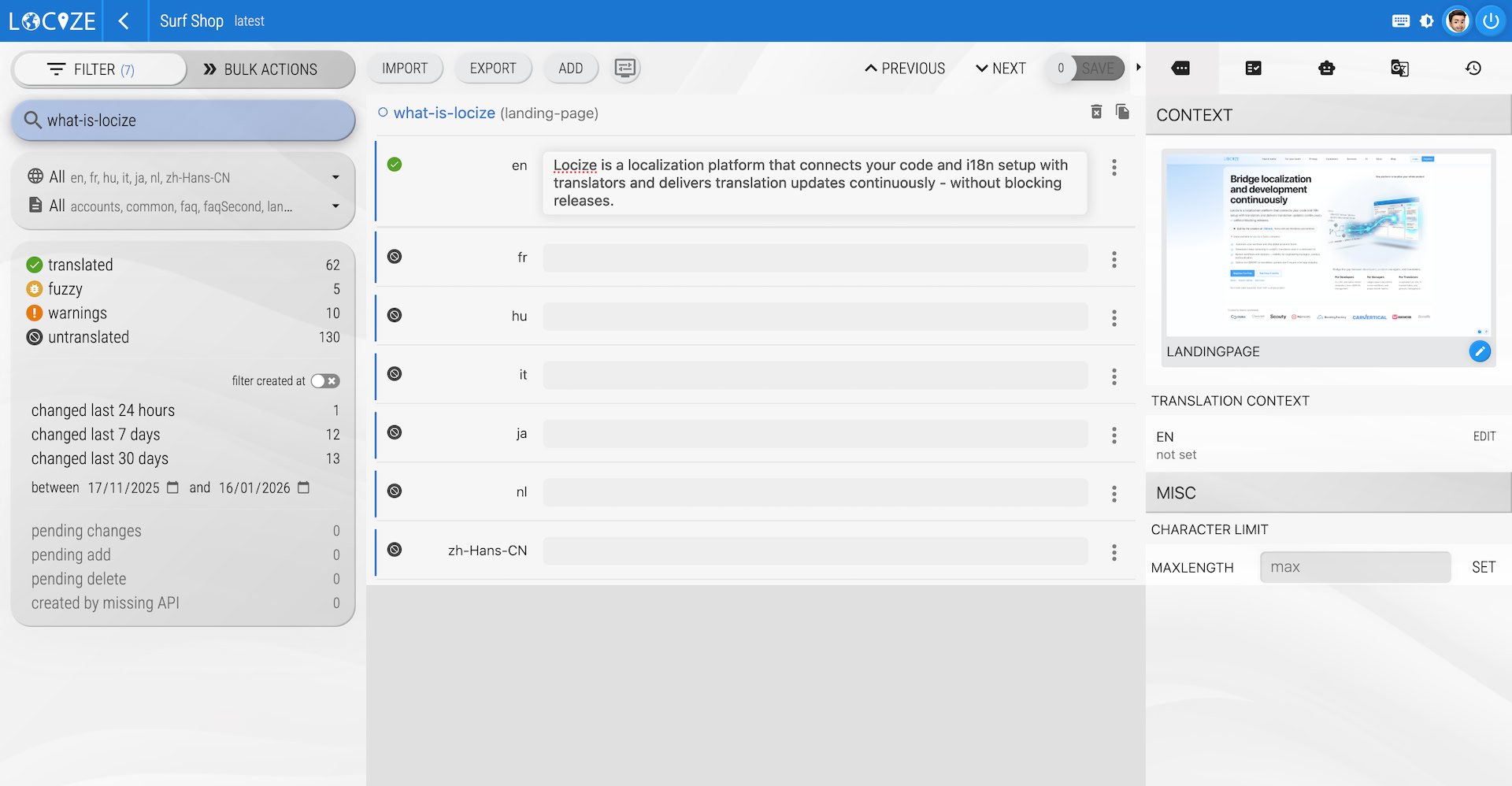
Screenshots are shown for the assigned keys. See this section in the video for a walkthrough of using screenshots in Locize.