
InContext
Correct translations often need more context. The best context is where the content is shown: your website. The InContext editor connects your running website or app directly to your Locize project, so translators can see and edit strings in their actual environment.
There are two approaches: the popup editor on your website (recommended) and the InContext view inside Locize (iframe). Both require the locize script to be integrated into your page.
An example video can be found here.
The Locize popup on your website (recommended)
The recommended approach opens the Locize editor as a draggable, resizable popup directly on your website. When active, you can click any text element on your page. The editor will highlight it and show the matching key/value for editing.

To activate the popup, add ?incontext=true to your URL, e.g. http://localhost:8080?incontext=true.
A standard Locize user account is required. If the popup shows the login screen, click "Use your existing Locize session" — your browser may ask you to allow storage access for locize.app. If no session is found, log in at www.locize.app in a separate tab (for SAML users: via SAML) and retry.
The InContext view in Locize (iframe)
Alternatively, you can load your website via an iframe inside the Locize UI. This lets translators work entirely within Locize while seeing your website in context.
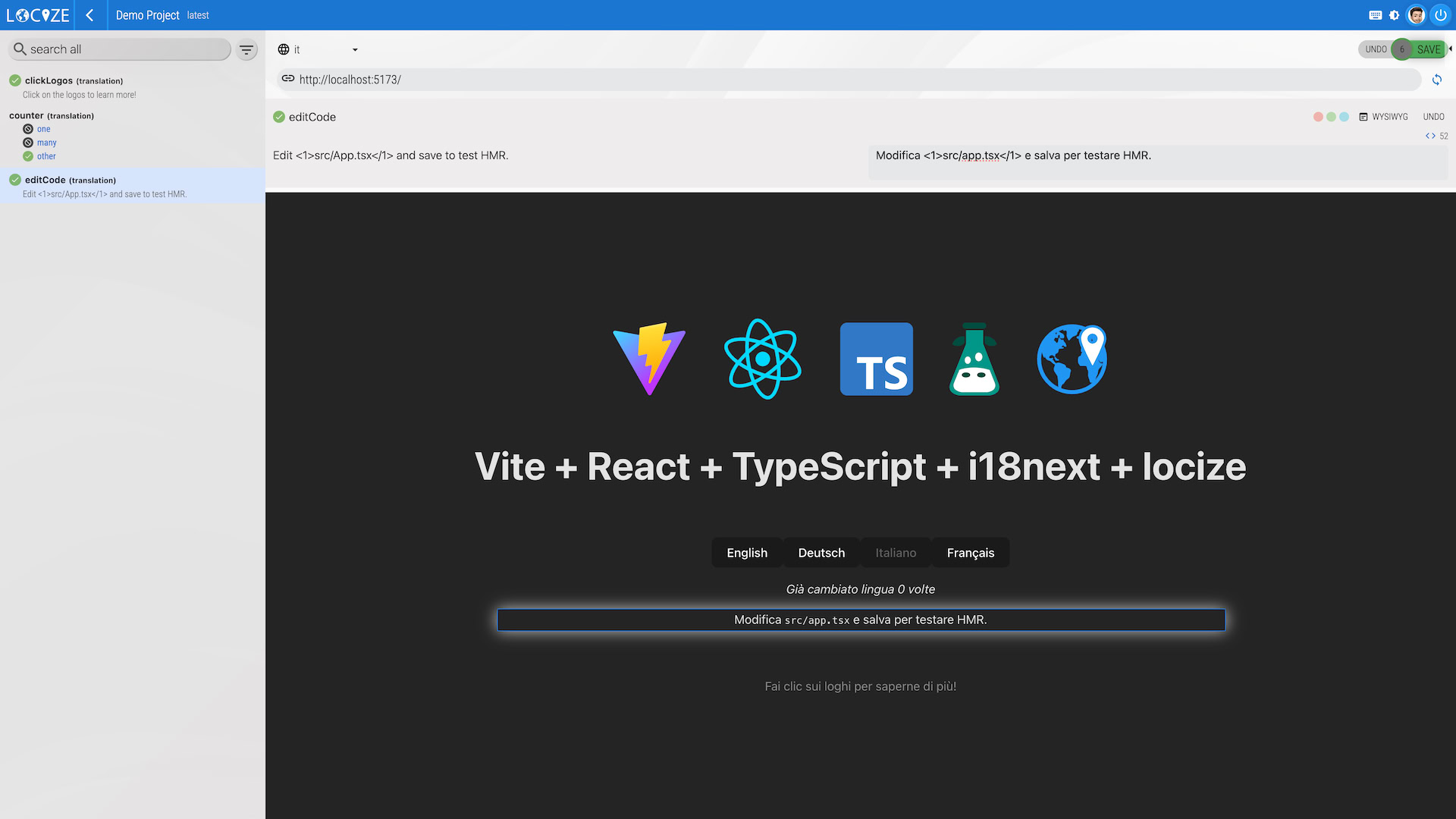
When integrated correctly, you can click any text element on your website shown in the iframe. Locize will use that information to find the matching key/value on the left.
You can change the shown page via the URL field, or reload it using the refresh button next to it.
Make sure to select the language you want to work on at the top.
Configuring URLs for the iframe approach
Navigate to your project's settings:
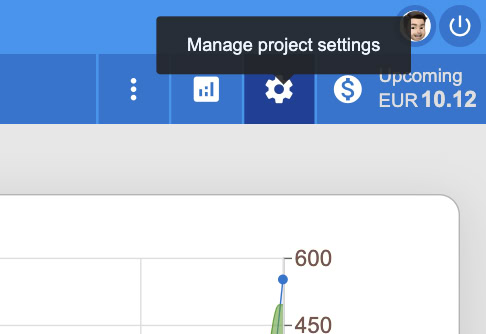
Select "Set InContext editor urls" in the menu:
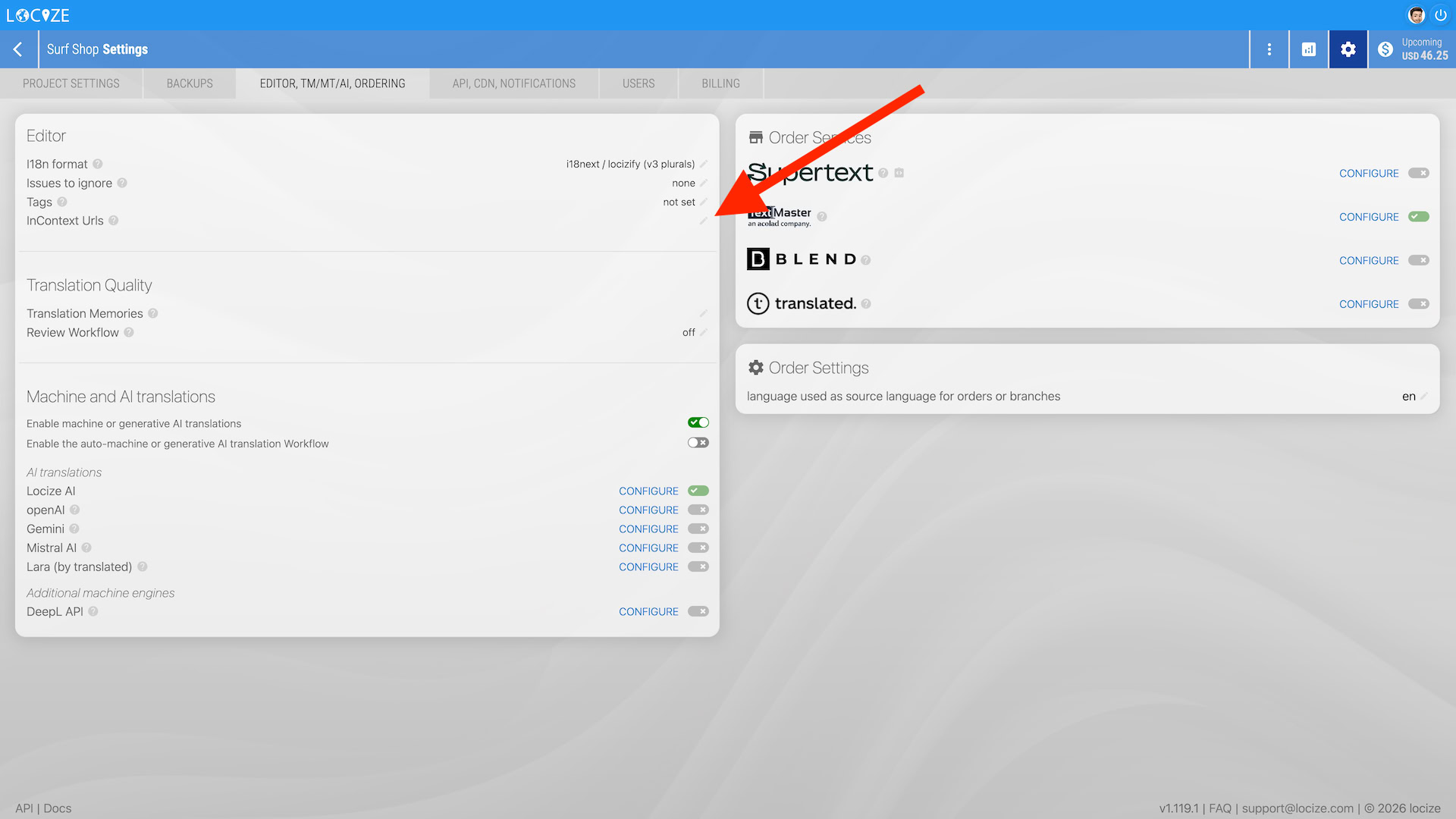
Set the desired url(s):
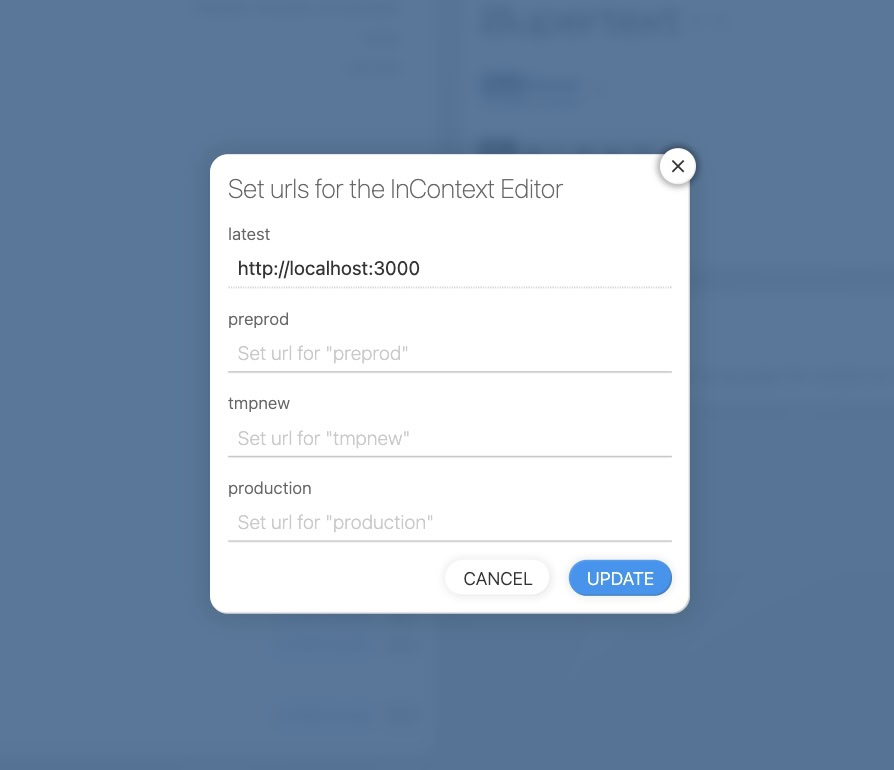
Back to your project overview, navigate to the InContext Editor:
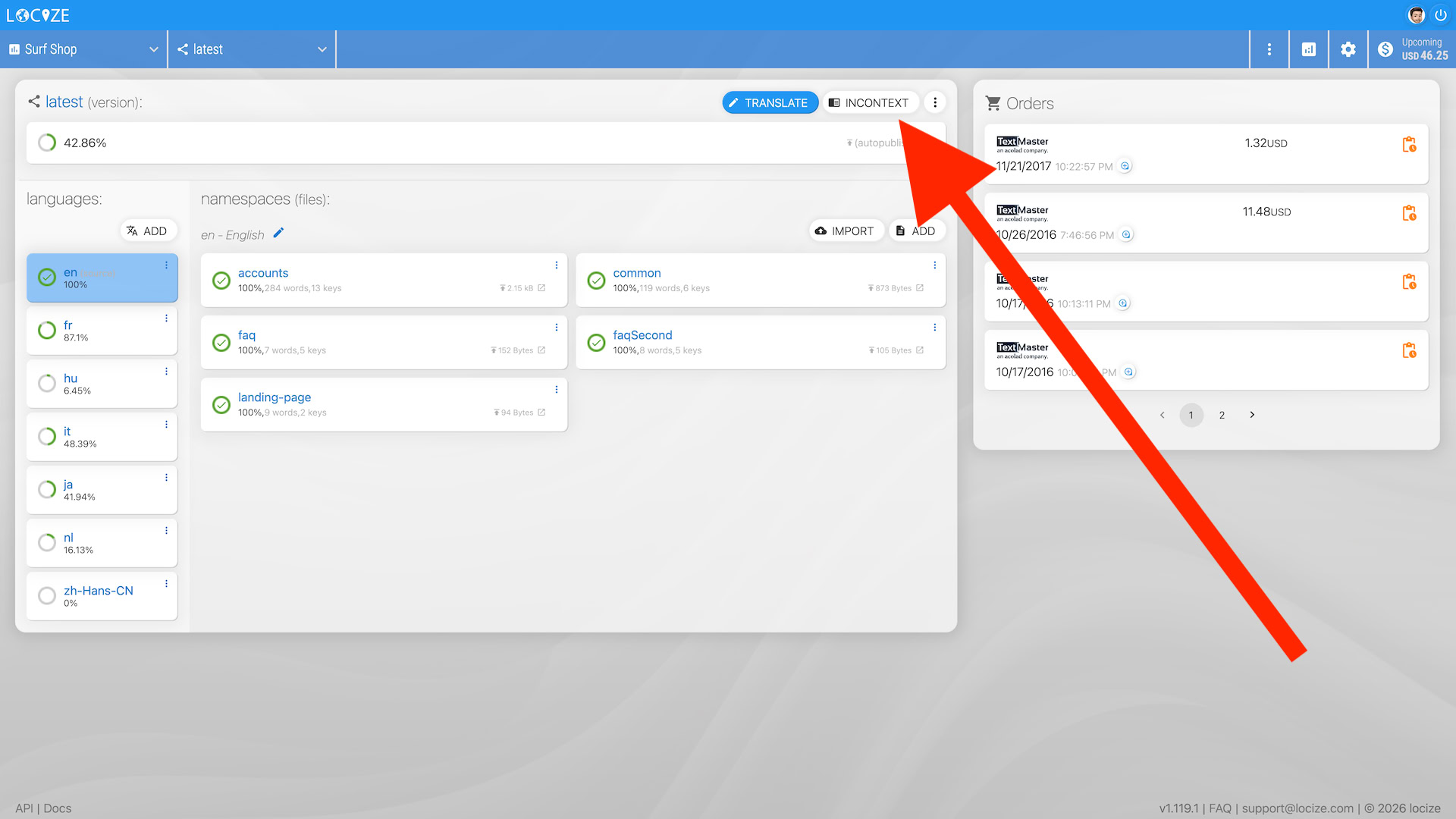
Result:
Setup
Add the locize script to your page. This script is required for both the popup and the iframe approach. It parses your page content and communicates with Locize using the browser's postMessage API.
With i18next
import { locizePlugin } from 'locize'

i18next.use(locizePlugin)
This will show the popup only when ?incontext=true is in the URL.
To always show the popup:
import { locizeEditorPlugin } from 'locize'

i18next.use(locizeEditorPlugin({ show: true }))
Using react-i18next, bind the editorSaved event to trigger a rerender each time you save changes in the editor:
i18next.init({
  // ...
  react: {
    bindI18n: 'languageChanged editorSaved'
  }
})
To match the integration to a specific Locize project, either configure i18next-locize-backend, or add:
i18next.init({
  // ...
  editor: {
    projectId: 'your-project-id',
    version: 'latest'
  }
})
With locizify
The locize script is already included in locizify >= v4.1.0. Add ?incontext=true to your URL to activate the popup.
Without i18next (messageformat, fluent, ...)
import { addLocizeSavedHandler, startStandalone, setEditorLng } from 'locize'

// optional: handle saved translations
addLocizeSavedHandler(res => {
  res.updated.forEach(item => {
    const { lng, ns, key, data } = item
    // load the translations somewhere...
    // and maybe rerender your UI
  })
})

// start the editor
startStandalone()

// switch language in the editor
setEditorLng(lng)
To match it to a specific project:
startStandalone({
  projectId: 'your-project-id',
  version: 'latest'
})
Vanilla JavaScript
<script id="locize"
  projectid="your-project-id"
  version="latest"
  src="https://unpkg.com/locize/locize.min.js">
</script>window.locizeSavedHandler = res => {
res.updated.forEach(item => {
const { lng, ns, key, data } = item
// load the translations somewhere...
// and maybe rerender your UI
})
}
window.locizeStartStandalone()How text matching works
The script needs to match text on your page to translation keys in your Locize project. There are three ways this can happen:
-
Subliminal (default): When using locizify or the
locizePlugin, translations on your page automatically contain hidden metadata (via i18next-subliminal) that maps text to its namespace and key. This is the most reliable method. -
Data attributes: Annotate your HTML with
data-i18nanddata-i18n-nsattributes to explicitly provide key and namespace information:<div data-i18n-ns="myNamespace"> <p data-i18n="myKey">Some translated text</p> </div> <!-- or using ns:key syntax --> <p data-i18n="ns:key">Some translated text</p> -
Raw text lookup: As a fallback, the script sends raw text to the editor. Exact matches are linked automatically; near matches are offered in the editor as suggestions ("... texts on this page could match existing keys") and can be linked with one click.
Tips
- You can exclude elements from being parsed by the editor by adding the
data-locize-editor-ignore="true"attribute. - The popup remembers its position and size across page reloads (stored in localStorage).
- The script automatically detects URL changes in single-page applications and updates the editor accordingly.
- You can use a custom query parameter name instead of
incontextby usinglocizeEditorPlugin({ qsProp: 'myParam' })and then?myParam=true. - The minimized editor button can be moved to the left corner via
locizeEditorPlugin({ ribbonPosition: 'bottom-left' })(also asribbonpositionscript attribute), or styled freely via the.locize-incontext-ribbonCSS class.
Troubleshooting
Popup approach (editor on your website)
The popup stays blank or shows "Could not connect to the locize editor":
- Login: a Locize session is required inside the editor iframe. Click "Use your existing Locize session" on the popup's login screen and allow storage access when your browser asks (Safari/Firefox block third-party sessions until you do). If no session is found, log in at https://www.locize.app in another tab and retry.
- Content-Security-Policy: your page's CSP must allow the editor iframe:
frame-src https://incontext.locize.app. When loading the script from a CDN,script-srcmust allow that CDN too. - Adblockers can block the editor iframe.
- Wrong or missing projectId: check the browser console; the script logs an error if no projectId is configured.
- Diagnostics: run
localStorage.setItem('locize-debug', 'true')(or add?locizeDebug=true) and reload; the script then logs the handshake and all exchanged messages to the console.
Iframe approach (your website inside Locize)
Your website stays blank inside the InContext view:
- The locize script on your page must be version 4.2.1 or newer — versions 4.0.21 through 4.2.0 could not connect to the InContext view (the popup approach was unaffected).
- Your site must allow being embedded by Locize: it must not send
X-Frame-Options: DENY/SAMEORIGIN, and its CSPframe-ancestorsmust allowhttps://*.locize.app. - The configured URL must be https (browsers block mixed content inside the https Locize app). Exception:
http://localhostURLs work for local development, but Chrome will ask for permission to "access other services and apps on this device" (local network access) — allow it, otherwise the iframe stays blank. - The locize script must be integrated on the shown page, otherwise clicks cannot be matched to keys.