
Styleguide
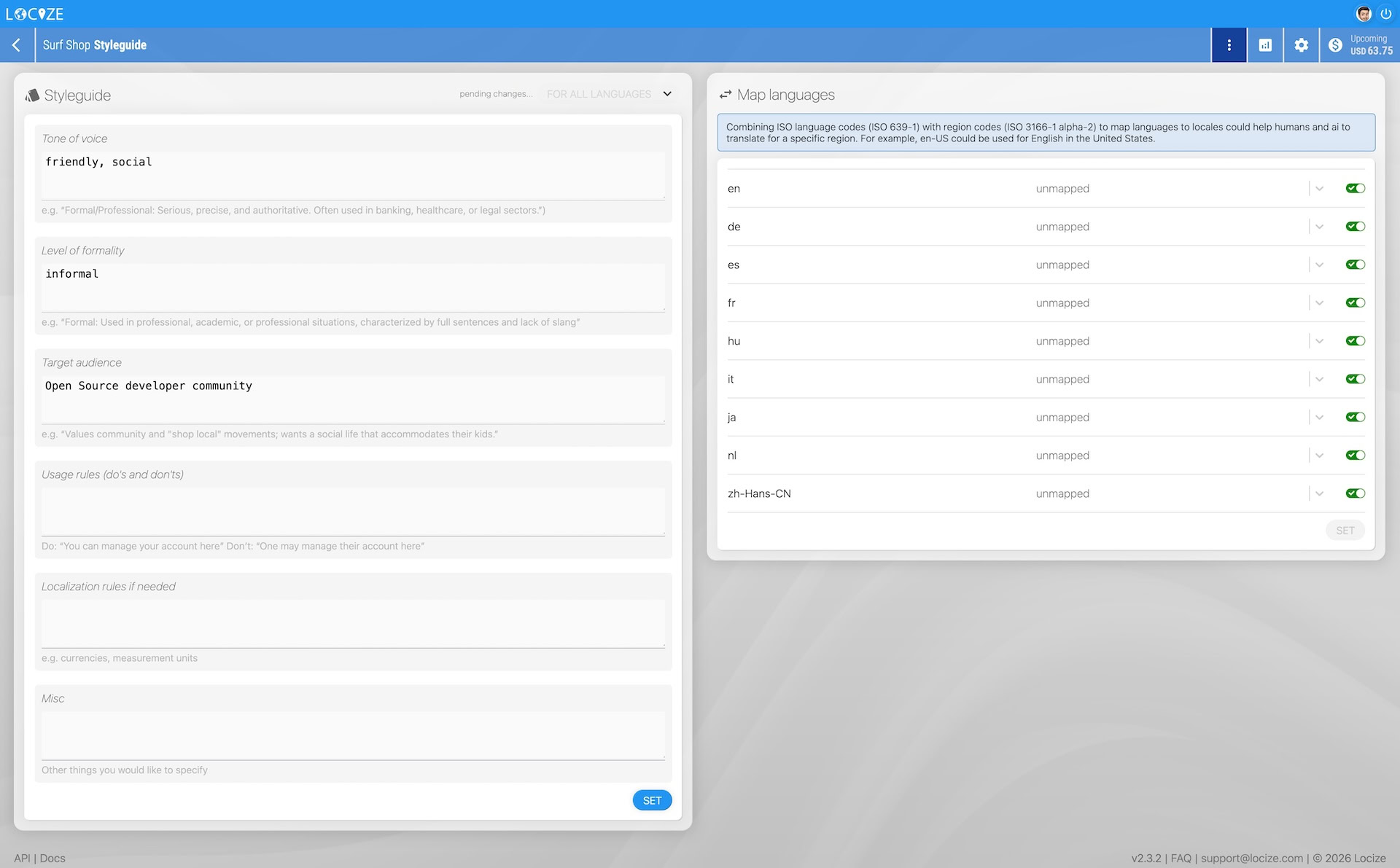
The styleguide lets you define how translations should sound (tone, formality, target audience, and usage rules) in one place. These settings are automatically applied to all AI providers (Locize AI, OpenAI, Gemini, Mistral, Lara), so you configure once and every AI translation respects your brand voice.
Setting up your styleguide
Navigate to your project → Styleguide (in the project navigation).
The styleguide has two sections:
Style fields
Configure the following fields for all languages, or switch to a specific language to override individual fields for that language only:
- Tone of voice: The overall character of your translations. e.g. "Formal/Professional: Serious, precise, and authoritative."
- Level of formality: How formal the language should be. e.g. "Informal: Use 'you', avoid jargon and full formal constructions."
- Target audience: Who the translations are written for. e.g. "Open Source developer community" or "Gen Z consumers, non-native English speakers."
- Usage rules (do's and don'ts): Explicit examples of correct and incorrect phrasing. e.g. Do: "You can manage your account here". Don't: "One may manage their account here."
- Localization rules: Region-specific conventions to follow. e.g. "Use metric units. Format dates as DD/MM/YYYY. Use local currency symbols."
- Misc: Any other guidance for translators and AI.
Use the dropdown in the top right of the styleguide card to switch between "For all languages" (the base) and a specific language override. The base settings apply to all languages; per-language settings are merged on top.
Language mapping
The "Map languages" card lets you map your project's ISO 639-1 language codes to full locale codes (ISO 639-1 + ISO 3166-1 alpha-2 region codes).
For example, mapping de → de-DE tells AI providers to translate for German as spoken in Germany, not Austrian or Swiss German. This improves AI translation accuracy for region-specific vocabulary and conventions.
Each language can be enabled or disabled independently.
The mapping applies to every AI provider you use (locize AI and your own OpenAI, Gemini, Mistral or Lara keys) and is part of the styleguide feature.
Styleguide in the CAT editor
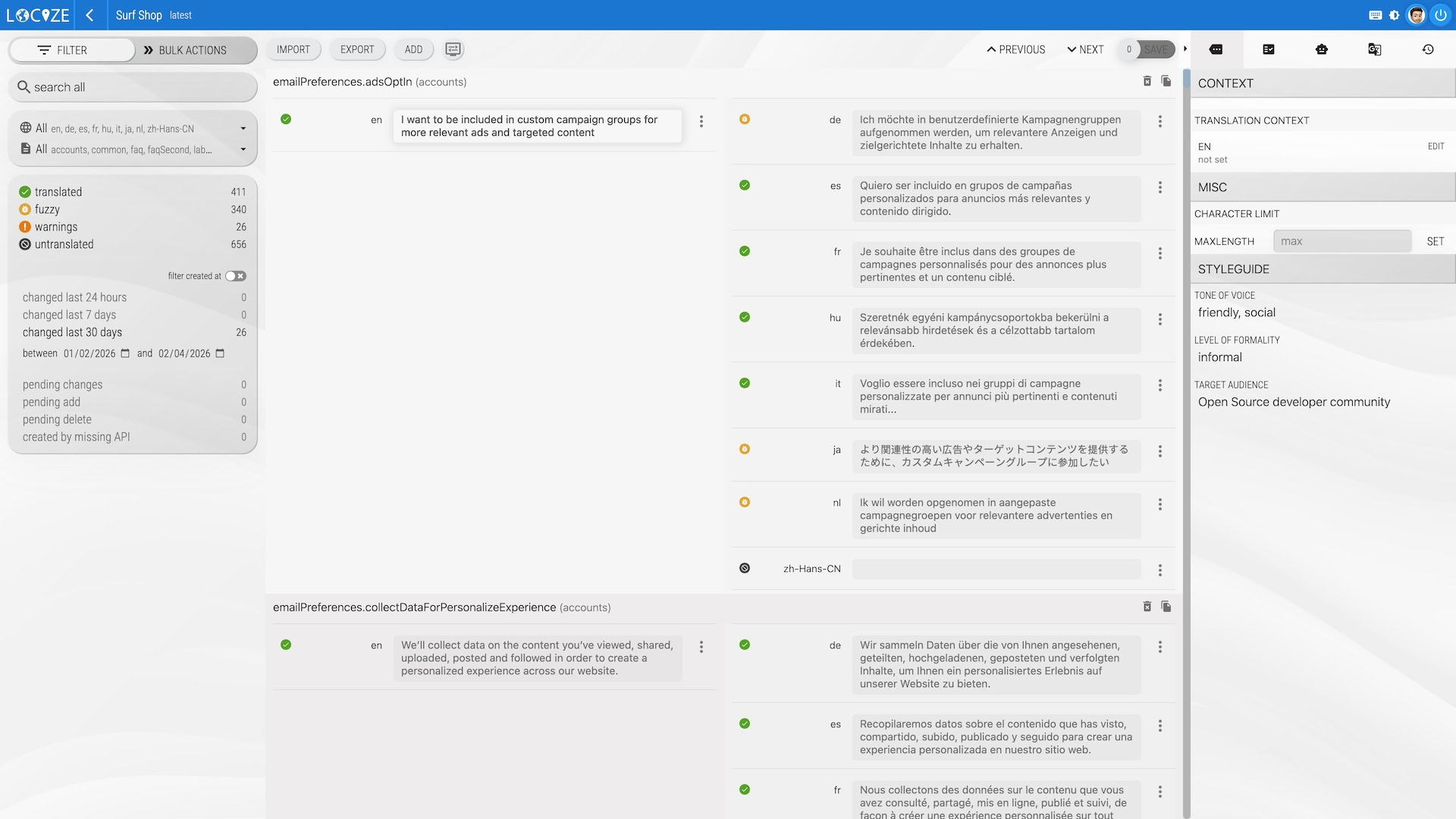
When working in the CAT editor, the active styleguide for the current target language is shown in the right sidebar under Styleguide. Translators can reference tone, formality, and audience requirements without leaving the editor.
Per-language overrides
The base styleguide applies to all languages. To override specific fields for a particular language:
- Open the Styleguide page
- Use the dropdown to select the target language
- Fill in only the fields you want to override for that language
- Click Set
Fields left empty in a language override fall back to the base setting.
Organization styleguide
An organization can hold one styleguide for all its projects (organization page → Settings → Styleguide), for example rules that hold for every product or a term that must never be translated. It has the same fields as the base styleguide, for all languages; language-specific guides and the language mapping stay in each project.
Every project of the organization on a plan that includes the styleguide uses it together with its own:
- Usage rules, localization rules and misc: the organization's text comes first, the project's follows, in every language.
- Tone of voice, level of formality and target audience: the project's own value applies; where the project leaves a field empty, the organization's value is used.
The project's styleguide page shows the organization's values under its own fields, and the CAT editor and every AI translation use the combined result. Only organization admins can change it.
Availability: The styleguide feature is available on the Growth plan and above. See pricing →
See also
- Glossary: define terms that should always be translated a specific way, complementing styleguide tone guidance
- Automatic Translation: how styleguide context feeds into automated translation workflows
- AI Localization: overview of all AI features in Locize