
User Management
Overview
User management in Locize allows you to invite and manage team members with fine-grained permissions for each project. You can control access by version, language, or feature, ensuring everyone has the right level of access.
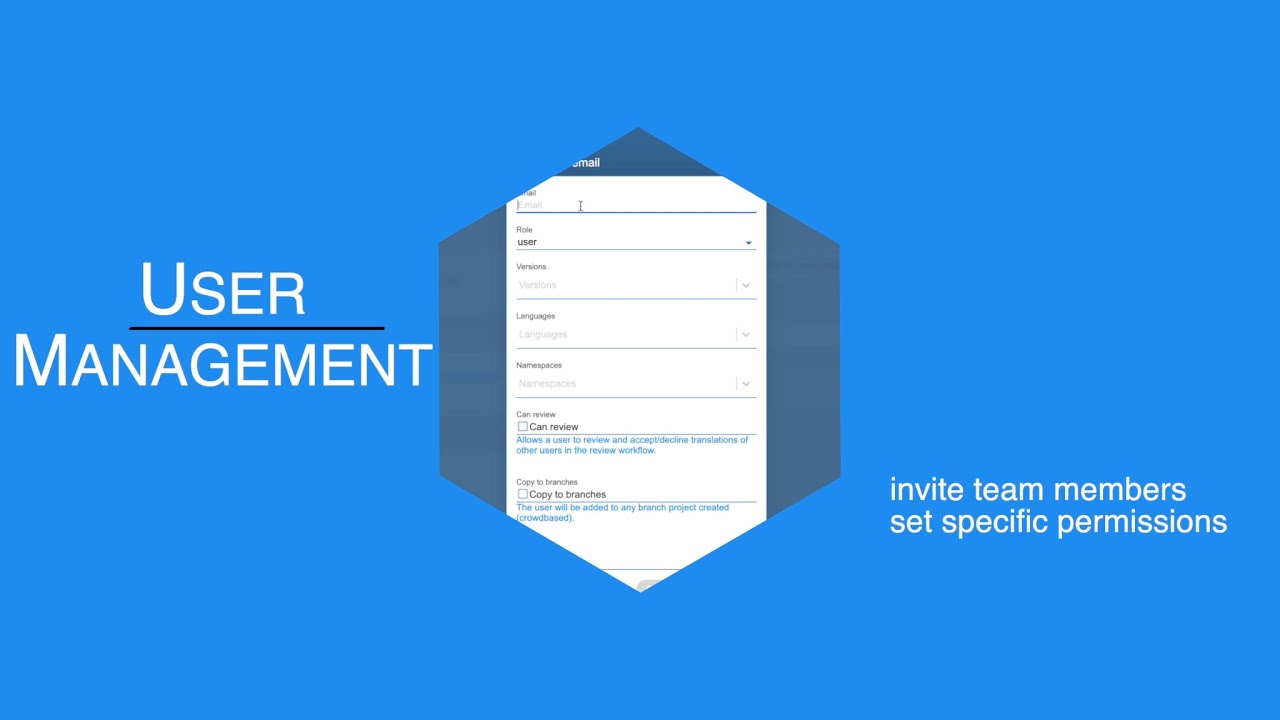
Watch the user management video as part of our showcase/demo.
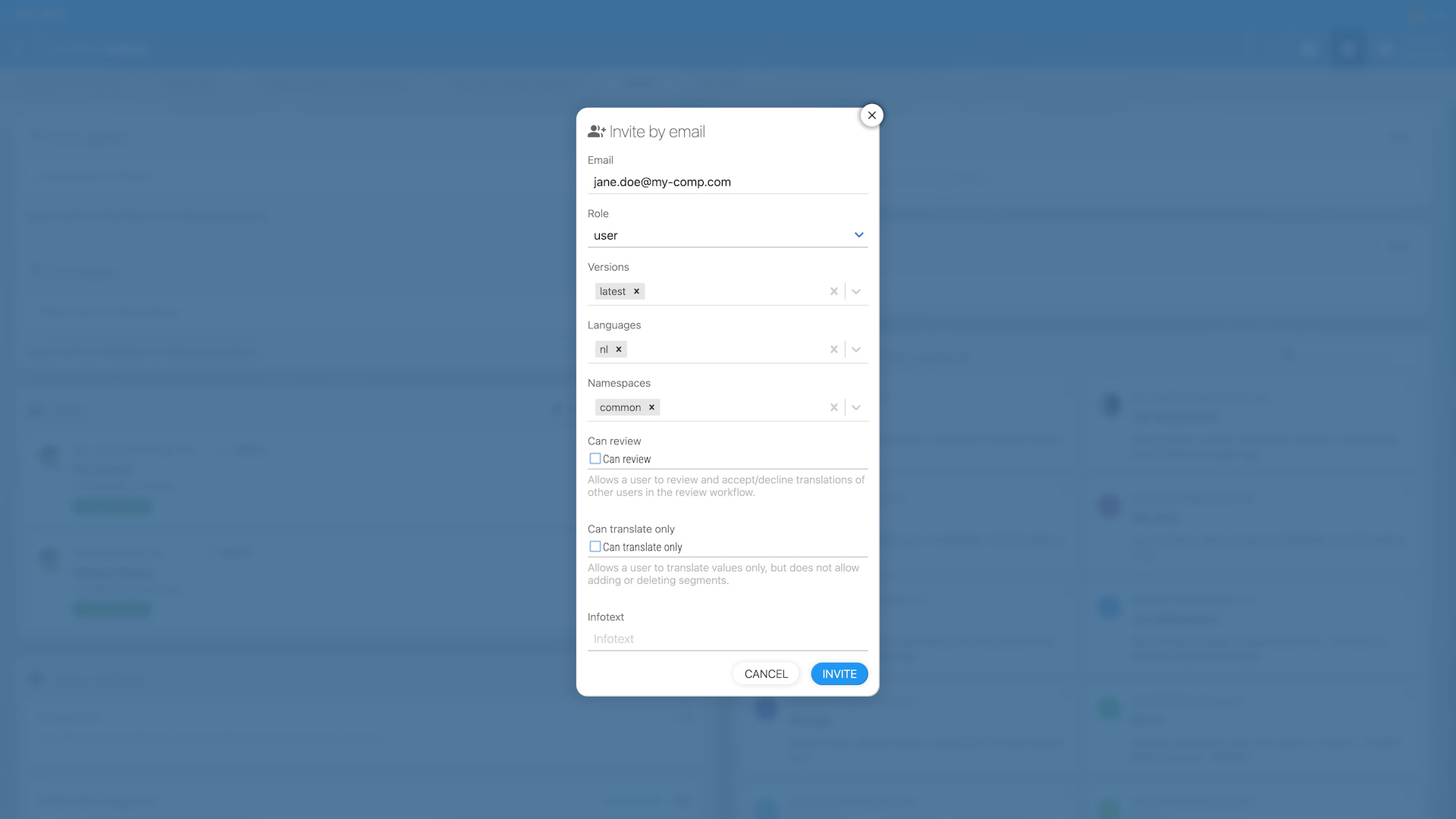
Inviting Users
On your project settings page, under the USERS tab, you can:
- Invite team members to a specific project
- Assign permissions for specific versions, languages, or features
- Adapt permissions at any time (admin role required)
- Create anonymous invitation links with predefined permissions to share with others
A project invitation grants exactly that one project. It does not reach the project's tenants or branches: those are projects of their own. Someone who needs access to everything belongs on the organization roster instead, see Organizations.
Learn also about Organizations (one team roster and one subscription for all your projects) and Managing Multiple Projects, including how inherited users affect billing.
Role Permissions
Each user can be assigned one of the following roles:
- Admin: Full access to all features and settings, including billing and user management. Granted at the organization: organization admins inherit admin access into every organization project.
- Accountant: Responsible for billing and accounting tasks only. Also an organization-level role.
- Manager: All permissions except billing/accounting. Can be scoped to specific versions, languages, or namespaces. The highest role a single project can grant.
- User: Can work on translations. Can be scoped to specific versions, languages, or namespaces.
- Publisher: Like the user role, but can also publish or overwrite versions. Overwriting requires permission to all languages and namespaces.
Note:
- Admin and accountant live on the organization roster and inherit into every organization project; project-level permissions top out at manager. Members inherited from the organization show a "via organization" badge on the project's users page, and a direct project permission wins over an inherited work role; admin and accountant always reach every organization project.
- Scoping a permission to specific languages (excluding the reference language) removes the ability to add or remove keys.
- Changing the project structure (adding, renaming or removing languages, namespaces or versions, changing the source language) needs an admin or manager permission without a version, language or namespace restriction. A restricted manager keeps every other setting. This applies in the dashboard, via personal access tokens and in the MCP server.
- When a language or namespace is renamed, restrictions that name it (team members, pending invitations, API keys) follow the rename automatically; the old name is only dropped once no version uses it any more, and each adapted permission shows up in the audit log.
- A manager only hands out what they hold: a manager restricted to specific versions, languages or namespaces can invite, add or edit team members and create API keys only inside that restriction (no unrestricted permissions, no admin API keys), and no one below admin can edit their own permission.
- Only admins (and partially managers) can change team permissions at any time.
Where did the admin role go?
If the invite form on a project stops at manager, and tenants the invited person cannot open show up in the tenants list without a link, both have the same cause: admin and accountant are organization roles, and a project permission covers only that project.
Grant them on the organization page, USERS tab:
- Invite to organization for someone new, choosing the admin role there.
- Add existing users for someone who already holds permissions on one of your projects. One click makes them an organization member with access to every organization project, tenants and branches included. They join as user, so set their role afterwards on the member entry.
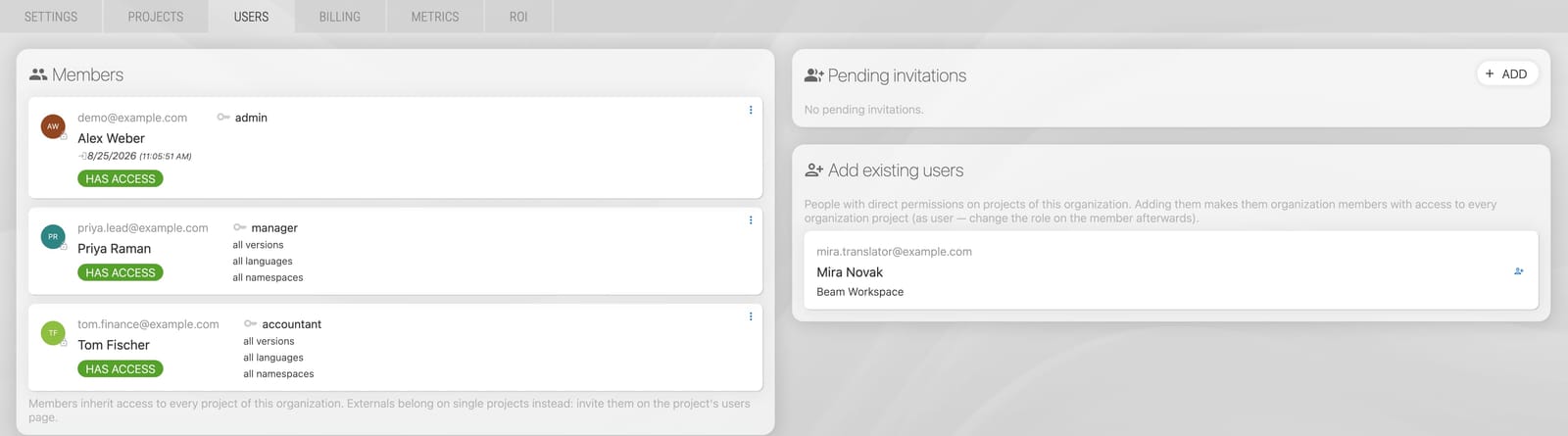
Organization members never count toward an individual project's user limit. The roster as a whole is checked against the most generous plan in your organization (Growth and above: unlimited).
Additional permission flags
For User and Publisher roles, two optional flags fine-tune what a team member can do:
- Can review (
canReview): grants permission to participate in the review workflow, i.e. approve or reject other users' translations. When scoped to specific languages, reviewing is limited to those languages. Admins and managers can always review; accountants never can. - Translate only (
translateOnly): restricts the user to editing translation values. Deleting keys (and other key-level structural changes) is blocked. Useful for external translators who should not be able to alter your project's key structure.
These flags are visible on the user-edit form for users and publishers only; admin/manager/accountant roles don't expose them. The same flags are honoured by the MCP server for AI-assistant access.
SAML Single Sign-On (SSO)
You can enable SAML SSO to allow users to access Locize through your chosen identity provider (IDP). Any IDP that supports SAML 2.0 works. OIDC login and SCIM provisioning are not supported.
SSO is an organization-level capability: eligibility resolves against the most generous plan in your organization, and the add-on is charged once per subscription, no matter how many projects use the shared configuration. A plan that includes SSO covers the whole organization.
SAML SSO is configured on the organization page (Users settings card); a project's "USERS" tab points there. Every project belongs to an organization, so that is the only place it is set up:
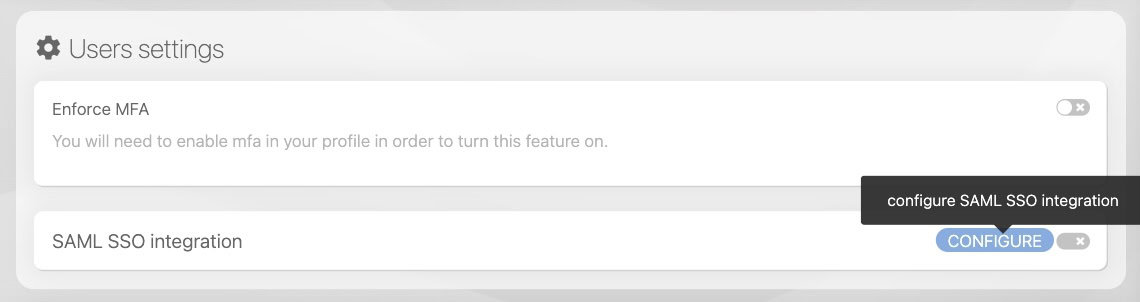
Setup steps:
- Upload your IDP's metadata file.
- Optionally define user attribute mappings.
- Enter the appropriate IDP endpoints.
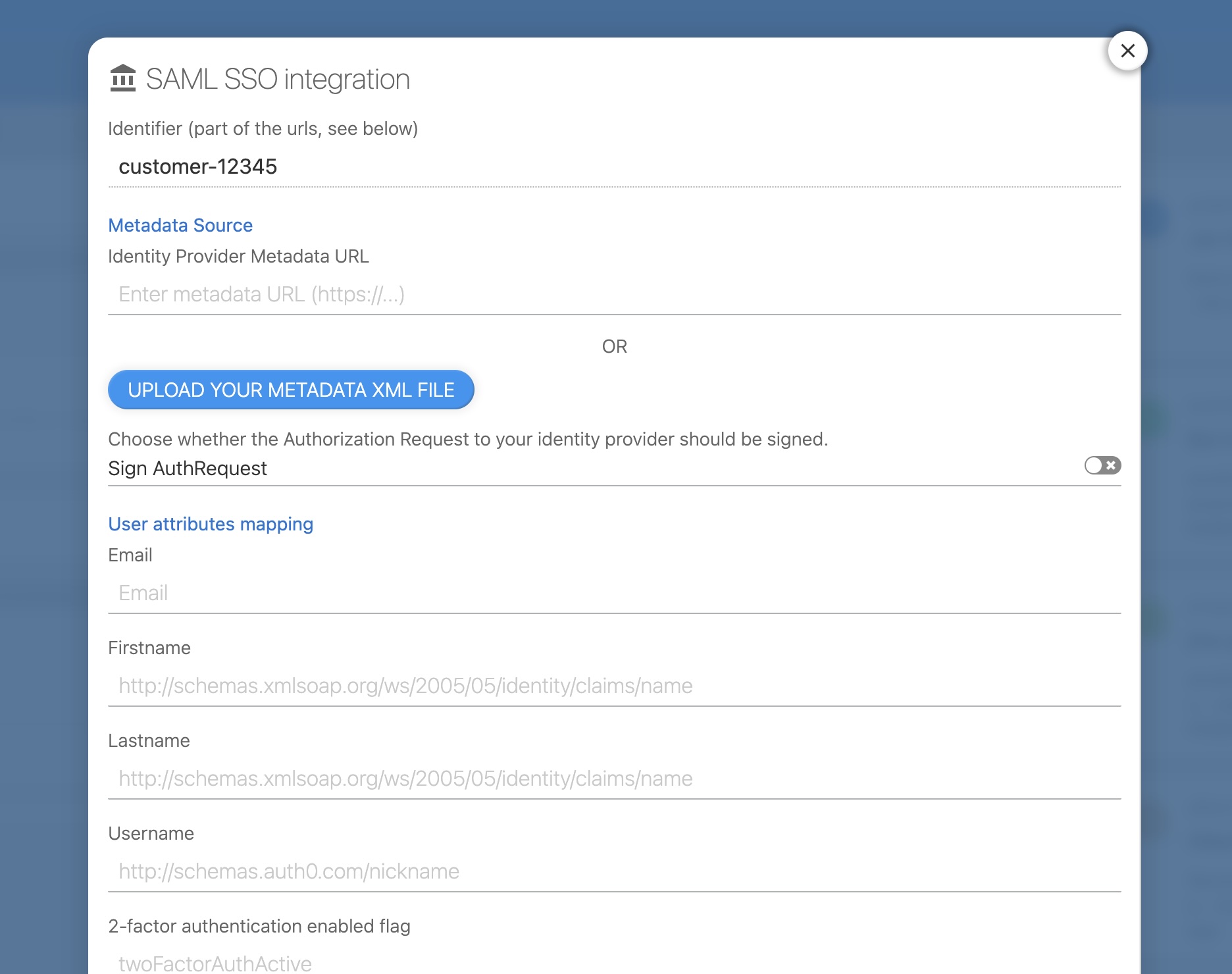
Once configured, your users can log in via:
https://www.locize.app/login/{identifier}
- SAML SSO integration will increase your monthly costs.
- One identity provider can serve several organizations, but an identifier can only be claimed by one organization on its own.
- SSO users cannot use the InContext popup approach.
- You must still invite individual users, either as organization members or per project. SSO users do not automatically receive permissions.
Audit Log
Admins and managers can download a full audit log of security- and access-relevant changes inside a project. The log is available from the USERS tab of your project settings via the Download audit log action. Organization admins can additionally download the organization's own audit log (member and invitation changes) from the organization page, on plans that include the audit log.
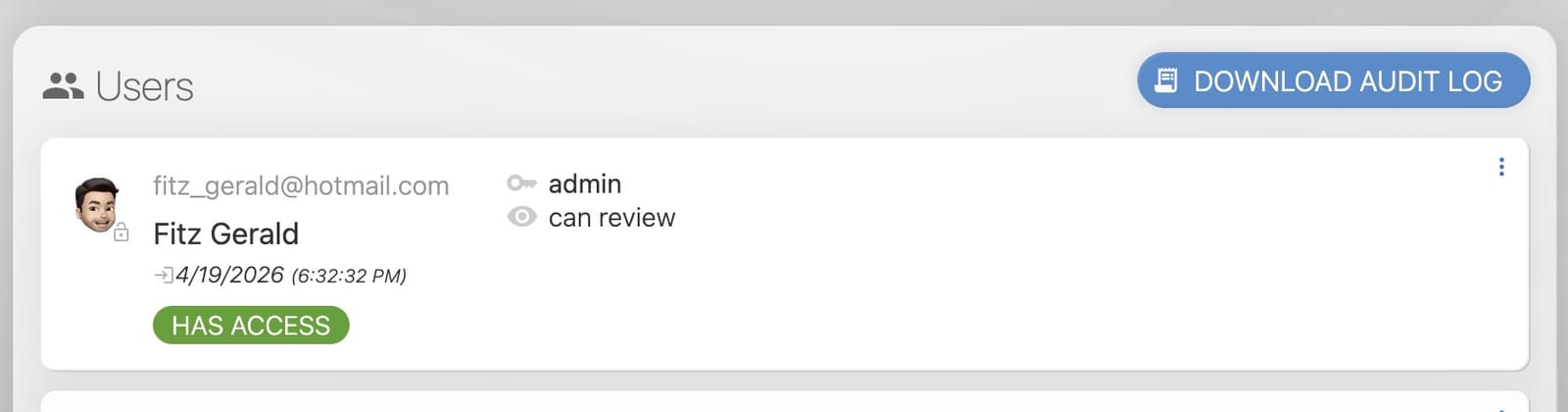
Recorded events include:
- Team membership: user added, removed, role or permission changes (including restrictions adapted automatically after a language or namespace rename, marked with a reason).
- Invitations: invitation created, updated, or deleted (personal and open invitations).
- Project security settings: MFA enforcement enabled or disabled.
- SSO / SAML provider settings: provider configuration created, updated, or deleted.
- API keys: API key created or deleted.
Each entry records who performed the action, when, and the user or setting affected.
The audit log is a paid feature; see pricing for availability per plan.