
Ordering translations
Order professional human translations from an integrated translation partner without leaving Locize. You pick the languages and namespaces, Locize works out which segments actually need work, hands exactly those to the partner, and imports the finished translations automatically.
Availability: project admins and managers, on regular projects (not on branches). Orders are placed in the Locize web app; there is no API, CLI or MCP call that places an order, see limits.
Integrated translation partners
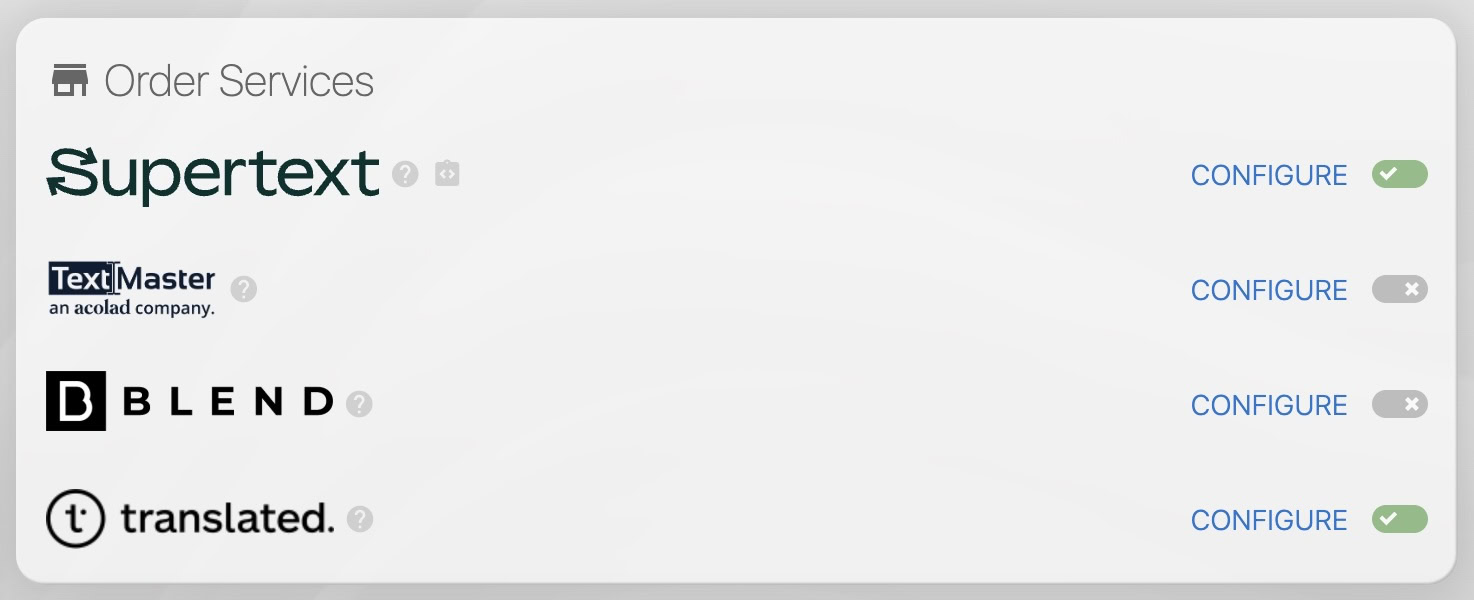
Locize integrates Supertext, TextMaster, BLEND and Translated. Pricing, profiles and specialties are on the services page.
You work with your own account at the partner: Locize places the orders on that account with the credentials you configure, the partner bills you directly, and the partner's translators do the work in the partner's platform. Locize takes care of everything in between.
1. Configure an order service
- Open your Project settings and select the EDITOR, TM/MT/AI, ORDERING tab.
- In the Order Services card click CONFIGURE next to the partner you want to use.
- Enter the credentials from your partner account (for example the API key pair from your BLEND account or the e-mail and API token of your Supertext account) and enable the service.
- Optionally set defaults for your orders, depending on the partner: order type (translation or proofreading), expertise / industry, whether to include proofreading in translation orders. You can still change these per order.
The Order Settings card on the same tab lets you pick a different source language used for orders or branches. By default orders are translated from the project's source (reference) language.
2. Place an order
Open Orders in the project header (the shopping cart icon) and click New order.
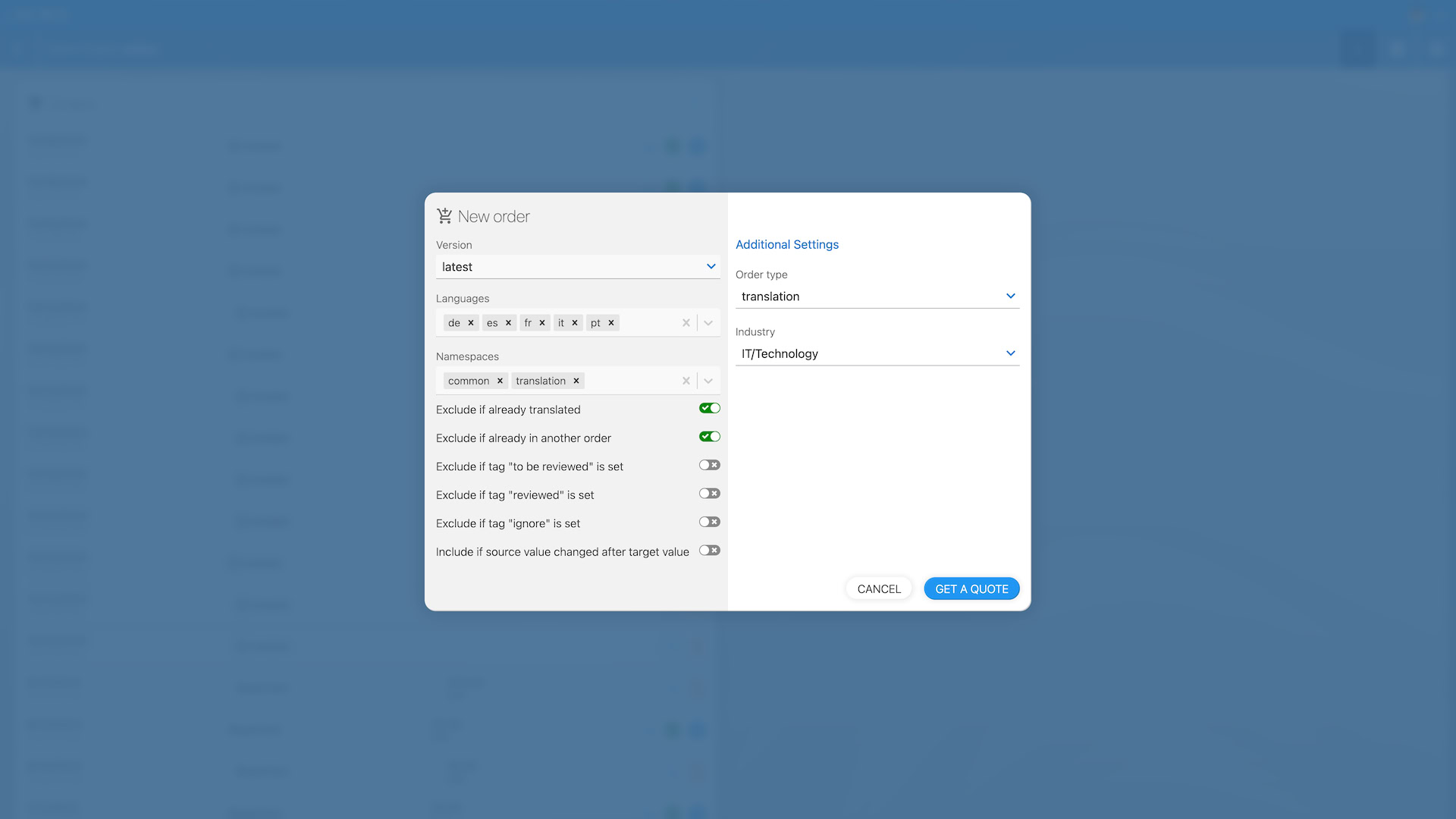
Pick the version, the target languages (all preselected) and the namespaces (all preselected). Then decide which segments go into the order. The switches do the delta for you, so you never have to mark segments by hand:
| Switch | Default | What it does |
|---|---|---|
| Exclude if already translated | on | Only segments that have no value in the target language yet are ordered, i.e. new keys. Switch it off to order everything, including existing translations. |
| Exclude if already in another order | on | Segments that are still part of a pending order are skipped, so overlapping orders never order the same segment twice. |
| Exclude if tag "…" is set | off | One switch per project tag. Skip segments carrying that tag, for example an ignore or do not translate tag. |
| Include if source value changed after target value | off | Additionally orders segments that are translated, but whose source text was edited after the translation was last saved (the same signal the editor shows as issue 302). The partner receives the current source text; the outdated translation is replaced when the result comes back. |
So for an ongoing project the usual choice is: keep the two defaults and switch on Include if source value changed after target value. New keys and keys with a changed source text land in the same order, unchanged translations stay untouched.
If a source edit was trivial (a typo, a formatting change) and the translation is still fine, confirm issue 302 on that segment in the editor. It is then no longer considered outdated and stays out of the next order.
Order type: translation or proofreading
- translation (default): the source text is sent, the partner delivers the translation. Where the partner offers it, Include proofreading adds a second linguist who revises the translation before delivery.
- proofreading (offered by BLEND, Supertext and TextMaster; Translated is translation-only): the existing translations are sent for revision. The switches change accordingly: Only machine translated restricts the order to segments whose translation came from machine translation or AI and has not been edited by a human yet (the segments the editor lists under needs review), plus Exclude if already in another order and the tag switches. This is the order type for a machine-first workflow: let Automatic Translation fill new segments instantly and order human post-editing for exactly those segments afterwards.
Proofreading is intended exclusively for original text first composed in that language. Ordering Proofreading for an AI-generated translation will result in a poor quality text. This applies to Supertext and TextMaster: their proofreading orders carry the translated text alone, so the reviser polishes the wording without ever seeing the source. BLEND is the exception, its proofreading orders carry the source text next to the translation and run as a machine-translation post-editing workflow, which is what a machine-first setup needs.
What the partner receives
Orders are split per target language at the partner and grouped by namespace, in the partner's own exchange format (XLIFF 2.0 for BLEND, structured content for Supertext, TextMaster and Translated), with the segment keys attached so the results map back automatically. In a translation order the partner receives the current source texts, never the outdated translation of a changed-source segment. In a proofreading order the partner receives the existing machine translations as the text to revise; BLEND additionally gets the source text alongside in the XLIFF. Per-segment context notes travel along where the partner supports them.
Quote and confirmation
Click GET A QUOTE. Locize counts the words to order, uploads the segments to the partner and shows you the partner's price. Depending on your Locize plan the dialog also shows an estimate of the Locize fee (imported translations count as modifications, like any other edit). If the selection contains nothing to order, Locize tells you so before anything is sent.
Click CONFIRM & ORDER to place the order. Some partners check your account first, for example BLEND requires enough prepaid credits on your BLEND account.
3. What happens after you confirm
- Locize creates one order (project) per target language at the partner, containing the selected namespaces of that language. Per-language progress is visible in the partner's platform.
- The ordered segments are marked as ordered in the CAT view / Translation Editor (there is an "ordered" filter), and they are skipped by further orders while the order is pending.
- The order appears on the Orders page with date, partner, amount and a status icon.
- As soon as the partner delivers a language, Locize imports the translations into the ordered segments, removes the "ordered" marker, clears the needs-review mark where there was one, and writes the change into the history. An
orderCompletedevent goes to your notifications (Slack, Microsoft Teams, webhook, GitHub dispatch);orderCreatedwas sent when you confirmed.
There is nothing to merge or approve on the Locize side. If you use the review workflow, imported translations are regular translations and can be reviewed like any other.
Order states and errors
- Pending: the partner is working on it. A pending order cannot be cancelled from Locize; use the partner's platform if you have to.
- Completed: all languages were delivered and imported.
- Error: the partner rejected or cancelled the order. The Orders page shows the partner's message, for example "insufficient credits" (top up your partner account) or, for proofreading orders, "MT can not be created" (the machine translation / post-editing workflow is not enabled on your partner account, ask the partner to enable it). A failed order marks no segments, so once the cause is fixed you simply order again.
- Delete order removes a completed or failed order from your list. It does not delete anything at the partner. Deleting a failed order also releases any segments that were still marked as ordered for it.
Recommended workflow for continuous localization
Teams that add or change strings all the time do not need an order per change. What works well:
- Developers push keys continuously, for example with i18next
saveMissing, the CLI or the API. No manual step here. - Know when there is work. Notifications tell you when a namespace that was completely translated received new segments (
namespaceNotCompletedAnymore, per language), when a namespace was added (namespaceAdded) or updated (namespaceUpdated). They inform whoever places the orders, or your partner's project manager, they do not place the order. - Order on a cadence, weekly for example, or whenever the notification fires: one order over all languages and all namespaces, defaults plus Include if source value changed after target value. Locize computes the delta, so the order is never "the whole project" and never empty work, and overlapping orders are safe thanks to Exclude if already in another order. Batching also helps on the partner side: most partners have a minimum fee per project, so a few words per order are the expensive way.
- Optional, machine-first: enable Automatic Translation so nothing ships untranslated between two orders. New keys get a machine or AI translation right away and are marked accordingly. That also means a translation order with Exclude if already translated switched on no longer picks them up; the proofreading order is what routes them to your partner from then on. So order proofreading with Only machine translated and your partner post-edits exactly those segments; the marker is cleared when the result is imported. Pick BLEND for this route: its proofreading orders include the source text, while Supertext and TextMaster receive the translation alone and are meant for text originally written in that language. Changed source texts are still covered by the translation order from step 3. When you run both orders, place the translation order first and the proofreading order after it: a segment that was auto-translated and whose source changed afterwards matches both selections, and the later order's quote automatically skips what the first one already claimed, so such a segment gets a fresh translation from the new source instead of a post-edit of outdated machine output.
For other ways to work with translators (inviting them, sending files, branches) see Working with translators and Keeping track of new translations.
Limits
- Orders are placed in the Locize web app by an admin or manager. There is no API, CLI or MCP endpoint that places orders and no "order automatically on every change" mode: every order spends money on your partner account, so the quote and the confirmation stay with a person.
- The partner account, its credits and its pricing are yours and the partner's. Locize shows the partner's quote and imports the result.
- Orders translate from the project's source (reference) language unless you override the source language in Order Settings.
- Branches cannot place orders; order on the main project instead.