
How can a segment/key be copied/moved or renamed?
Sometimes you need to reorganize your translations by copying, moving, or renaming keys (segments) or even changing their namespace. Locize makes this easy to do directly in the CAT (Computer-Assisted Translation) interface / Translation Editor.
Steps to copy, move, or rename a key
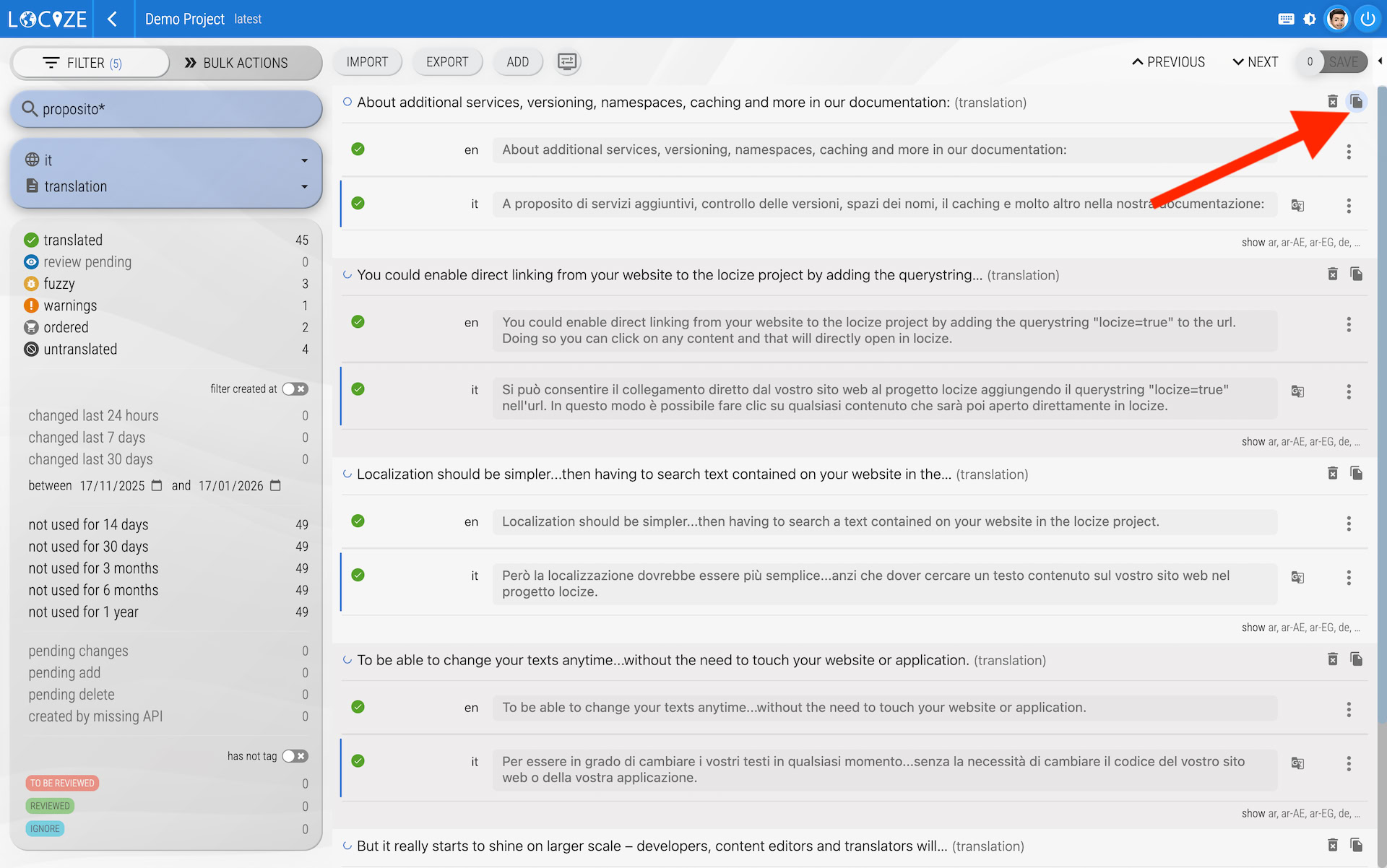
- Open the CAT interface / Translation Editor: Go to the CAT view / Translation Editor for your project.
-
Select the copy/move icon: Click the "copy" icon next to the recycle bin (delete) icon for the key you want to change.
-
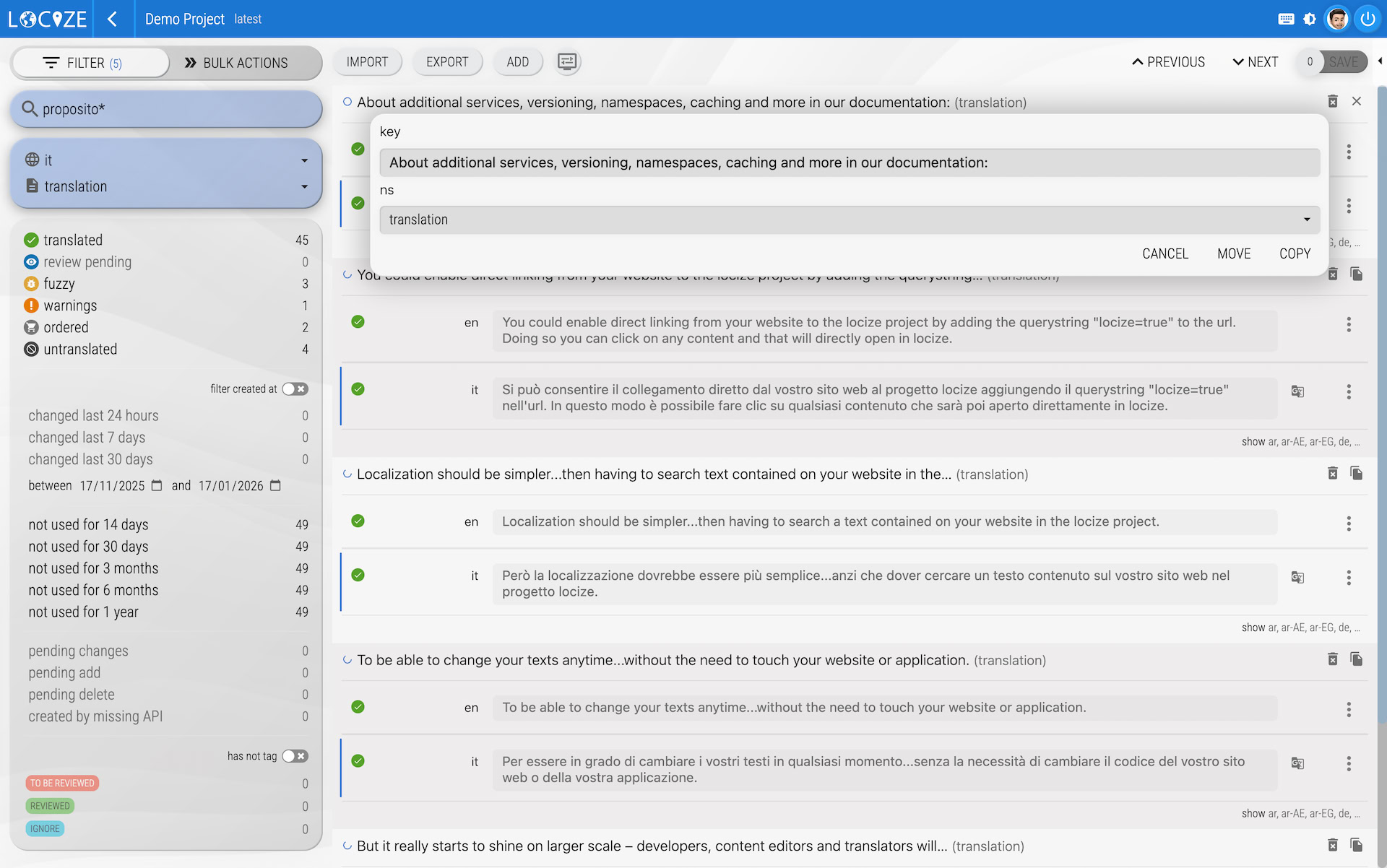
Use the MOVE/COPY section: An additional MOVE/COPY section will appear:
-
Change the key and/or namespace name: Enter the new key name and/or namespace name as needed.
-
Choose MOVE or COPY: Decide if you want to MOVE (remove from original location) or COPY (keep original and create a duplicate) the key.
Changing only the key name (keeping the same namespace) will perform a rename action.
Examples
- Change namespace, keep key name:
- MOVE: Moves the key to a different namespace.
- COPY: Copies the key to a different namespace.
- Change key name, keep namespace:
- MOVE: Renames the key.
- COPY: Copies the key within the same namespace, but with a new key name.