How to translate a file and download/export the results?
Locize is more than just an import/export tool for translations. It is designed to be an integrated part of your localization workflow, whether in your application code or CI/CD pipeline. However, you can also use Locize to quickly translate files and export the results for use elsewhere.
Here you can find a list of all supported file types.
This guide walks you through the process of importing a file, translating it, and downloading the translated results.
1. Sign up and create a project
First, register for a Locize account. After logging in, create your first project from the dashboard.
2. Add your target languages
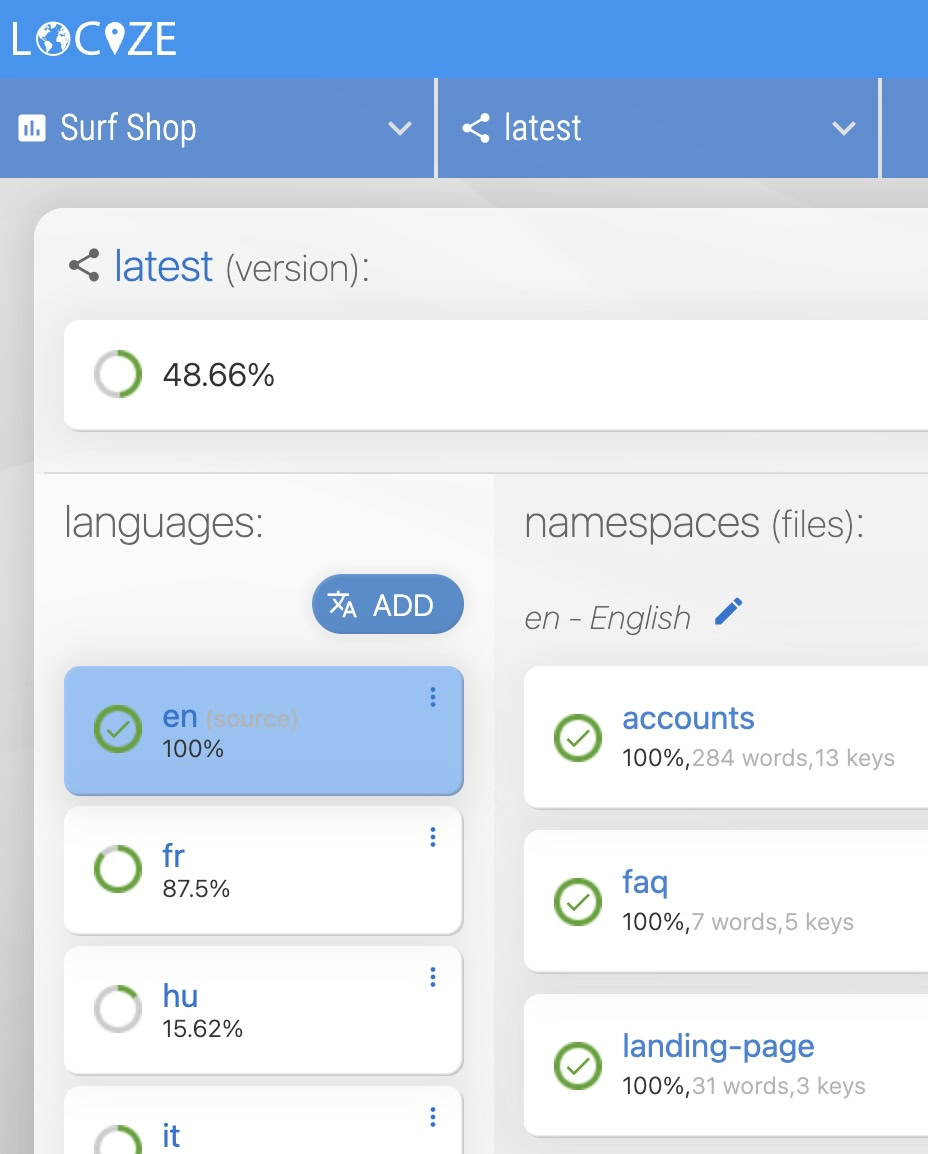
Add the languages you want to translate into. Click the "ADD" button in the languages section in your project dashboard:
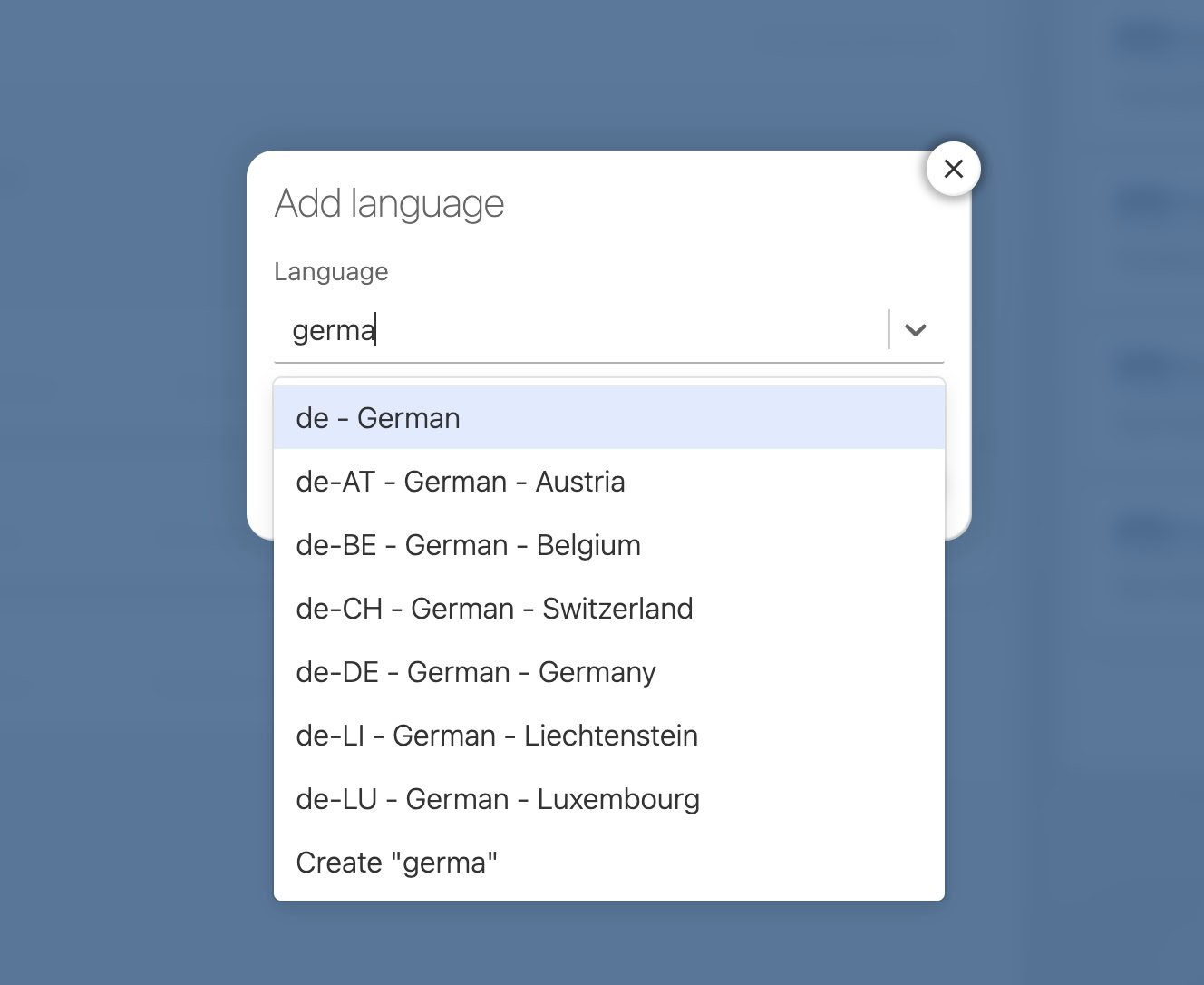
Select the desired language and click "ADD":
3. Import your file
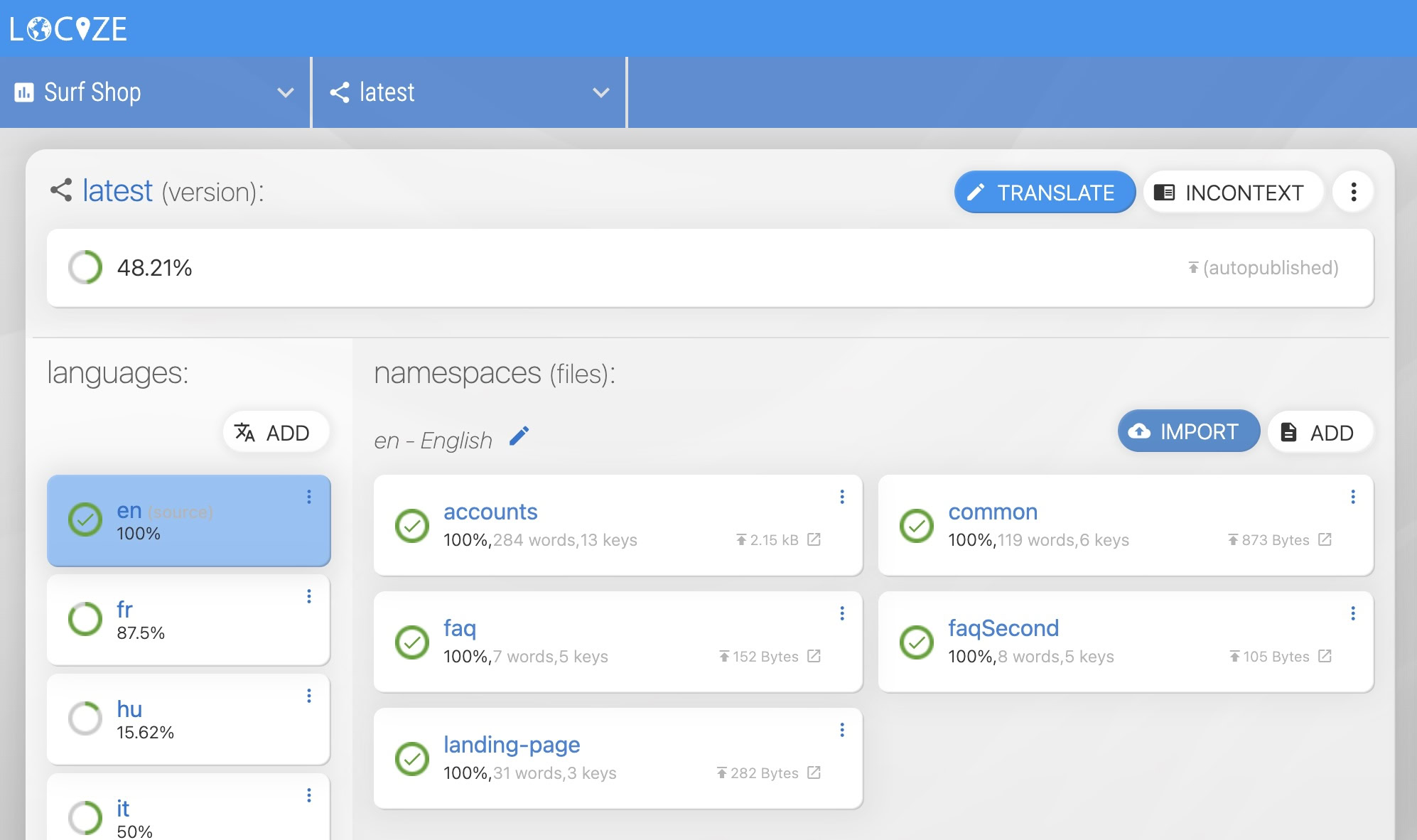
In the project dashboard, select your desired, version and language. Then click the "IMPORT" button:
Select the file you want to import:
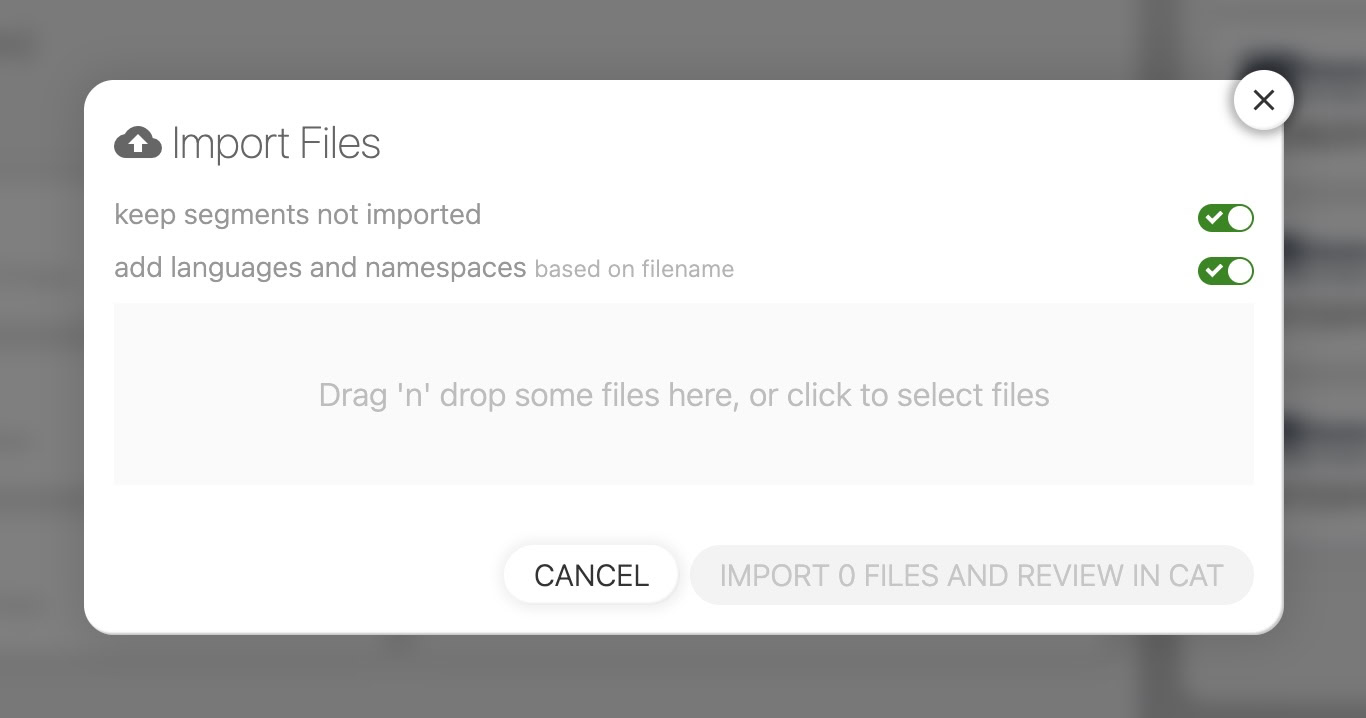
You can also try to import the exported zip file from backups or the "all" exports from within the CAT / Translation Editor.
Click on "REVIEW x IMPORT IN CAT". If the namespace name does not match, try to rename the file and try again.
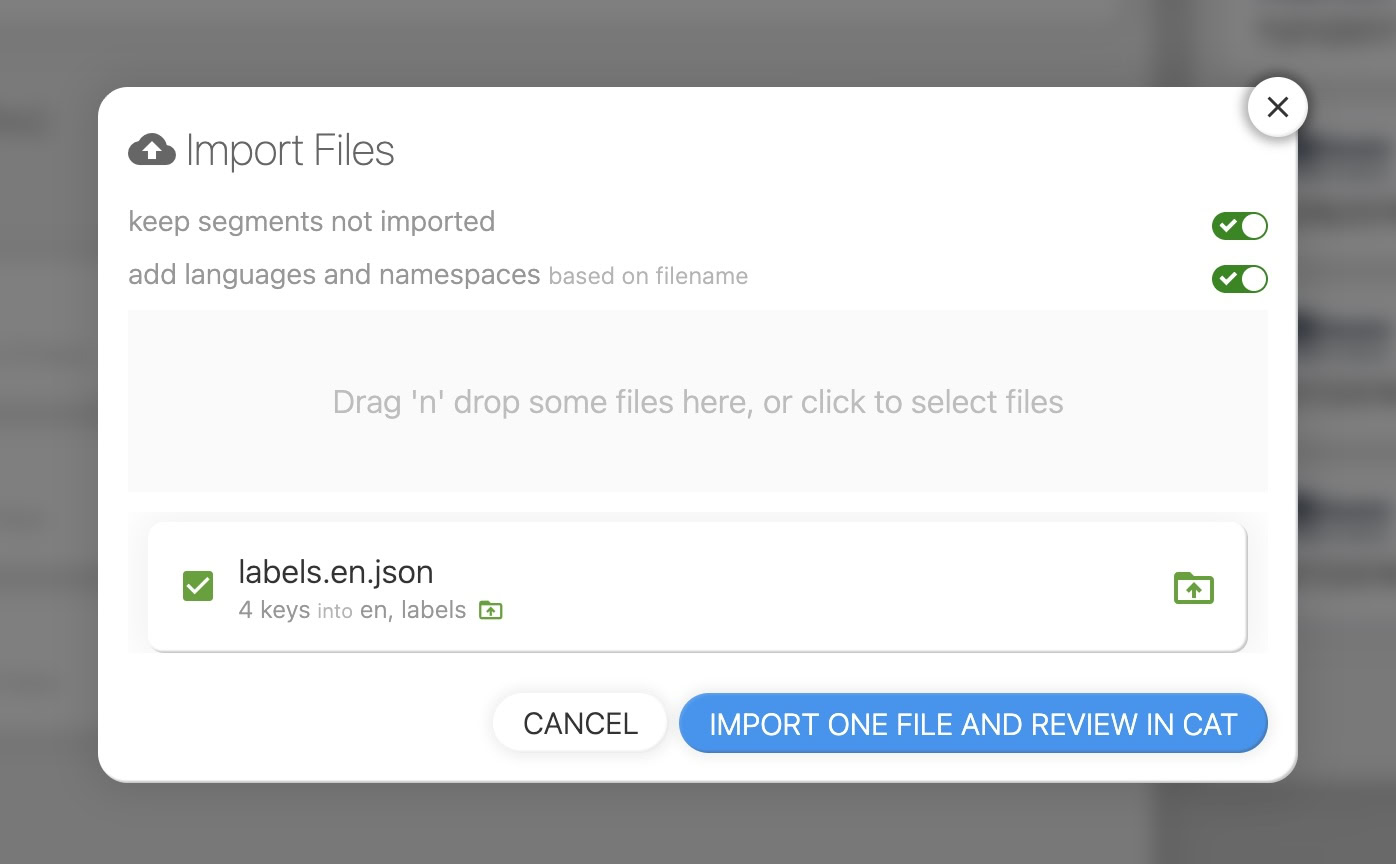
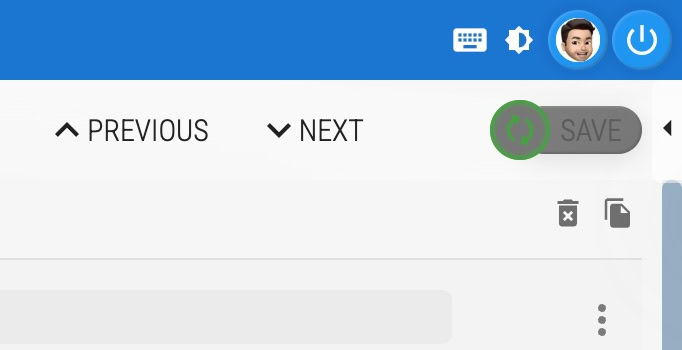
Verify everything looks correct and click the "SAVE" button:
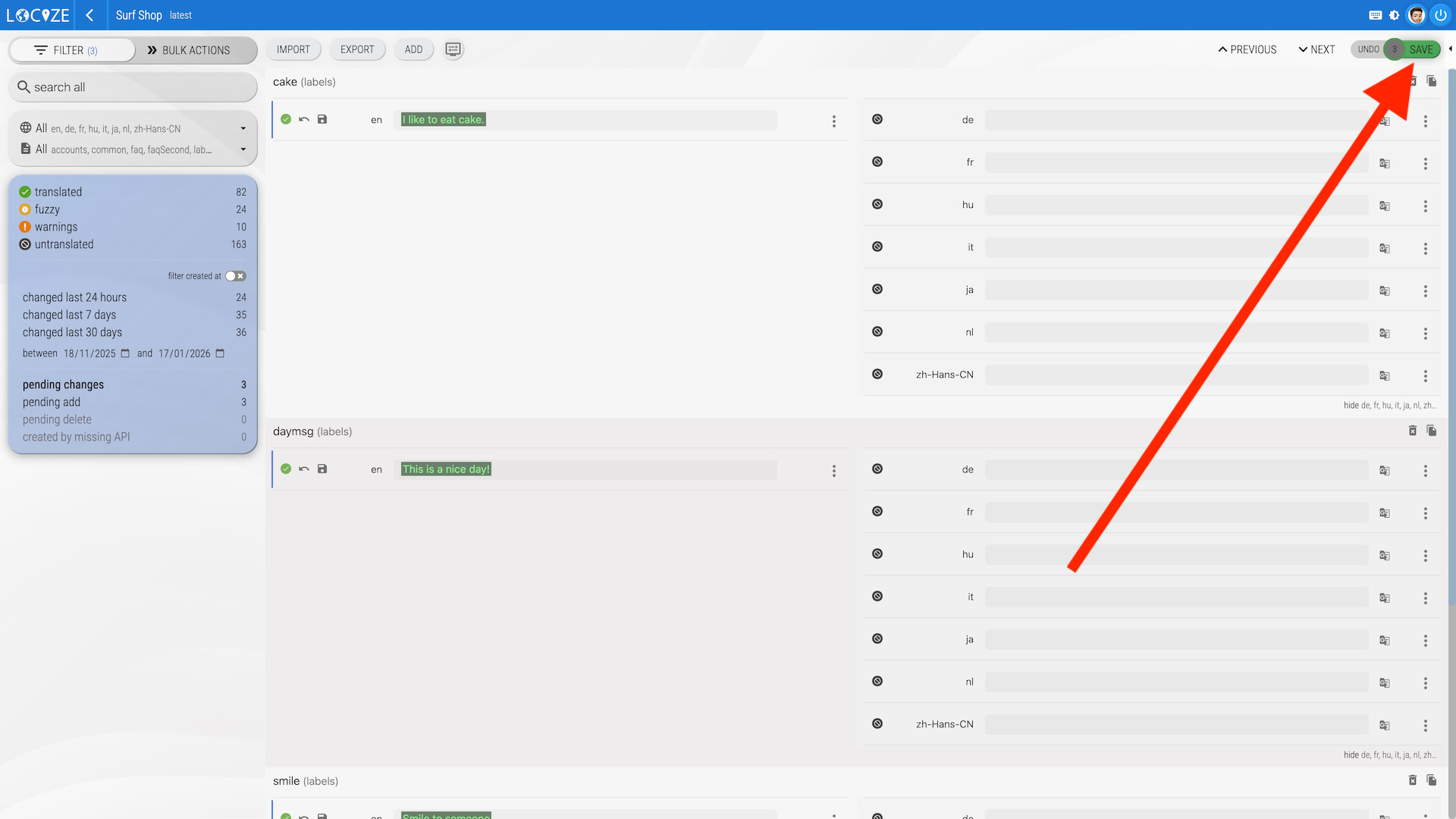
4. Translate your content
Start translating. Make sure to click the "SAVE" button after making changes. Note: During the trial, automatic and manual machine translation work within the starter credits included with every new project; continuous translation starts once you subscribe or configure your own AI/MT provider.
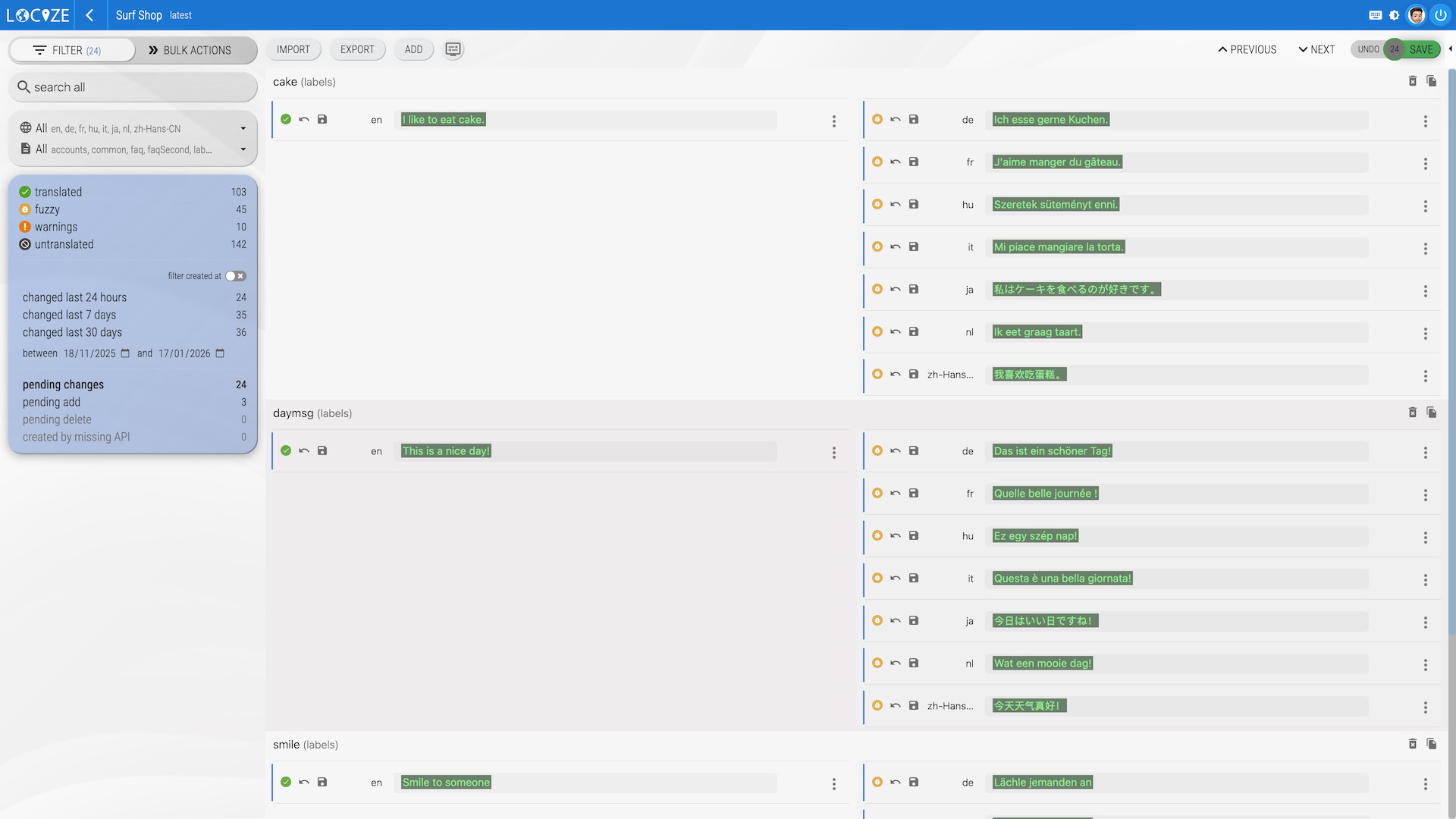
You may deselect the "pending changes" filter afterwards, to see all translations.
5. Export your translations
You have several options to export your translations:
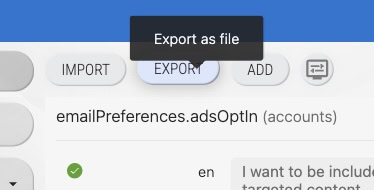
Export all
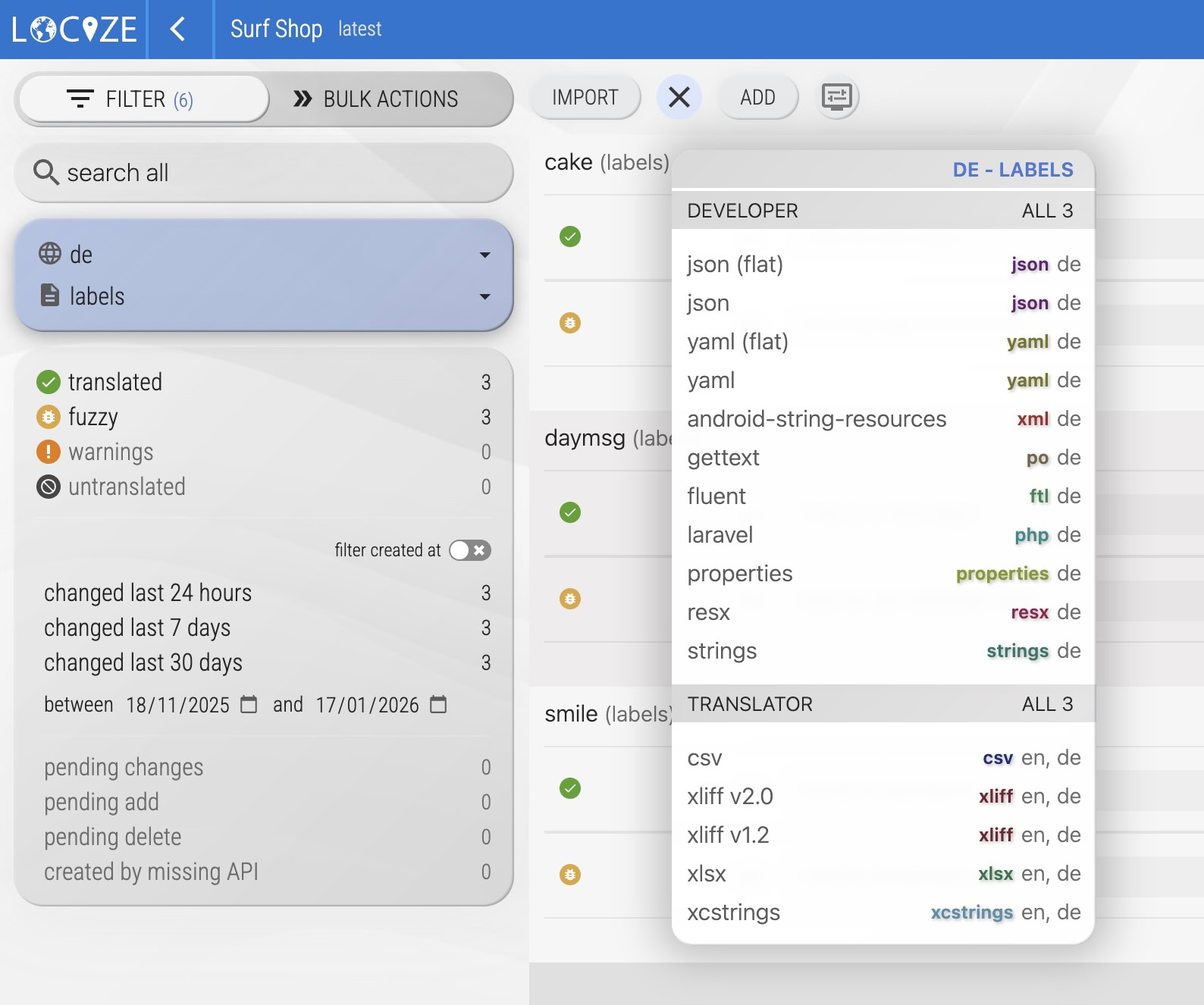
If no language or namespace is selected in the filter, clicking the "EXPORT" button lets you choose from various formats, such as json all (zip). This returns a zip file containing all JSON files.
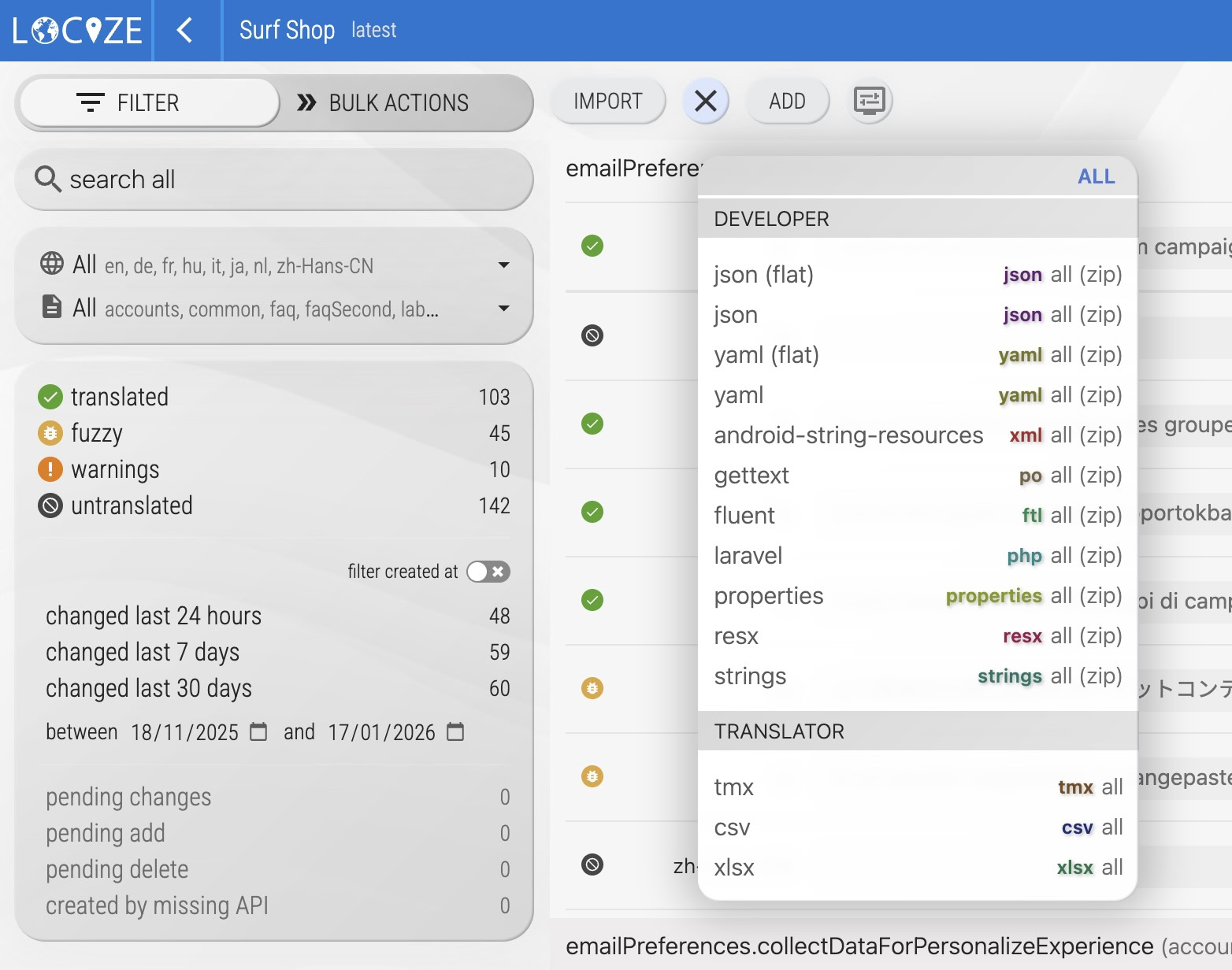
Export a single language/namespace
If a language and namespace are selected in the filter, clicking the "EXPORT" button lets you choose formats like json de. This returns a JSON file containing the German translations.