
2-factor authentication with WebAuthn
Strengthen your Locize account security by enabling WebAuthn as a second authentication factor. WebAuthn allows you to use hardware security keys or built-in device credentials for secure, passwordless authentication.
Prerequisites
- A WebAuthn compatible credential or device
- A valid Locize user account
How to enable WebAuthn
- Open the corner menu (your avatar).
- In the Two-factor authentication card, click "ENABLE WEBAUTHN".
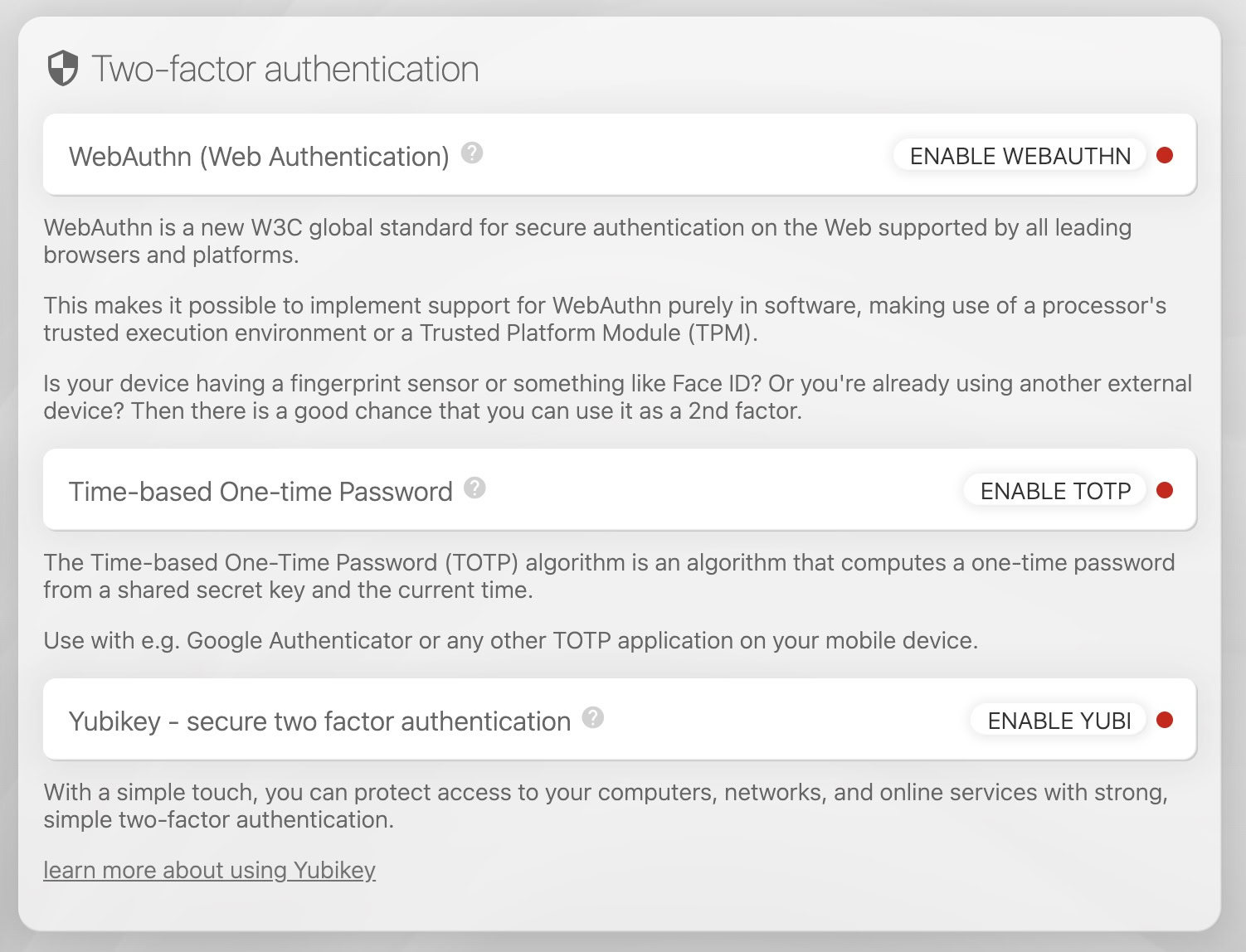
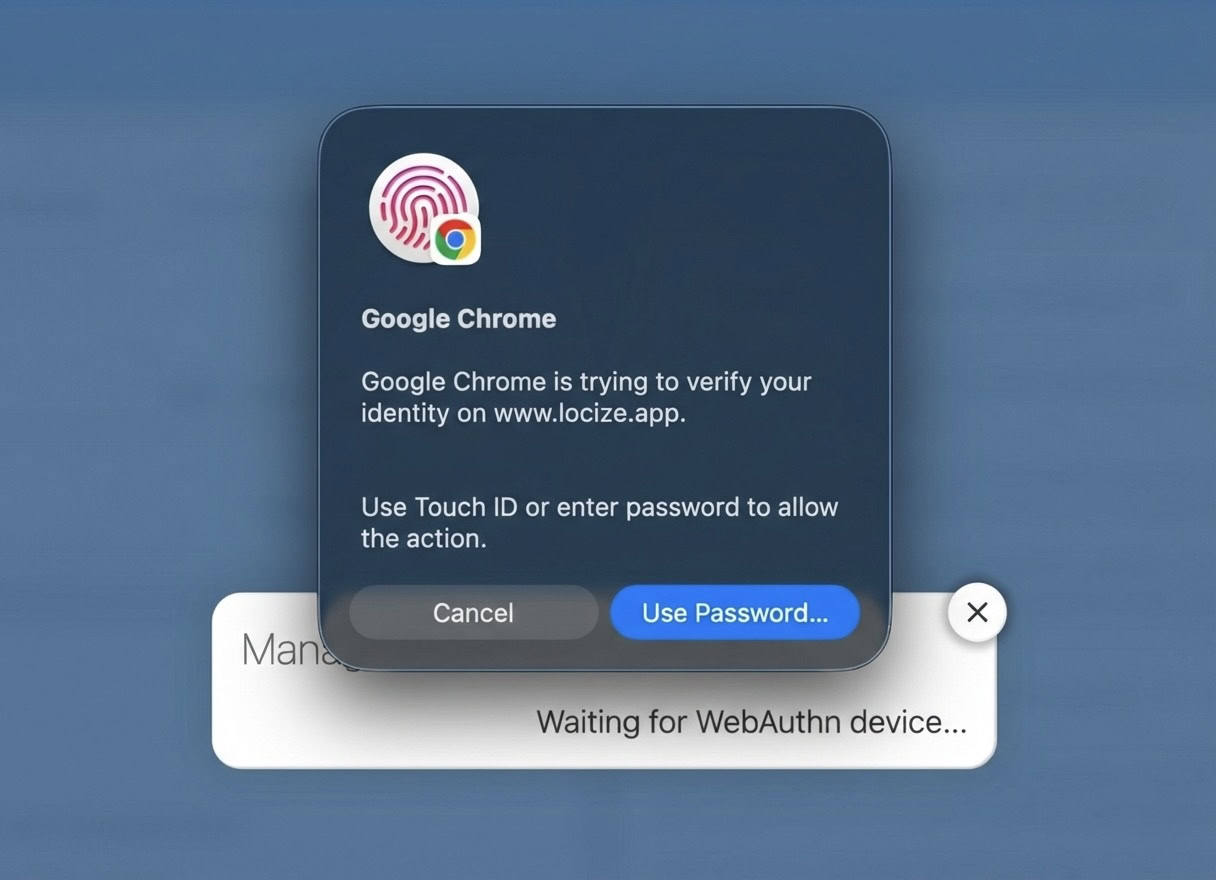
- Set up your WebAuthn credential. (The process depends on your device/credential type.)
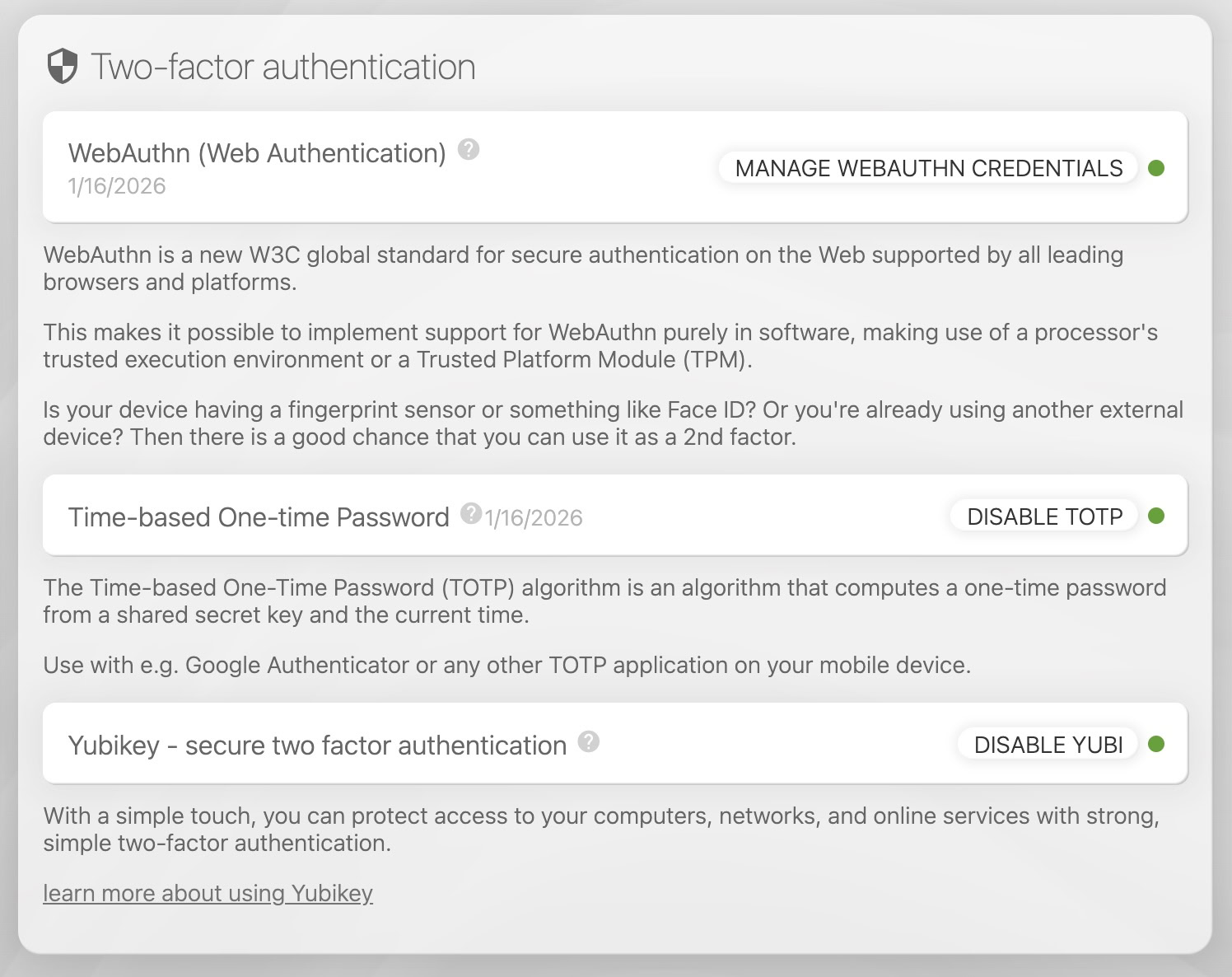
- If successful, you will see a green circle.
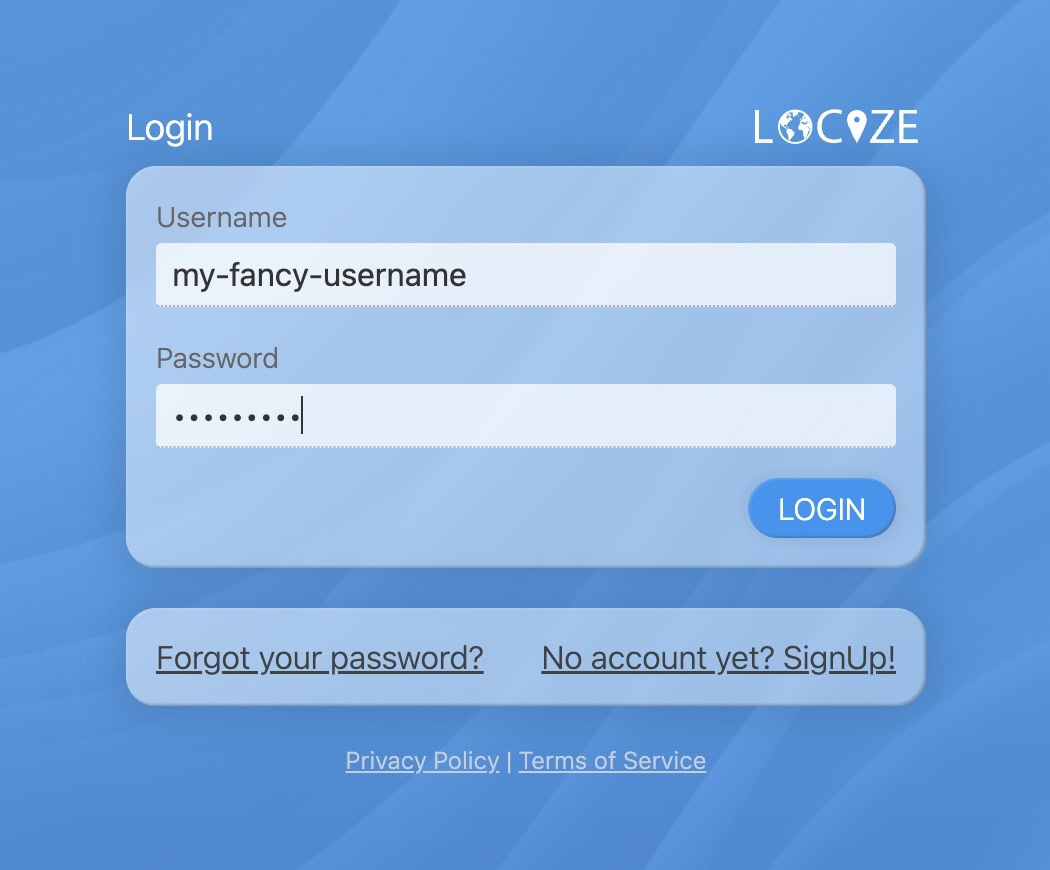
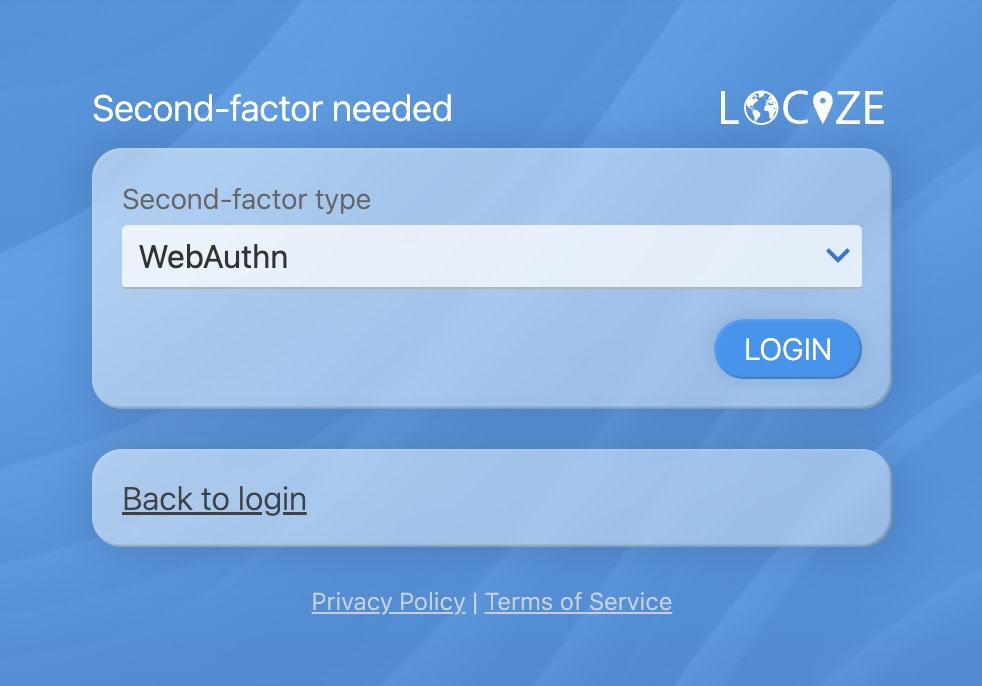
- On future logins, you will be prompted for your WebAuthn credential.
- The process depends on your device/credential type.
You can add multiple WebAuthn credentials for different devices.