
Review Workflow
Review in Locize is one queue with two kinds of entries:
- Proposals: a value that waits for a decision before it goes live. Created by review proposals, the per-language setting below. Use it when nothing unreviewed may ever reach production.
- Marked values: a live value flagged as needing review. The text is published (with auto-publish, or on your next manual publish) but listed for review until someone confirms it. Use it when speed matters more than gatekeeping, for example machine and AI output that should go live now and get checked later.
Both show up in the editor under the needs review filter, both count towards the review queue of a language on the project overview, and both are cleared by the same people: the reviewers of that language.
Enabling review proposals per language
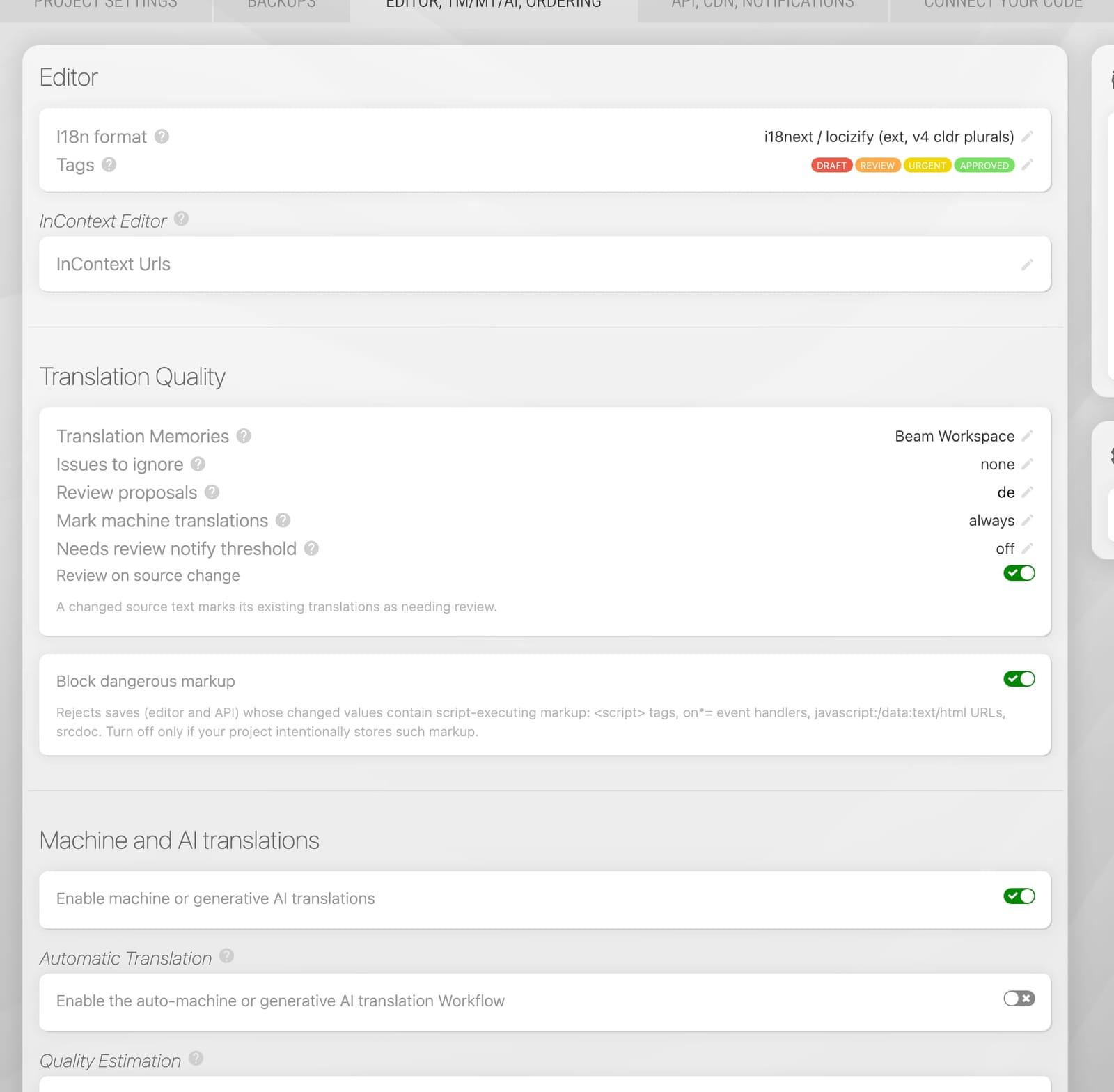
You enable review proposals for specific languages by navigating to your project settings page, in the "EDITOR, TM/MT/AI, ORDERING" tab and clicking the "Review proposals" row in the "Translation Quality" card. The needs-review switches described below sit in the same card.
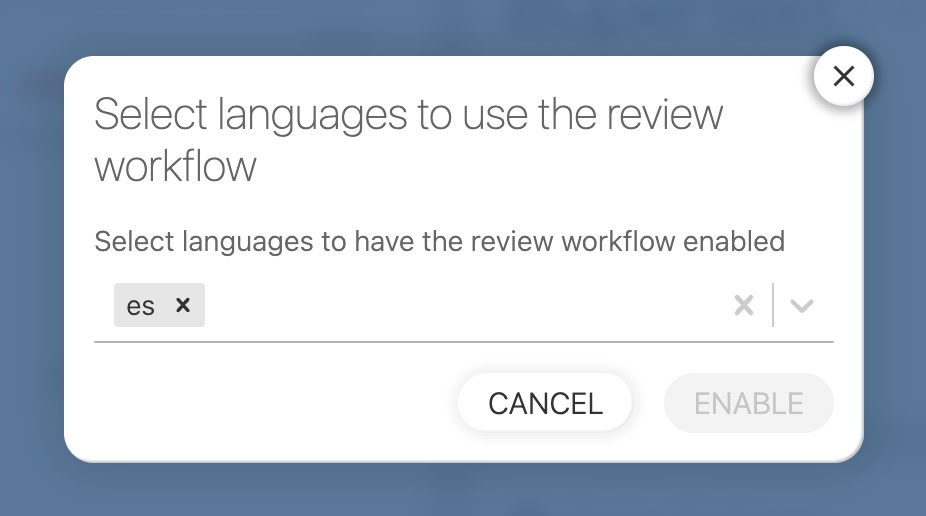
How review proposals work
Once enabled for a language, every change to one of its translations in the Locize UI becomes a proposal. The actual value will not be changed until someone accepts one of the translation proposals. This ensures that only reviewed and approved translations go live.
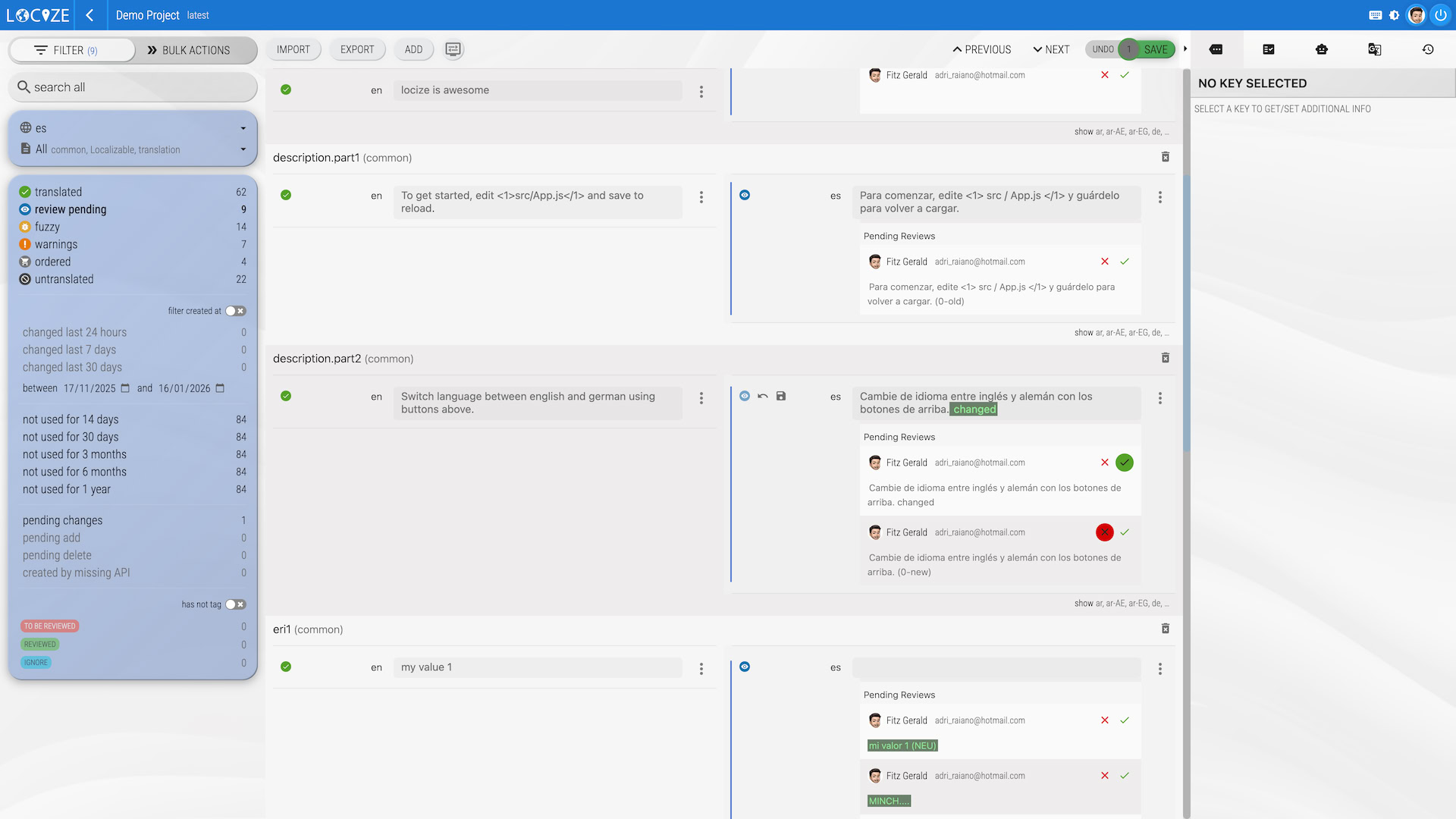
Values marked as needing review
Locize marks a live value as needing review when
- machine translation or AI wrote it: automatic translation, the editor's suggestions, or a value pushed over the API with quality
MTorAI, - the source text of an already translated key changes (setting Review on source change, on by default): every translation of that key gets marked, so translators see at a glance what to re-check,
- your CLI or API push says so (
needsReview: true, see below), - someone marks it by hand in the editor: Mark needs review in the row's ACTIONS menu, or mark all in the bulk actions.
A mark never changes the text and never unpublishes anything. It disappears when a reviewer confirms the value (the check mark at the end of the row, Confirm in the row's ACTIONS menu, or confirm all in bulk) or when someone saves a new text for it. Confirming is a reviewer's action: an admin, a manager, or a user with the review permission for that language.
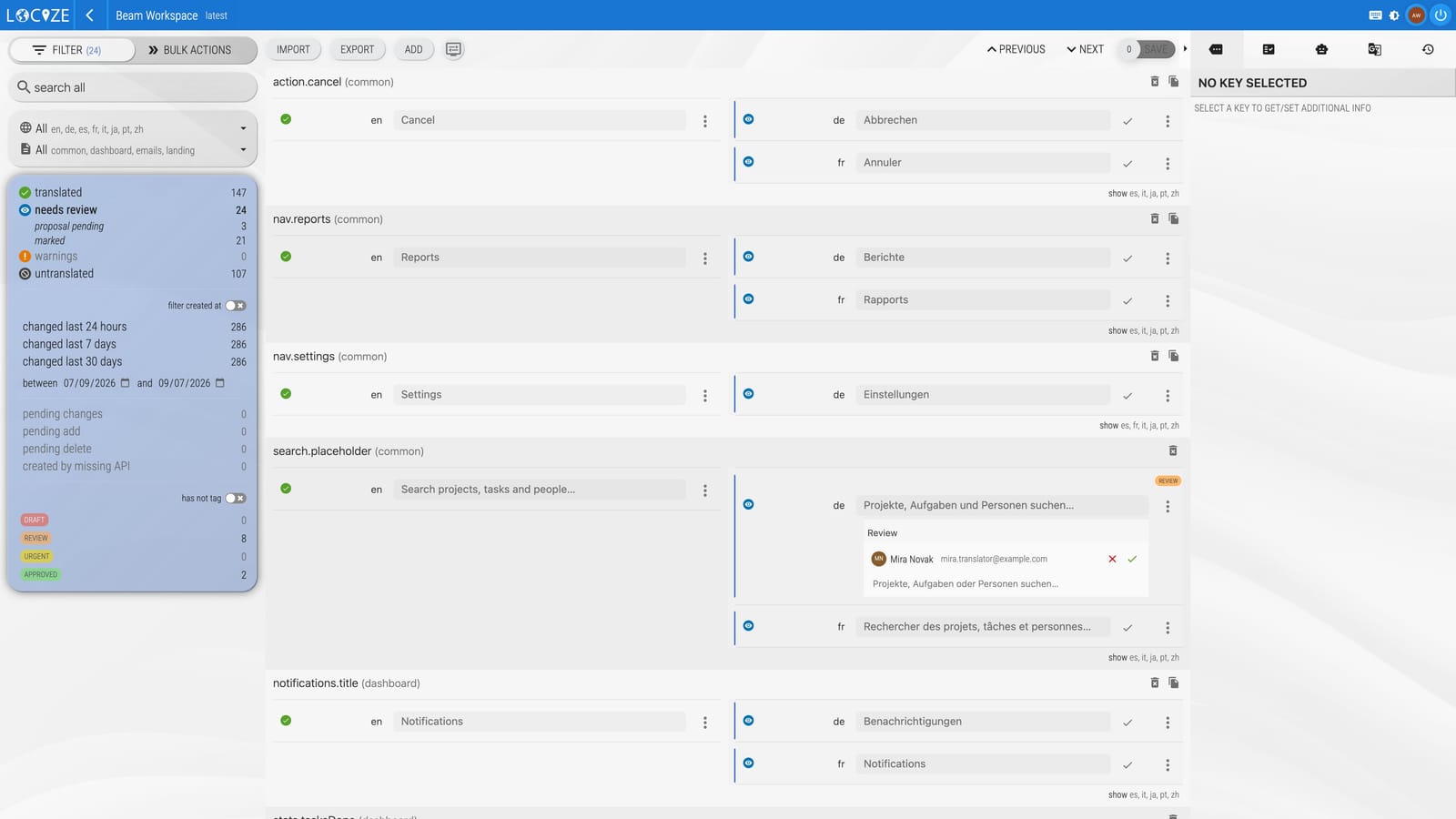
The needs review filter lists both kinds of entries; its sub-entries proposal pending and marked narrow it down to one kind. A proposal shows its Review block with accept and decline; a marked value shows the blue eye in front of the row (the tooltip says why) and the check mark at its end. A value with a pending proposal counts as a proposal only: it cannot be marked or confirmed until the proposal is decided (an accept confirms it, a decline leaves the mark in place).
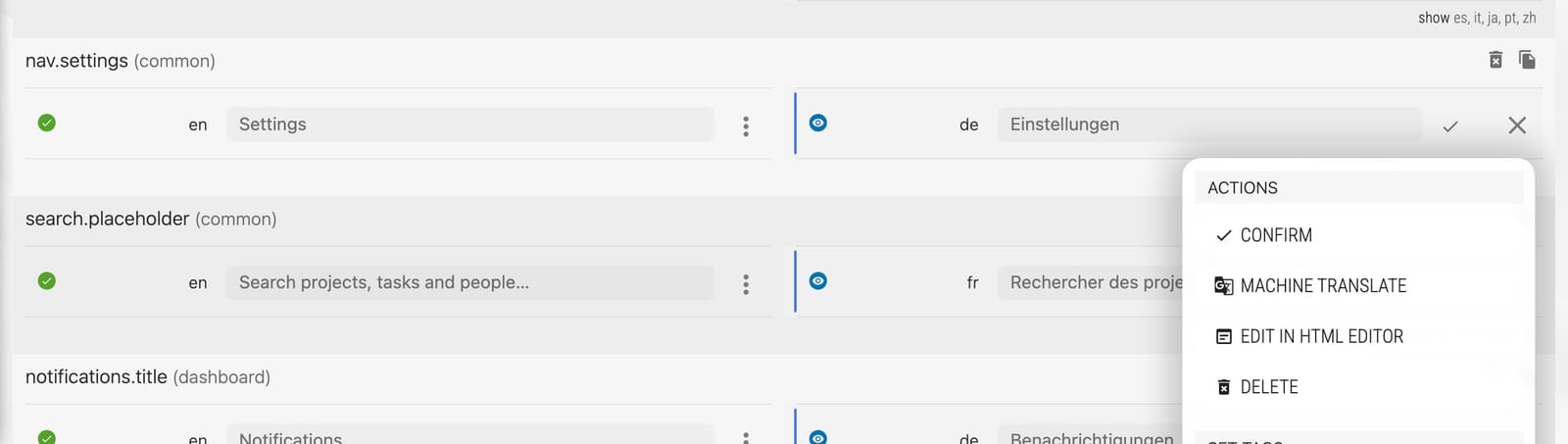
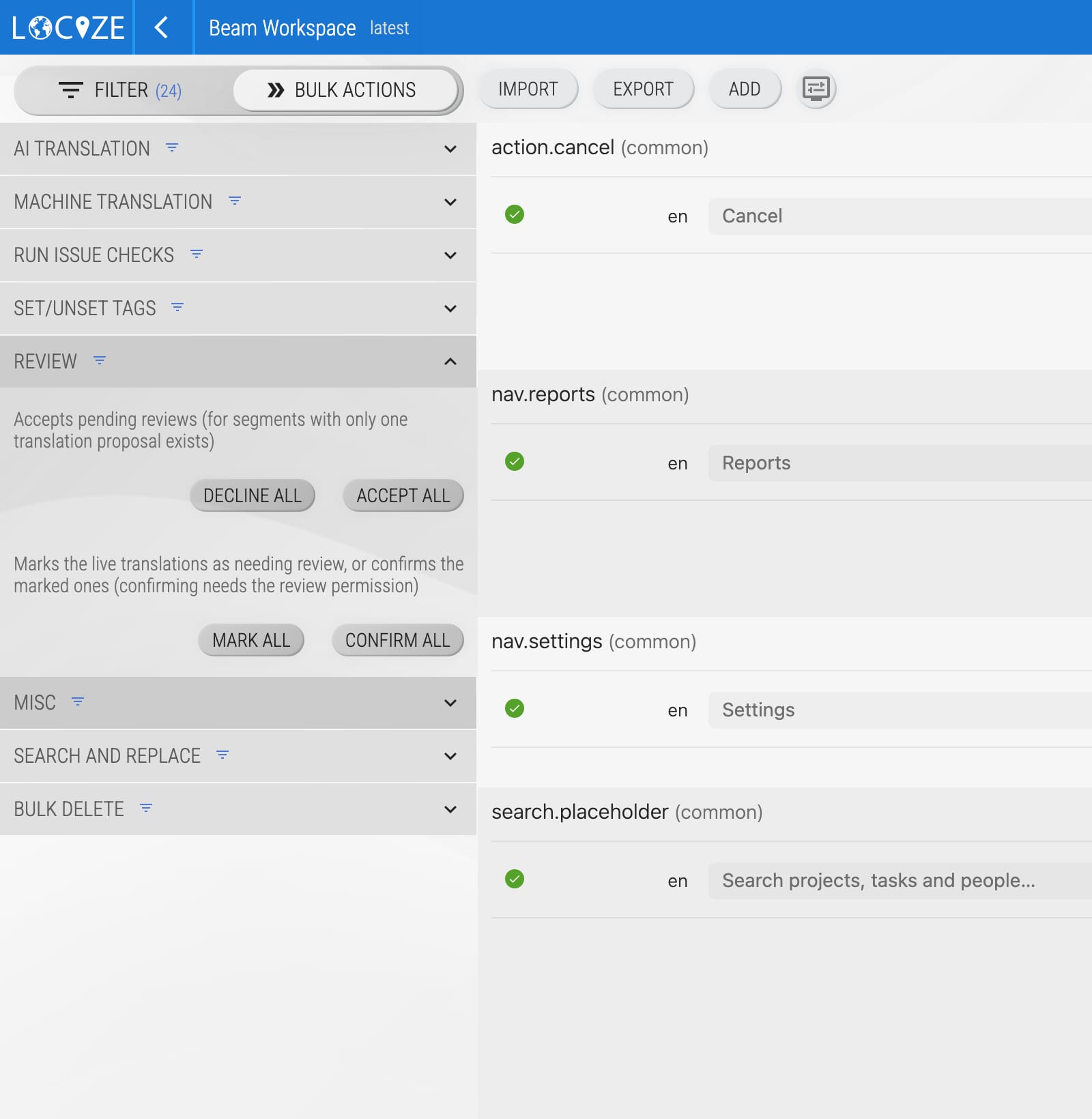
Bulk actions work on the filtered list: confirm all after a machine-translation run you have checked, mark all to send a language back to review.
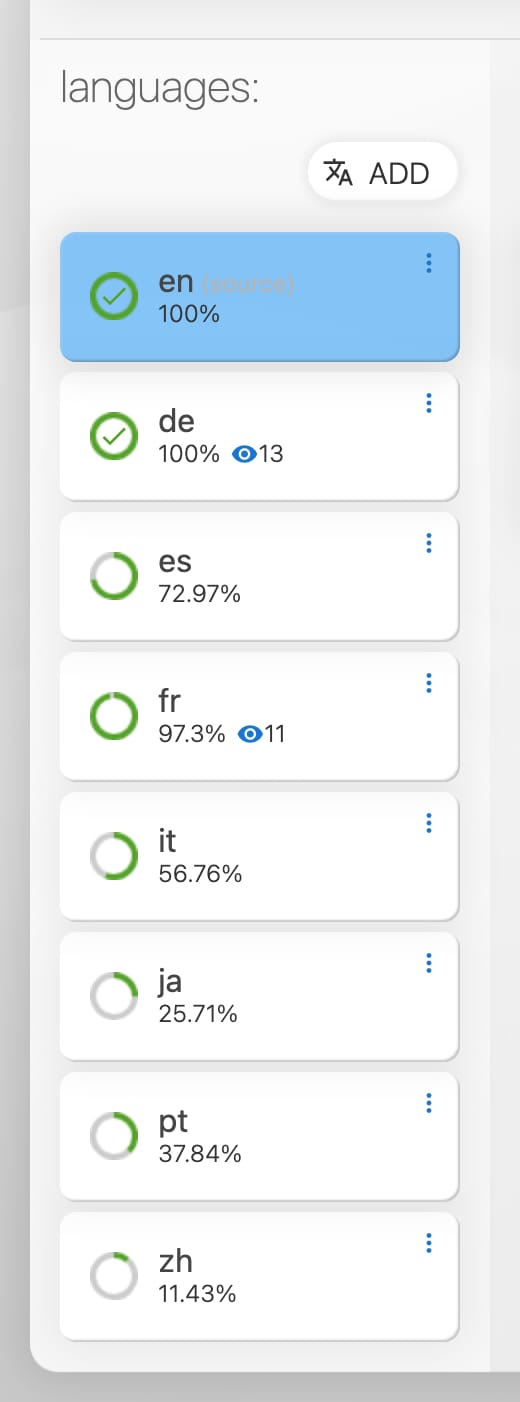
The project overview shows the size of the review queue per language, and the Health card shows the split into proposals and marked values.
Settings
In the project settings, tab "EDITOR, TM/MT/AI, ORDERING", the Translation Quality card holds, below the Review proposals row:
- Mark machine translations: which machine and AI translations get the mark: always (the default), only when not confident (no quality-estimation score at or above the project's threshold; a translation without a score counts as not confident, so plain machine translation is marked), or never. Changing it applies right away, also to the machine translations already in the queue. Marks set by hand, sent explicitly over the API or CLI, or set on a source change are not affected.
- Review on source change: marks the translations of a key when its source text changes (on by default). Issue 302 keeps flagging them in the checks panel as well.
- Needs review notify threshold: when the number of segments needing review in a language crosses this count, a
needsReviewThresholdnotification goes out (Slack, Microsoft Teams, webhook, GitHub dispatch), once per crossing.0switches it off. Needs a plan that includes notifications.
Via CLI
locize sync --reference-language-only false --needs-review trueRequires locize-cli 12.8.0 or newer. Your target-language files go live as usual, every sent value marked as needing review. Target languages only, like --review; ignored together with --review true, because proposals carry no mark.
Via API
Send the value as an object with needsReview:
curl -X POST -H "Content-Type: application/json" \
  -H "Authorization: Bearer <API_KEY>" \
  -d '{"key": {"value": "translated value", "needsReview": true}}' \
  https://api.locize.app/update/<projectId>/<version>/de/<namespace>
{"key": {"needsReview": false}} without a value confirms the current text and {"key": {"needsReview": true}} marks it; both count as a change of their own, not as a modification of the text. A plain value push without the field confirms (the sender vouches for the text); a push with quality MT or AI and no field follows the Mark machine translations rule (marked by default). Pulling with ?raw=true returns the mark beside the value as the editor shows it, including the one the rule gives a machine translation. See Update or remove translations.
gettext files (#, fuzzy)
The mark is the #, fuzzy flag of gettext. Fuzzy entries in a .po file arrive marked as needing review, both through the editor's import and through locize sync (target languages only; a push with --review true creates proposals, which carry no mark). The other way round, the editor's gettext export writes marked values as fuzzy, and so does a CLI download with --unpublished true (the published files carry no marks). Needs locize-cli 12.8.0 or newer.
Starting a review via API
You can also create a proposal programmatically using the API. See the Update or remove translations endpoint for details on how to trigger a review from your integration or automation.
Use ?review=true on the update endpoint to create a review proposal instead of a direct write:
curl -X POST -H "Content-Type: application/json" \
  -H "Authorization: Bearer <API_KEY>" \
  -d '{"key": "translated value"}' \
  https://api.locize.app/update/<projectId>/<version>/<lng>/<ns>?review=true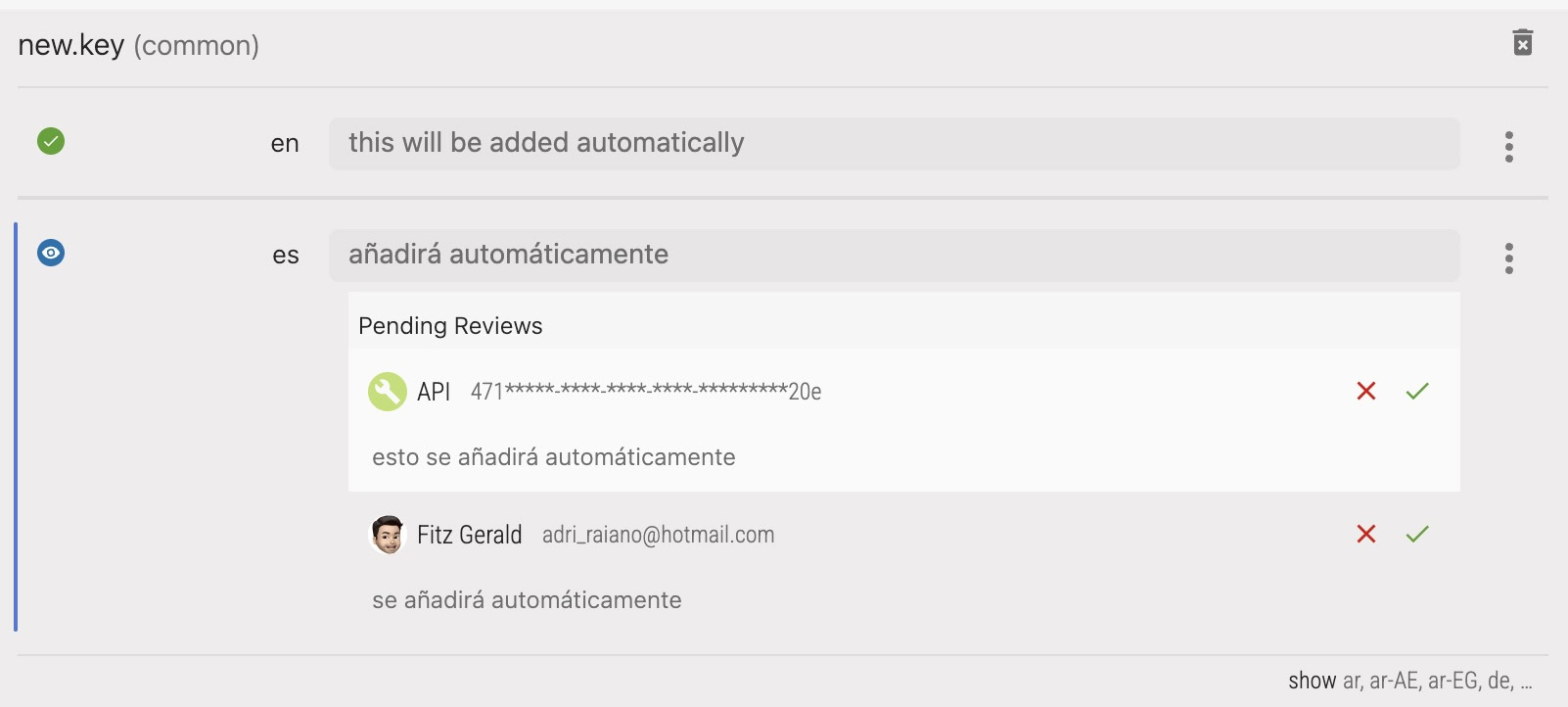
Uploading target languages as proposals
If you translate outside Locize, for example with your own LLM or by editing the language files in your repository, you can push those files as review proposals instead of writing them directly.
Via CLI
locize sync --reference-language-only false --review trueRequires locize-cli 12.6.0 or newer. Your reference language is still written directly, since that is where new keys come from. Every other language arrives as a proposal and only goes live once someone accepts it in the editor. Review proposals have to be enabled for those languages.
Via API
curl -X POST -H "Content-Type: application/json" \
  -H "Authorization: Bearer <API_KEY>" \
  -d '{"key": "translated value"}' \
  https://api.locize.app/update/<projectId>/<version>/de/<namespace>?review=true
Note:
review=truecannot be combined with thereplaceoption, and the language has to have review proposals enabled. Values pushed this way carry no quality marker: the proposal is judged by the person reviewing it.
Review proposals for automatic translations
When you add a new key via the Locize UI and your project has review proposals enabled for some languages, auto-translations for those languages automatically arrive as proposals, with no extra configuration needed.
When using the CLI, API, or MCP, automatic translations bypass review proposals by default. You can route them through review by adding autotranslatereview=true to your API call or CLI command. When enabled, auto-translated values for languages with the review workflow active will appear as review proposals instead of being applied directly.
Via CLI
locize sync --auto-translate true --auto-translate-review trueThis will:
- Push your reference language keys directly (no review for the source language)
- Trigger automatic translation for target languages
- Create review proposals for languages with review enabled (instead of direct writes)
- Translations are only published after review approval in the Locize UI
Via API
curl -X POST -H "Content-Type: application/json" \
  -H "Authorization: Bearer <API_KEY>" \
  -d '{"new.key": "default value"}' \
  https://api.locize.app/update/<projectId>/<version>/en/<ns>?autotranslate=true&autotranslatereview=true
Via MCP
The MCP server tools update_translations and report_missing_keys also support the autoTranslateReview parameter.
Note:
autotranslatereview=trueonly affects languages that have review proposals enabled in project settings. For languages without review proposals, auto-translations are written directly as before.
Review AI workflow (confidence-based)
Review proposals hold everything in the selected languages. With Quality Estimation and its Review AI workflow setting, Locize additionally routes only low-confidence AI translations into review: selectively, across all languages, even those without the regular review workflow enabled. High-confidence AI translations are saved directly. Routed proposals carry the evaluator's confidence score, a critique (accuracy, fluency, terminology, style), and where possible a suggested revision.
See Quality Estimation for details.
AI review of existing translations
AI Review checks the translations a project already has, whoever wrote them, and puts the doubted ones into this queue: a proposal with the suggested fix where the evaluator can improve the text, a mark where it cannot. Accept, decline, confirm and edit them like any other queue entry; a declined AI proposal confirms the current text.
Proving reviews happened (provenance export)
Every accept and decline is recorded in the segment history, including who decided, when, and (for AI proposals) the confidence score at decision time. Confirming a marked value is recorded the same way, with who confirmed it: a user, or the API key (and CLI) that sent the confirm; the export reports the latter as apiConfirmed, so a named review and a confirm from your pipeline stay distinguishable. The provenance export packages this evidence as a CSV and JSON report per version, language or namespace: open the context menu in the project overview and choose provenance. For the full setup see Running an Article 50(4)-compatible review workflow.
See the review workflow in action
review workflow part of showcase/demo