
Using Locize as a translator
Locize makes it easy for translators to contribute to projects with a streamlined, user-friendly interface. Whether you’re new to Locize or have been invited to help with translations, this guide will walk you through the typical workflow and best practices.
1. Getting Started: Accepting Your Invitation
Your journey begins with an invitation email. Click the link in the email and complete the registration process. Once registered, you’ll land on your Locize dashboard, which lists all projects you have access to.
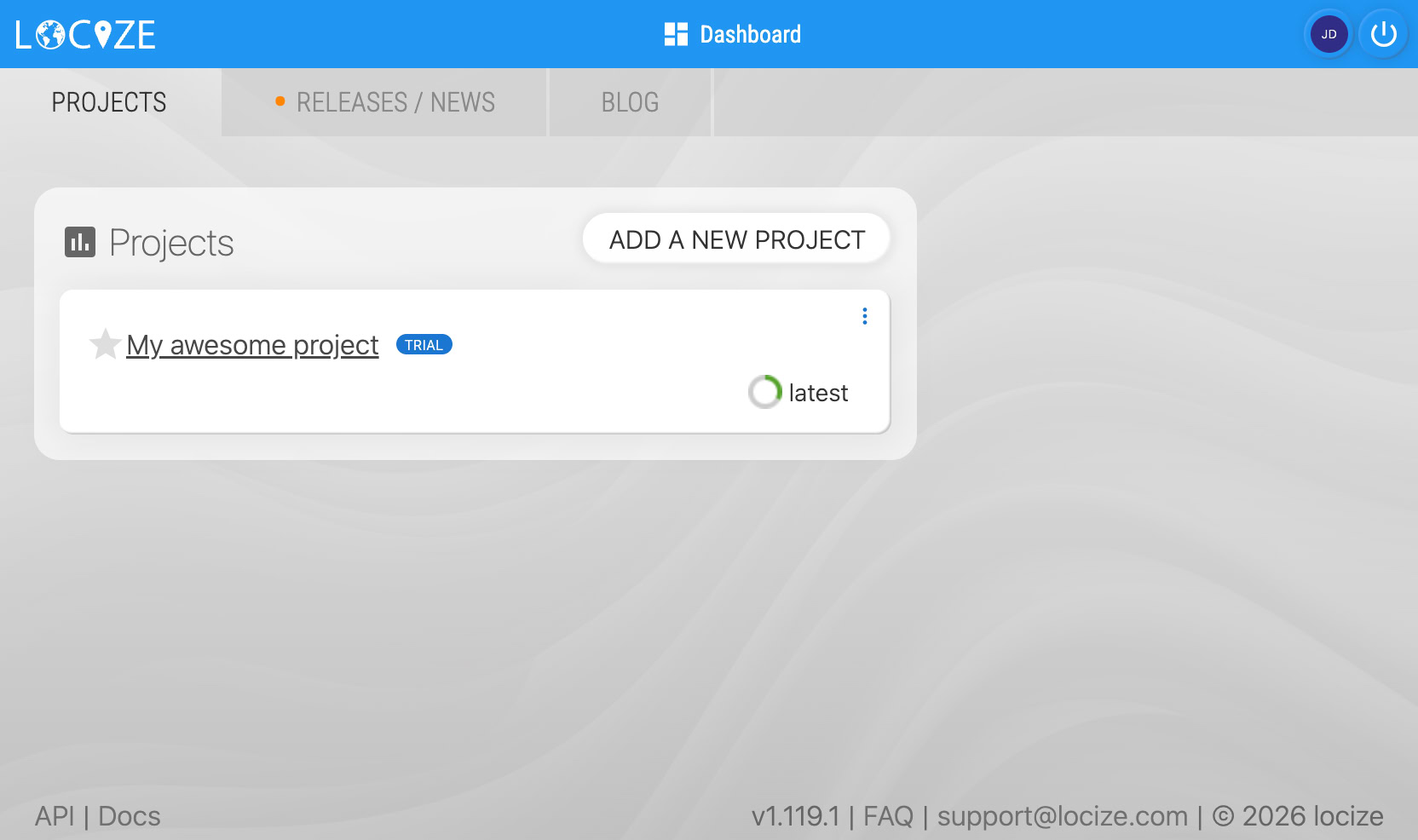
If this is your first time, you’ll likely see just one project. Click on it to enter the project’s Project Dashboard.
2. Navigating the Project & Starting to Translate
In the Project Dashboard, you can select click on any language or namespace you're interested in. Or simply click the TRANSLATE button.
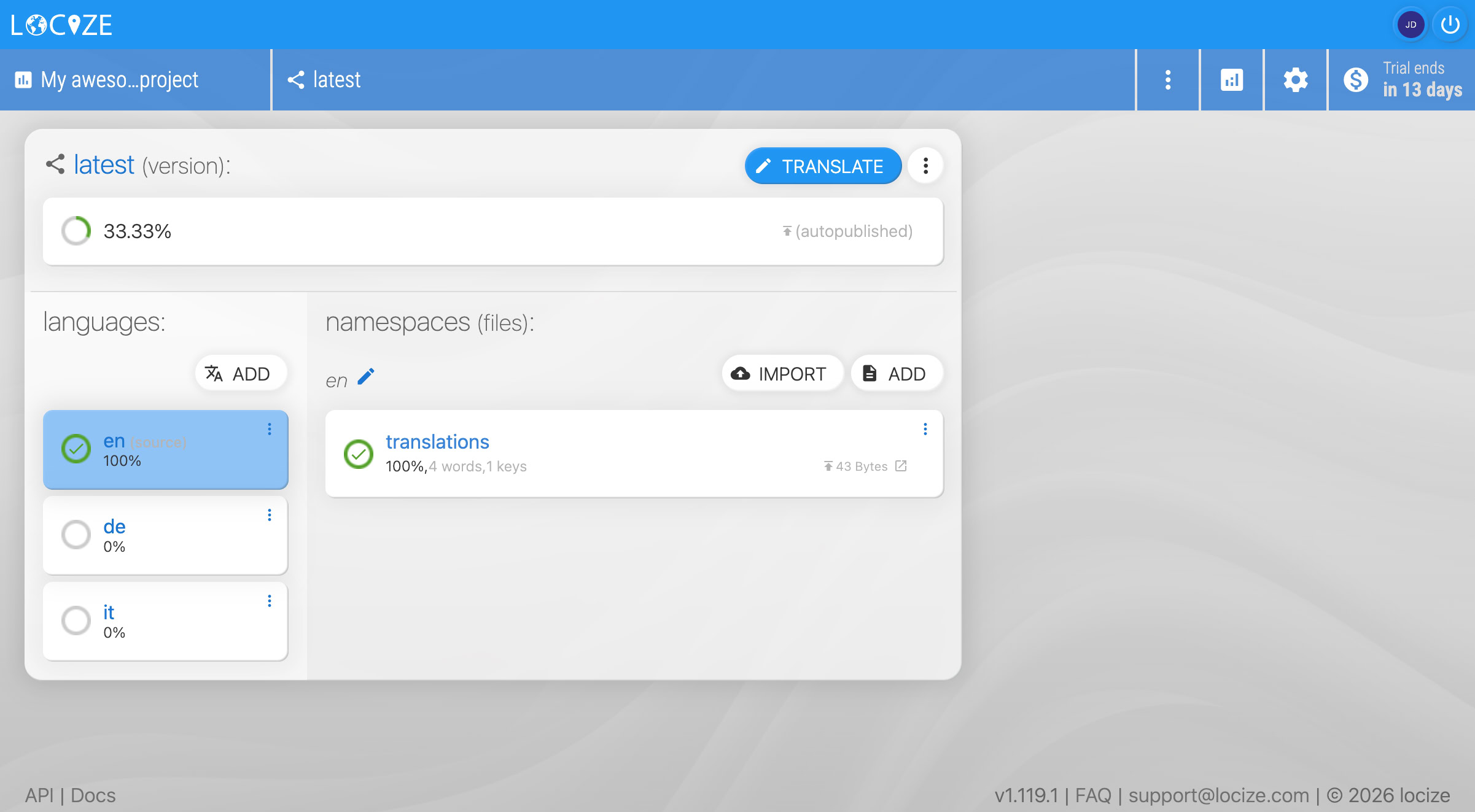
You’ll see the translation files and their completion status. To begin translating, you can choose between two main views using the buttons on the right:
CAT View / Translation Editor
The CAT View / Translation Editor provides an overview of all translations and highlights recent changes. It’s your main view to work on translations.
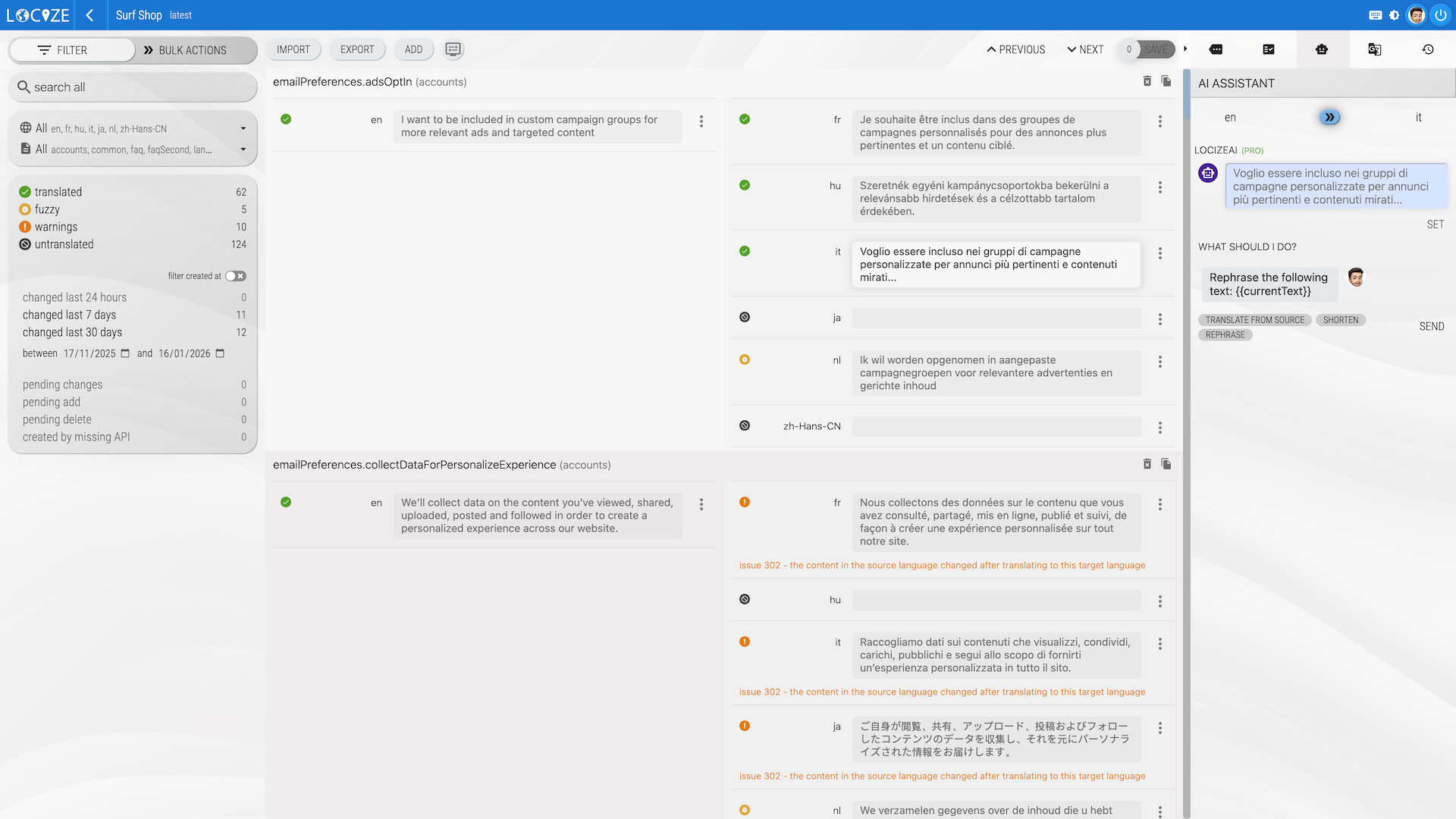
Learn more about the CAT / Translation Editor here.
3. Translating Segments Efficiently
To focus on untranslated content, set a filter to show only untranslated segments. This reduces the list to just the segments that need your attention:
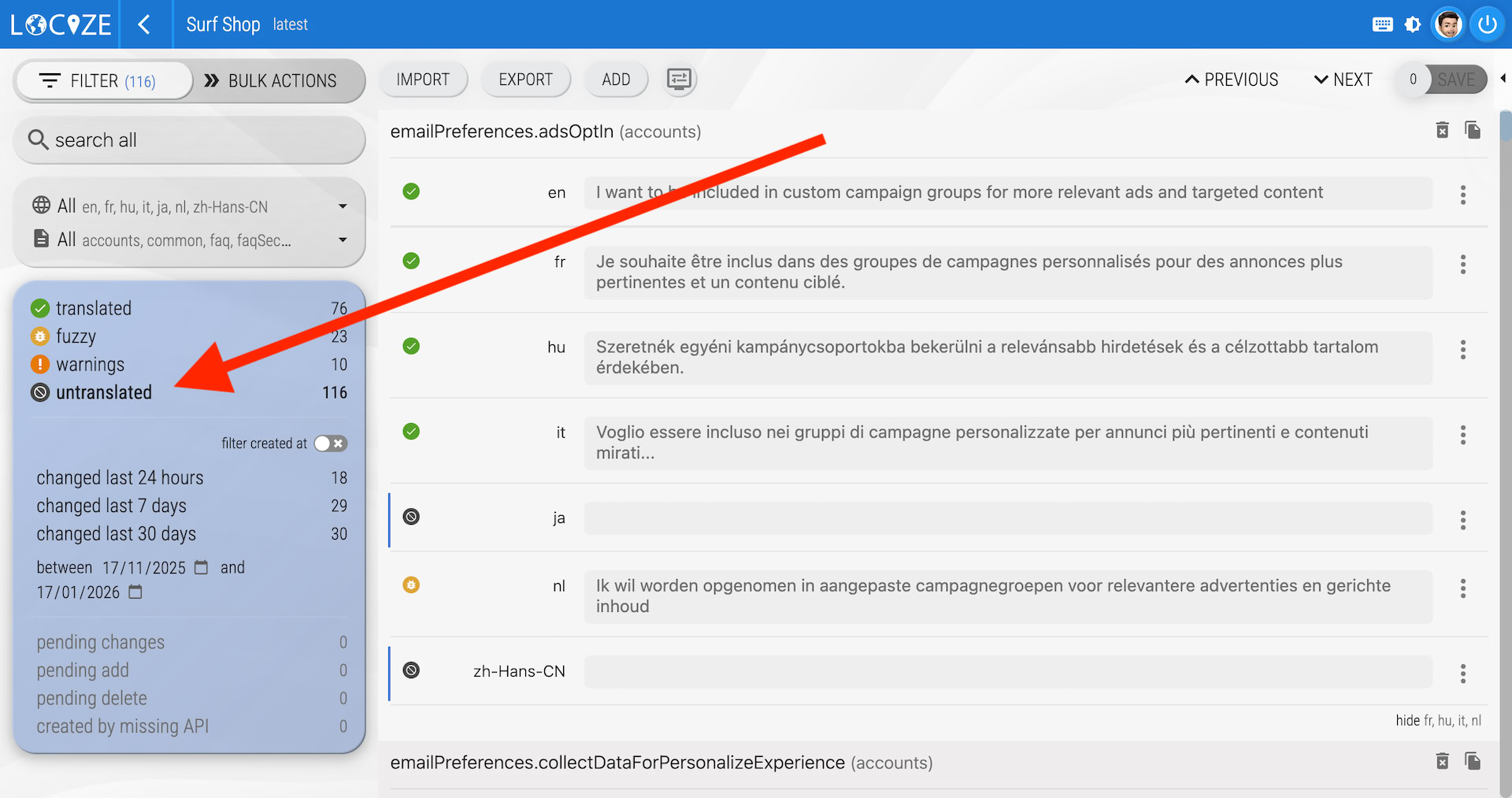
You can either select machine translation and post-edit it, or type your own translation into the input field, etc.
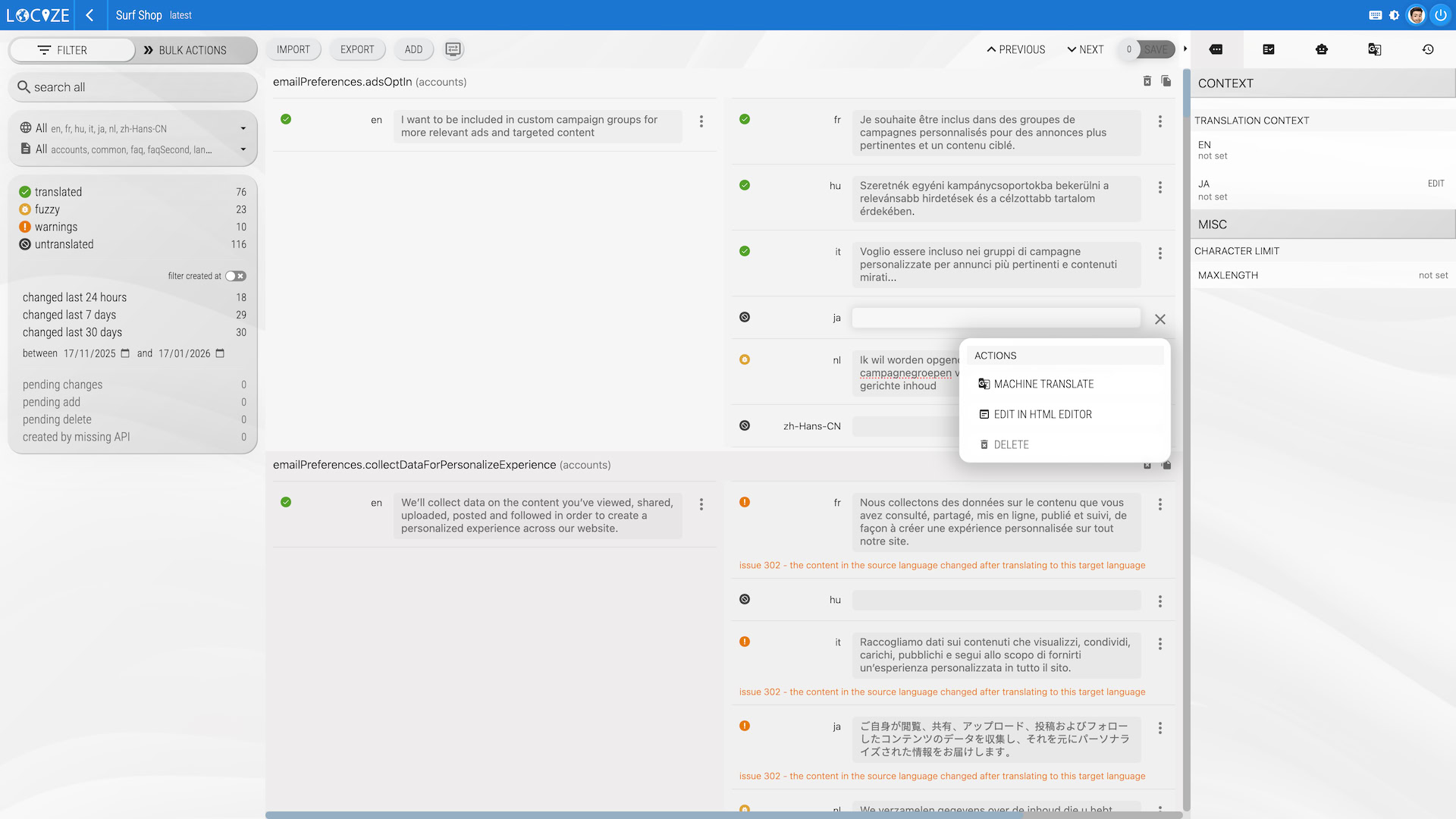
To move to the next segment, use your mouse or keyboard shortcuts:
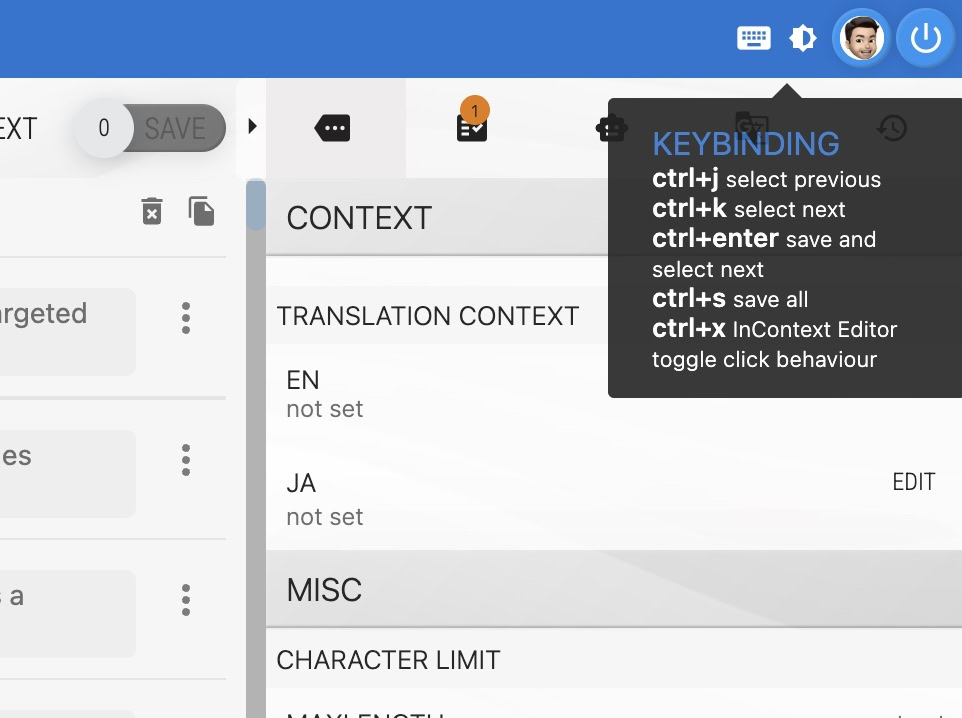
Tip: Keyboard shortcuts may differ between Windows and Mac. Check the key bindings for your system.
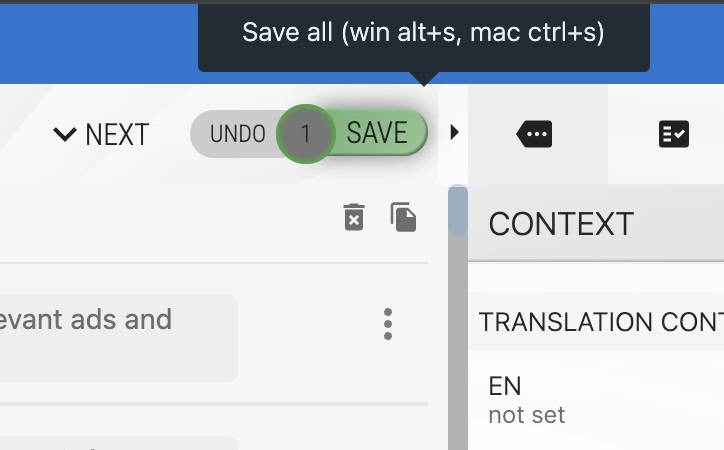
After translating, don’t forget to save your changes using the save button or the appropriate keybinding:
4. Staying Organized & Tracking Progress
Locize offers additional features to help you keep track of new and updated translations. Explore more tips here.
Summary & Next Steps
- Accept your invitation and register.
- Select your project and language.
- Use the CAT / Translation Editor to translate efficiently.
- Filter for untranslated segments and use keyboard shortcuts to speed up your workflow.
- Save your work regularly.
- Explore more guides for advanced tips and best practices.