
In-context translation editor: how it works and how the major TMS platforms compare
TL;DR: An in-context translation editor (ICE) lets translators edit strings on the live website or app, with the surrounding UI visible. Four architectural patterns exist: SDK / script injection (Locize, Crowdin, Tolgee, Localazy), proxy-based (Phrase), browser extension (Lokalise), and iframe embed inside the TMS UI (most platforms offer this as a secondary mode). The right pick depends on whether you can add code, how strict your data-residency requirements are, and whether translators need shareable preview URLs. Locize uses the SDK approach with i18next-subliminal markers for reliable string-to-key matching.
What is an in-context translation editor?
An in-context translation editor (sometimes abbreviated as ICE, sometimes called in-context localization or live editing) is a tool that lets translators edit text strings directly on a running website or application, with the user interface around the string visible at the same time.
This sounds simple. The problem it solves is not.
In a traditional translation workflow, translators see a list of strings in the TMS (translation management system), often without surrounding context. A string like submit could mean "submit a form" or "submit (yield) to authority"; the translation differs by language. "Open" could be a button or an adjective. Numeric formats, gendered text, and pluralisation behave differently per locale. Without seeing where the string appears, translators have to guess, and they guess wrong often enough that an entire industry of "translation context tooling" exists to compensate.
In-context editing solves the same problem the obvious way: let the translator see the string in its real surroundings while editing.
Why context matters in translation
Three concrete examples of the cost of missing context:
- Layout-breaking translations. German is roughly 30% longer than English. A "Save" button labelled three characters in English becomes "Speichern" (9 characters), and the button breaks visually if the translator can't see the layout. In-context editing surfaces this immediately.
- Wrong sense of a polysemous word. "Bank" (financial institution) and "Bank" (river bank, or German "bench") have different translations in many languages. Out of context, translators frequently pick the wrong one.
- Gender and pluralisation in the wrong context. A string like
Welcome, {name}may need different grammar based on the user's gender in languages that distinguish (French, Spanish, Hebrew, Arabic, German nouns). Knowing whether{name}refers to a customer, an admin, or a system role changes the right translation.
The data on this is consistent across enterprise localization research: most translation defects that reach production are context defects, not vocabulary defects. The translator knew the words; they didn't know the situation.
In-context editing is the most direct mitigation. Instead of fixing context after translation (review cycles, screenshots, glossary notes), it puts the context in the translator's face at the moment of translation.
The four architectural approaches to in-context editing
Different TMS platforms have arrived at four distinct architectures. Understanding which pattern a platform uses matters more than comparing features in isolation: the architecture determines what's possible, what's painful, and what's impossible.
1. SDK / script injection
Your application loads a small JavaScript snippet from the TMS vendor. When in-context mode is activated (usually by a URL parameter like ?incontext=true or a keyboard shortcut), the SDK overlays an editor UI on top of your page. Translators click any string on the live site, see the editor, change the translation, and the change is saved back to the TMS.
Used by: Locize, Crowdin (In-Context), Tolgee, Localazy, and most modern developer-first TMS platforms.
Pros: No proxy traffic. Your site loads from your own infrastructure as usual. Works with any deployment platform. Translators can be sent a deep link to a specific page in your live environment.
Cons: Requires adding a script tag or npm dependency to your site. If you cannot change the code (third-party SaaS, locked legacy stack), this approach is unavailable.
2. Proxy-based
The TMS provides a proxy URL (e.g. your-site.translated.example.com). When translators visit the proxy URL, the TMS fetches the original HTML from your real site, rewrites the strings on the fly, injects the editor UI, and serves the result. No code changes required on your end.
Used by: Phrase has historically offered a proxy-based In-Context Editor. Smartling's Global Delivery Network (GDN) is a related architecture, though it operates at production scale rather than just for translator editing.
Pros: Zero code changes. Works with sites you don't own or can't modify. Good fit for marketing pages, CMS-backed sites, and legacy systems.
Cons: All editor traffic flows through a third-party proxy, with implications for performance, SSO authentication, CSP headers, data residency, and cost. The proxy has to keep parity with your real site (deployments, A/B tests, dynamic content) which is a moving target.
3. Browser extension
The translator installs a browser extension provided by the TMS. When the translator visits any page on your site, the extension overlays an editor UI without touching your application's code.
Used by: Lokalise offers a browser-extension approach for translator-side editing.
Pros: Zero code changes. The translator has full control. No proxy in the loop.
Cons: Only the translator sees the editor; you cannot share a live in-context preview URL with stakeholders who haven't installed the extension. Some sites (with strict CSP, iframe restrictions, or complex client-side state) are harder for an extension to handle than a first-party script.
4. Iframe embed inside the TMS UI
The TMS UI renders your website inside an iframe in its own dashboard. Translators stay inside the TMS, see your site in the embed, and edit translations via the TMS's translation interface. Clicks on the website highlight the matching translation key in the sidebar.
Used by: Most platforms offer this as a secondary mode. Locize provides it alongside the popup approach.
Pros: Lives entirely inside the TMS, no separate window. Useful for translators who want a unified workspace.
Cons: Iframe sandboxing limits some interactions (cross-origin, certain authentication flows). The user experience is less natural than the on-site popup.
How the major TMS platforms compare
This is the honest, architecture-first comparison. Specific feature names change across releases; the underlying pattern is more stable.
| Platform | Primary ICE pattern | Notable detail |
|---|---|---|
| Locize | SDK / popup on your site (recommended) + iframe embed | Uses i18next-subliminal markers for string-to-key mapping: the most reliable matching strategy in the category. Works with i18next, locizify, vanilla JS, and frameworks that don't use i18next (MessageFormat, Fluent, etc.). |
| Lokalise | Browser extension + on-site SDK | Translator-side extension is a Lokalise hallmark. Also offers a mobile-app live-edit SDK. |
| Crowdin | SDK / In-Context script injection | Deep integration with Crowdin's project structure; mature offering across its ecosystem. |
| Phrase | Proxy-based In-Context Editor | Long-standing proxy approach. Zero code changes; all editor traffic through Phrase's proxy. |
| SimpleLocalize | SDK / script injection | Newer entrant in this category; SDK approach. |
| Tolgee | SDK / "ALT + click" activation | Open-source and self-hostable. Polished activation UX is a distinguishing feature. |
| Localazy | SDK / visual localization | SDK-based, with a Live Translate feature for visual editing. |
| Transifex | Native SDK + Live editor (proxy-style) | Offers both approaches: Native for in-app strings via SDK, Live editor proxy-style for marketing pages. |
This table intentionally avoids feature-by-feature comparison (real-time collaboration, screenshot support, dialect handling, etc.); those change quarterly and would be out of date in six months. The architecture pattern is the load-bearing decision; everything else follows.
How Locize's in-context editor works
Locize uses an SDK / script-injection approach, with two complementary modes.
The on-site popup (recommended)
Add the locize script to your page. When you append ?incontext=true to the URL, a draggable, resizable editor popup appears on your live site. Translators can click any text element on the page; the editor highlights it and shows the matching translation key for editing.
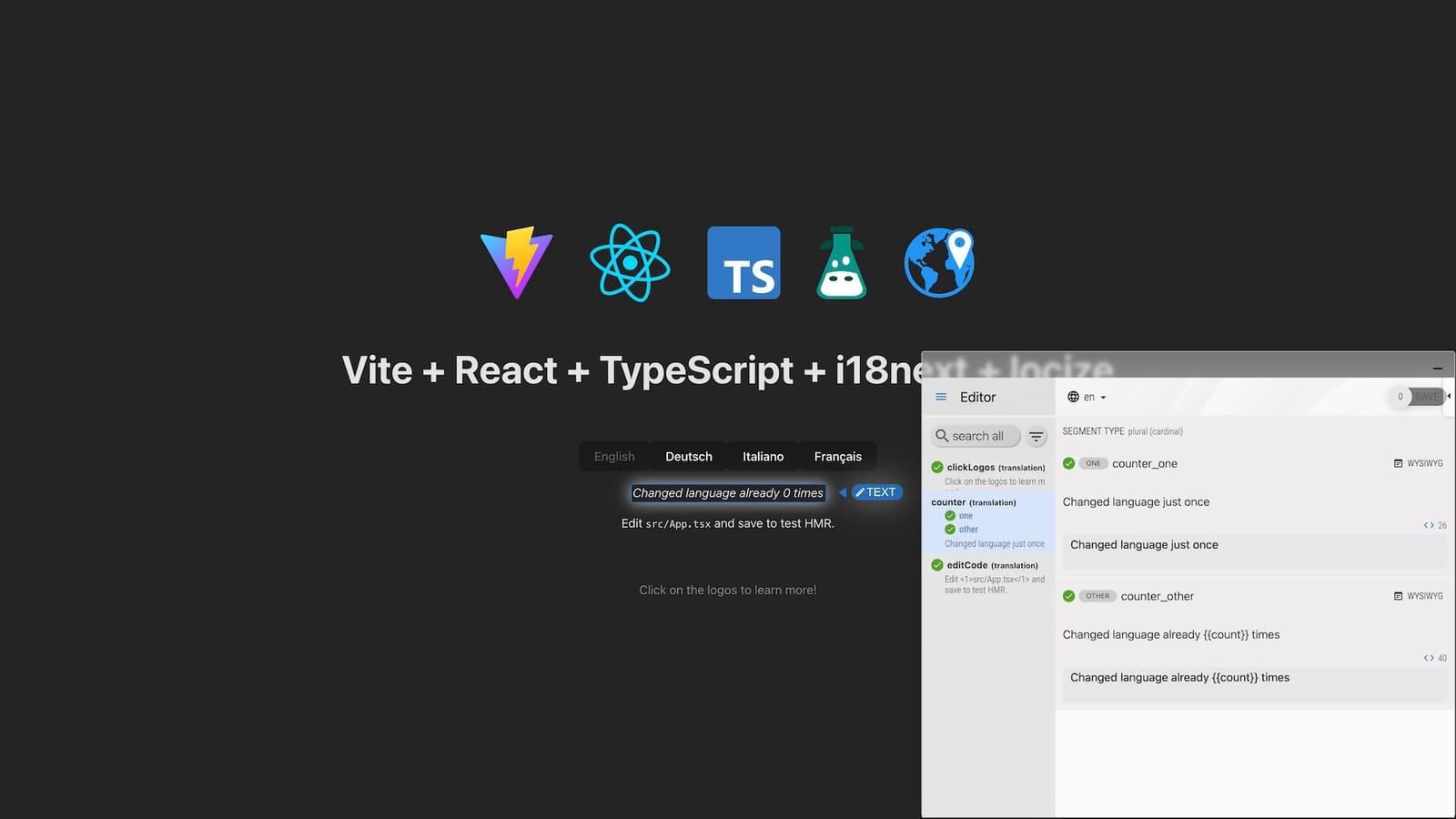
The popup remembers its position and size across page reloads. It automatically detects URL changes in single-page applications. You can exclude specific elements from being parsed by adding the data-locize-editor-ignore="true" attribute.
The iframe embed in Locize
Alternatively, you can embed your website in an iframe inside the Locize UI. Translators stay in Locize, see your site in the embed, and click any text to highlight the matching key in the sidebar.
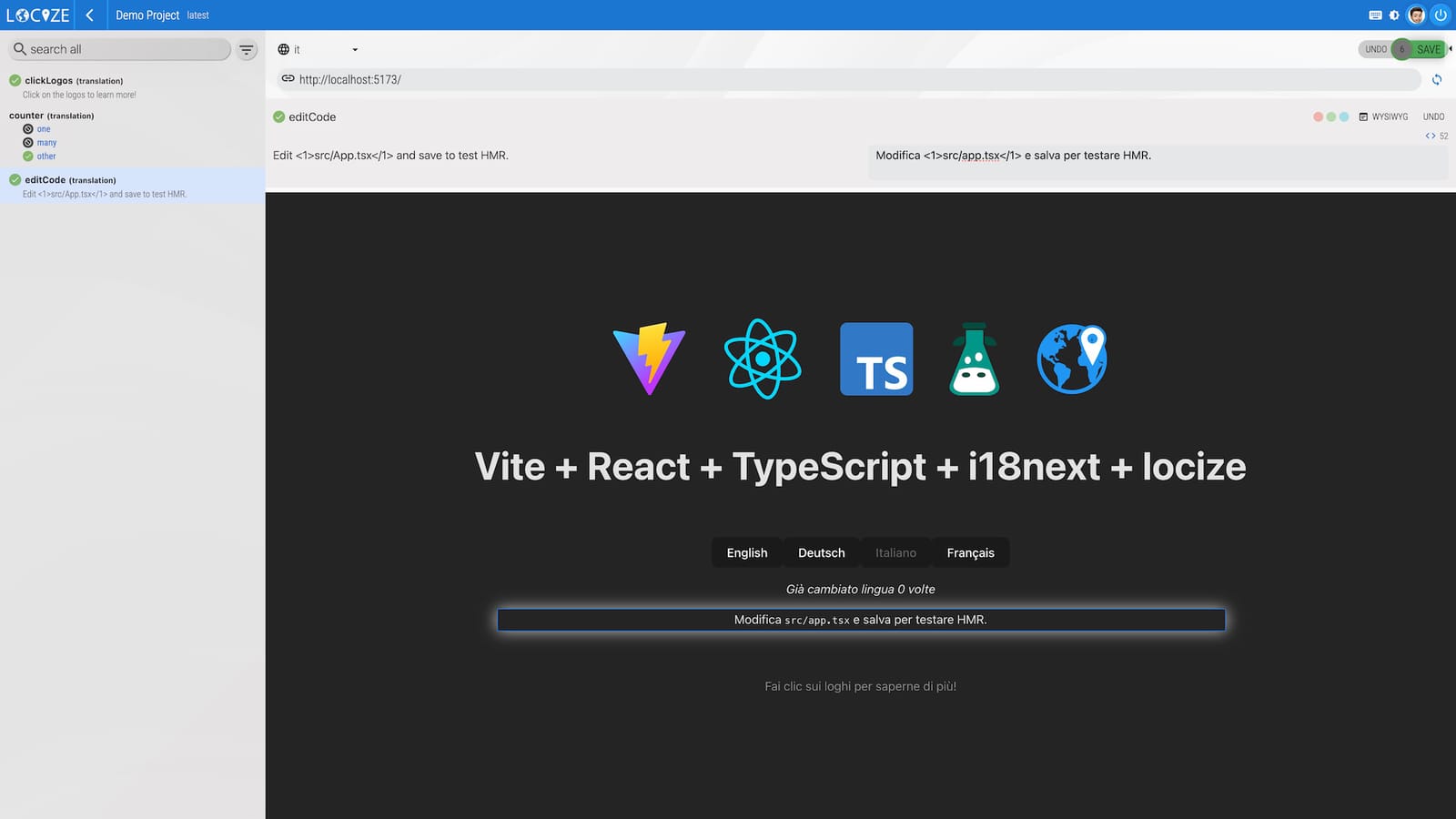
Set the URL(s) you want to embed in the project settings under "Set InContext editor urls". Multiple URLs (staging, production, locale-specific) are supported.
How text matching works under the hood
The script needs to map text on your page back to translation keys in your Locize project. Three strategies are supported, in order of reliability:
- Subliminal markers (default): When using locizify or the i18next
locizePlugin, every translated string on the page contains hidden metadata via i18next-subliminal: invisible Unicode characters that encode the namespace and key. This means string-to-key matching is exact, even when the same English text appears in multiple places with different keys. This is the most reliable matching strategy in the category; it is not based on text similarity or position guessing. - Data attributes: Annotate your HTML with
data-i18nanddata-i18n-nsattributes to explicitly map elements to keys. Useful when you want explicit control. - Raw text lookup: As a fallback, the script sends raw text to the editor, which performs an exact search and returns a match if found.
Getting started with Locize ICE: minimal example
The shortest path to Locize in-context editing, with i18next:
import i18next from 'i18next'
import { locizePlugin } from 'locize'

i18next.use(locizePlugin).init({
  // your normal i18next config
})
That's it. Append ?incontext=true to any URL on your site, log in with your Locize account, and you have in-context editing on your real application.
If you want the editor to always show (no URL parameter needed), use locizeEditorPlugin({ show: true }). If you're not using i18next, the locize package also exposes a standalone API (startStandalone, setEditorLng, addLocizeSavedHandler) that works with any i18n library that loads JSON messages, including MessageFormat, Fluent, and bespoke setups.
Full integration documentation: Locize in-context editor docs.
When each architecture pattern fits
A short decision guide:
- You control the codebase + you want translators to use deep-linked preview URLs: SDK / script injection (Locize, Crowdin, Tolgee, Localazy).
- You cannot add code (third-party SaaS, no engineering capacity): Proxy-based (Phrase) or browser extension (Lokalise).
- You need to translate a site you don't own: Proxy-based.
- You want translators to work entirely inside the TMS, no separate window: Iframe embed (most platforms support this as a secondary mode).
- You're already using i18next: Locize's SDK approach is the lowest-friction integration: same team behind i18next, deepest framework integration, subliminal marker matching that competitors don't offer.
A note on text-matching reliability
One detail that distinguishes ICE implementations is how they map text on the page back to translation keys. Approaches range from:
- Subliminal markers: invisible metadata embedded in rendered strings (Locize, via i18next-subliminal). Exact mapping, robust to duplicate text.
- Data attributes: explicit
data-i18n="key"attributes (supported by Locize, Crowdin, others). Robust but requires markup. - Position / similarity matching: the editor guesses the key from the position of the text on the page and the visible text content. Brittle when the same English text appears multiple times with different keys.
If your application has duplicate strings used in different contexts (a common case in larger apps, where "Save", "Cancel", "Submit" appear dozens of times), the matching strategy matters. Subliminal markers and data attributes both handle duplicates correctly. Position / similarity matching does not.
Related reading
- i18next vs. Locize: when to use each, and how they work together
- Locize in-context editor documentation: full setup guide
- Context information in Locize: beyond in-context editing, per-key context, screenshots, OCR
- Swiss-made translation management system: Locize as a Swiss-engineered TMS
- Compare Locize to alternatives: head-to-head comparisons with Lokalise, Crowdin, Phrase, Tolgee, and others
Tired of managing translations by hand?
Locize is the translation management backend by the i18next team: CDN delivery, AI translation, in-context editing, no redeploys.
Start your free 14-day trial