
How to Set Up Automatic Translation with i18next and Locize
Most i18next setups require manual steps to manage translations: extract keys, send them for translation, download the results, commit the files, deploy. Each step is a context switch, and the longer the cycle, the more likely translations lag behind your code.
This guide shows how to eliminate all of those manual steps using i18next's saveMissing feature and Locize's automatic translation workflow. The result: you write code, and translations appear in all your target languages, live on the CDN, without a deploy.
What the automated workflow looks like
Developer writes t('checkout.title', 'Complete your order')
     ↓
i18next detects the key is missing
     ↓
saveMissing sends it to Locize automatically
     ↓
Locize auto-translates into all target languages
(using your configured AI/MT provider + styleguide + glossary)
     ↓
Translations publish to CDN
     ↓
Your app fetches the updated translations at next load
No files to commit. No deploy to trigger. No translator to email (unless you want human review).
Step 1: Set up i18next with Locize backend
Install the packages:
npm install i18next i18next-locize-backendFor React, also add react-i18next. For Next.js, add next-i18next. The backend plugin works with any i18next setup.
Configure i18next with the Locize backend and saveMissing enabled:
import i18next from 'i18next'
import Backend from 'i18next-locize-backend'

i18next
  .use(Backend)
  .init({
    fallbackLng: 'en',
    saveMissing: true,
    backend: {
      projectId: 'YOUR_PROJECT_ID',
      apiKey: 'YOUR_API_KEY' // needed for saveMissing — remove in production
    }
  })
Important:
saveMissingshould only run in development. In production, remove theapiKeyand setsaveMissing: false. See the going to production guide for details.
The allowedAddOrUpdateHosts option defaults to ['localhost'], so saveMissing only fires on localhost even if you forget to disable it.
Step 2: Enable automatic translation in Locize
In your Locize project:
- Go to Project Settings > EDITOR, TM/MT/AI, ORDERING
- Enable Automatic Translation Workflow
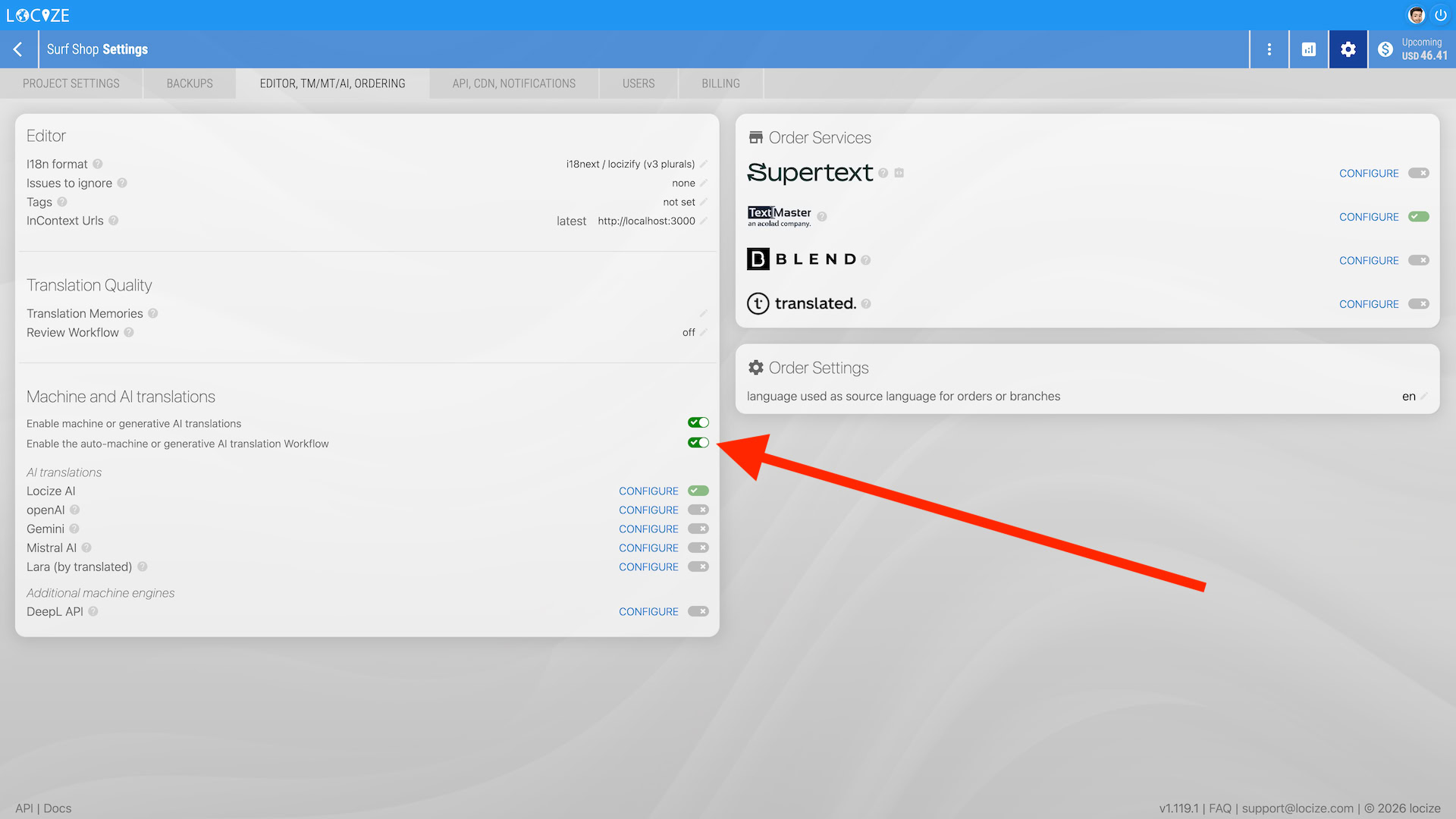
Choose which translation provider to use:
- Locize AI: built-in, works on all paid plans, no external API key needed. Token-based billing.
- Locize MT: built-in machine translation, character-based billing.
- BYOK (Bring Your Own Key): use your own OpenAI, Gemini, Mistral, or DeepL key. Available on Growth ($49/mo) and above. No markup: you pay the provider directly.
All providers (where possible) automatically receive context from your project's styleguide, glossary. This is what makes Locize's automatic translations better than raw API calls: the AI knows your brand voice, approved terminology, and past translations.
Step 3: Write code, translations happen automatically
Use translation keys in your components:
import { useTranslation } from 'react-i18next'

function Checkout() {
  const { t } = useTranslation()
  return (
    <div>
      <h1>{t('checkout.title', 'Complete your order')}</h1>
      <p>{t('checkout.subtitle', 'Review your items before payment')}</p>
      <button>{t('checkout.pay', 'Pay now')}</button>
    </div>
  )
}
When your app runs in development:
- i18next encounters
checkout.titlefor the first time saveMissingbatches the key (5-second debounce) and sends it to Locize- Locize receives the key with its default value ("Complete your order")
- Automatic translation kicks in: the key is translated into all target languages
- Translations appear on the Locize CDN
Next time the app loads, i18next fetches the translations from the CDN, including all the auto-generated translations.
Step 4: Improve translation quality with context
Automatic translation works better with context. There are several ways to provide it:
Styleguide
Define your brand voice once in Project Settings > Styleguide:
- Tone of voice (formal, casual, technical)
- Target audience
- Do's and don'ts
- Per-language overrides
The styleguide is automatically injected into every AI translation prompt.
Glossary
Add approved terminology in Project Settings > Glossary. Terms can be marked as approved or forbidden, with target-language equivalents. The glossary is injected into AI prompts as "use these exact translations."
Key-level context
When using saveMissing, you can include context descriptions:
// In your i18next config:
i18next.t(key, defaultValue, tDescription);
i18next.t(key, { defaultValue, tDescription });
Or add context directly in the Locize editor for each key. This context appears in the AI prompt and is shown to human translators.
Step 5: Optional human review
For content where AI quality is sufficient (internal tools, developer-facing UI, technical docs), you can skip review entirely.
For brand-critical content, AI or MT translations are marked as needing review. A translator checks them in the Locize editor and confirms or modifies them; a confirmed translation keeps its AI or MT origin on record, an edited one becomes human translated.
Step 6: Deploy translations without redeploying
Translations served via the Locize CDN update independently of your app deployment:
- Auto-publish (if enabled for your version): translations go live on the CDN as soon as they're saved
- Manual publish: click "Publish" in the Locize UI, or call
locize publish-versionfrom the CLI or a GitHub Action
Your app fetches translations from the CDN on each load. A copy fix, a new language, or a tone adjustment: all live without touching your codebase.
The AI agent workflow (bonus)
If you use an AI coding assistant (Claude, Cursor, VS Code), the Locize MCP server lets your assistant manage translations directly:
- "Report these new keys to Locize": the AI-agent equivalent of saveMissing. New keys on the reference language trigger automatic translation when enabled.
- "What's the translation coverage for my project?": check if all languages are ready before publishing.
- "Publish the latest version": push translations to CDN from your AI assistant.
The MCP server exposes 22 tools covering the full translation lifecycle.
Summary
| Step | What happens | Manual effort |
|---|---|---|
Write code with t('key') | i18next detects missing key | None |
| saveMissing sends key to Locize | Key appears in project | None |
| Automatic translation | AI/MT translates all languages | None |
| Human review (optional) | Translator reviews in editor | Optional |
| CDN delivery | Translations go live | None (auto-publish) or one click |
The entire pipeline from code to live translations can be fully automatic. The only manual step is human review, and that is optional.
Further reading
Tired of managing translations by hand?
Locize is the translation management backend by the i18next team: CDN delivery, AI translation, in-context editing, no redeploys.
Start your free 14-day trial